
Live Monitoring — controller, group and luminaire states
Live Monitoring — controller, group and luminaire states
480 × 320 display screens in the selected language. The yellow outline marks where to tap. Illustrated data is for demonstration.
Sign in with Service access. The example shows AirBUS groups and the AirBUS luminaire list. The shortcut is experimental, with availability depending on version and channel. The Live Monitoring indicator must be enabled in the menu. If the shortcut is absent, select the MENU path above.
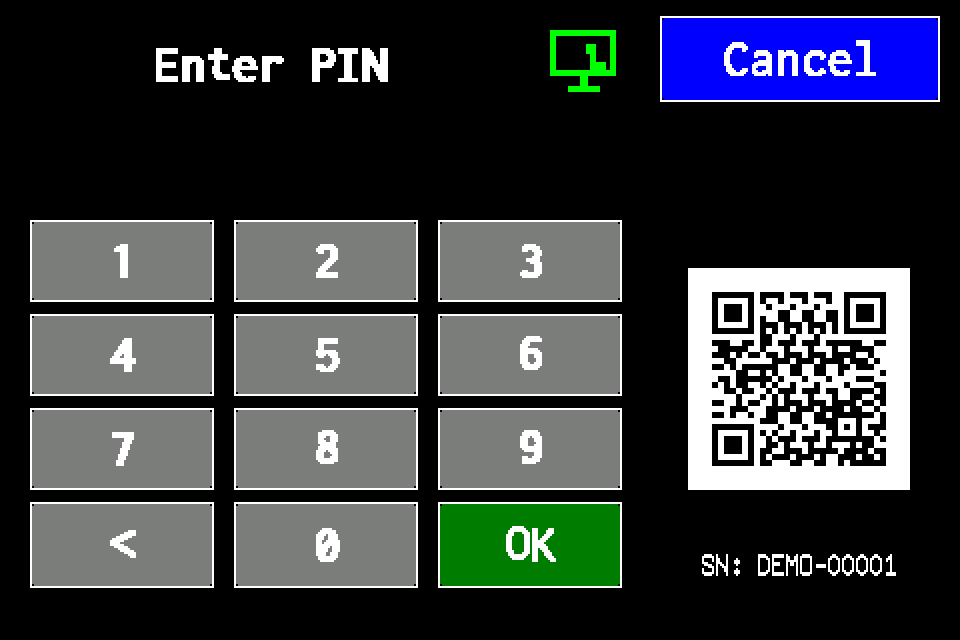
If the controller asks for a PIN
Enter your own Service-access PIN and confirm with OK. If already signed in with Service access, continue to the next screen. Controller access codes →
In METRO, the PIN window retains its original appearance. Controller access codes →
-
EZF480 × 320 · Classic
 1Step 1 / 7
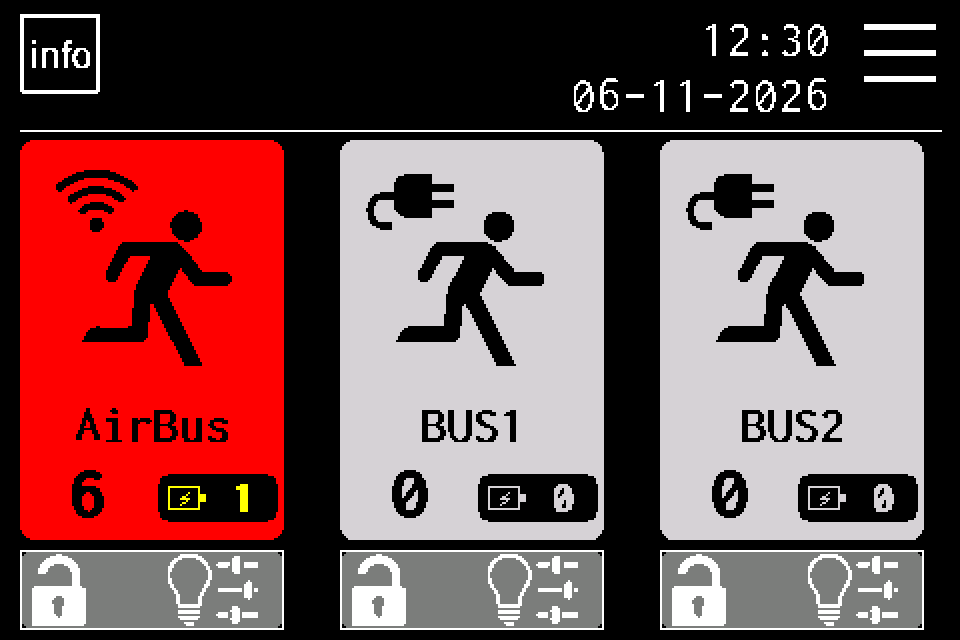
Open the AirBUS channel
After signing in with Service access, tap the AirBUS tile on the home screen. This example shows the experimental AirBUS shortcut. Availability depends on version and channel; use MENU if the shortcut is absent.
-
EZF480 × 320 · Classic
 2Step 2 / 7
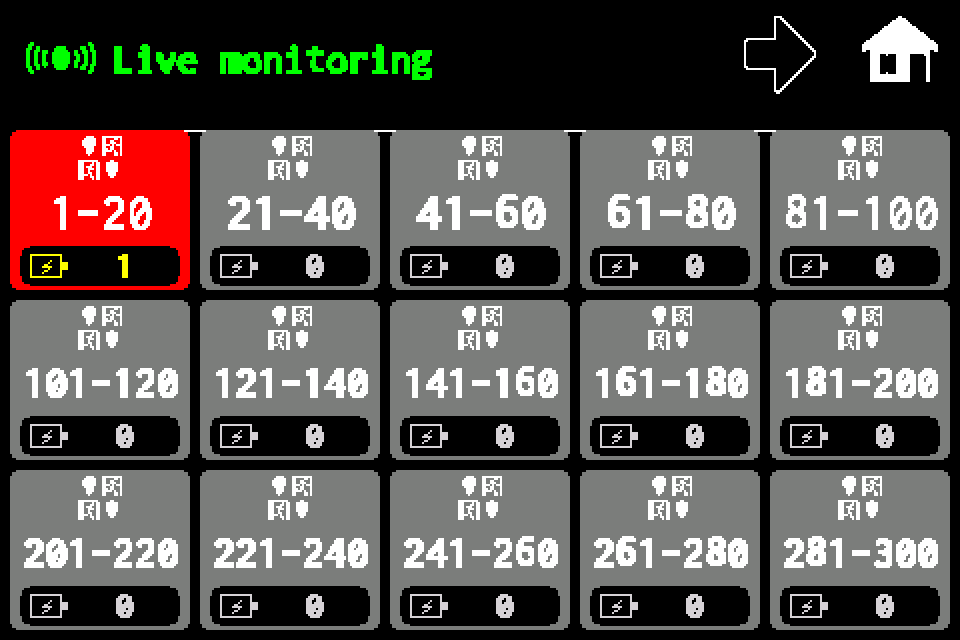
Open a luminaire group
Tap the required group to open its luminaire list. The example highlights the first group.
-
EZF480 × 320 · Classic
 3Step 3 / 7
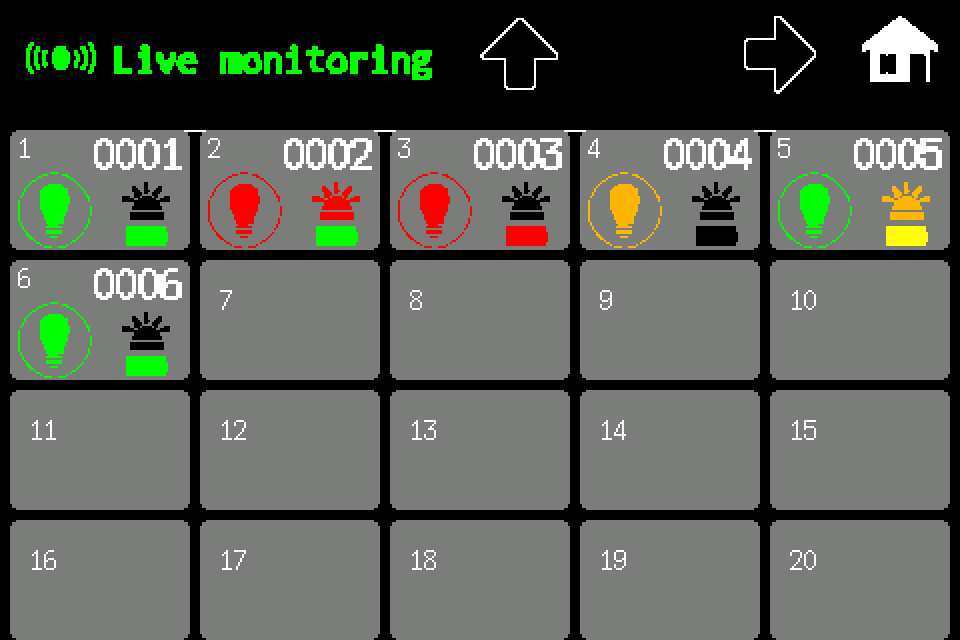
Tap the “Live monitoring” header
On the illustrated AirBUS screen, tap the Live monitoring indicator in the top bar. Green means Live ON; gray means Live OFF. The shortcut is experimental and has limited availability depending on version and channel. It requires Service access and the indicator enabled in the menu. If absent, use MENU.
-
EZF480 × 320 · Classic
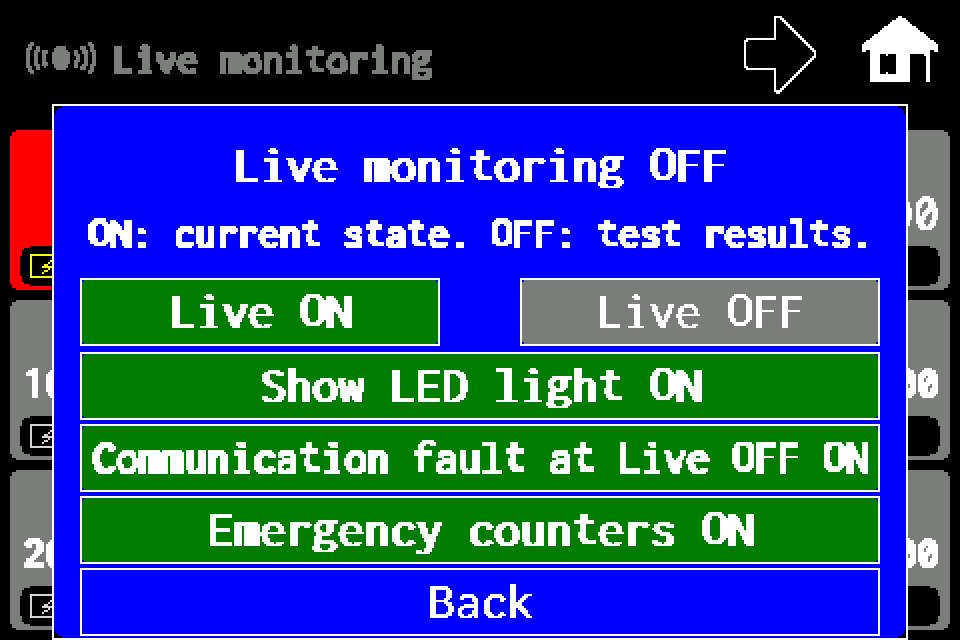 4Step 4 / 7
Set communication-fault display at Live OFF
Communication fault at Live OFF switches between ON and OFF. The change is saved immediately, without a Save button. OFF hides orange communication loss in test-results mode; red failed tests remain.
-
EZF480 × 320 · Classic5Step 5 / 7
Set emergency counters
Emergency counters shows or hides the battery and count on home and group screens. The change is saved immediately. The yellow luminaire battery in the list is independent of this setting. A large network may take up to an hour to collect complete emergency-state data. This setting changes visibility only; it does not switch luminaires into emergency operation.
-
EZF480 × 320 · Classic6Step 6 / 7
Optionally show LED light
Show LED light can mark known LED illumination with an orange icon even at Live OFF. This extra indicator does not change fault evaluation: Live OFF still uses test results. The change is saved immediately.
-
EZF480 × 320 · Classic7Step 7 / 7
Choose “Live ON” or “Live OFF”
Live ON selects current states; Live OFF selects saved test results. Tapping the required button saves the mode immediately and closes the window. Back closes the window without another mode change.
After saving, return to the home screen, groups or luminaire list and check the selected mode. Live OFF shows test results; Live ON shows current states. After enabling emergency counters, a large network may take up to an hour to collect complete emergency-state data.