Access levels and default PINs
| Level | Default PIN | Access |
|---|---|---|
| User / viewing | No PIN. | Home screen, controller information, AirBUS/BUS1/BUS2 lists and groups, luminaire cards, status and test results. |
| Service technician | 99999 — 5 digits, unless changed. | Routine operation, tests, configuration and changing the service PIN. |
| Gessler service technician | Daily changing PIN — 6 digits, available in the Gessler service app. | Add service entries to the journal / Logbuch. |
These PINs apply to the controller’s local display. They are not passwords for a portal, Wiki or app account. After the factory PIN has been changed, use the current code supplied by the person responsible for the installation.
What users can do
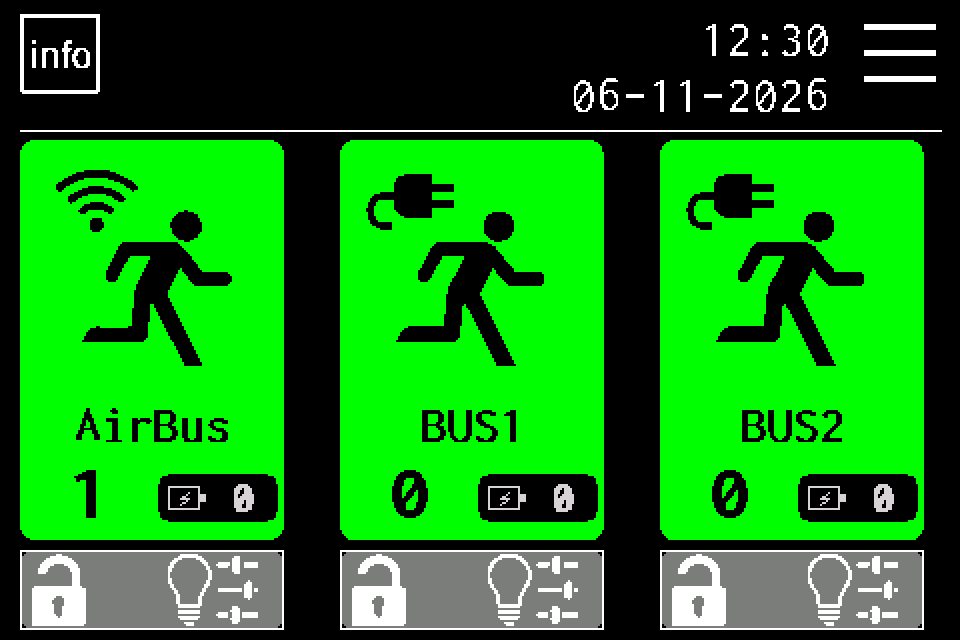
Without signing in, you can check the installation: controller information, luminaire channels and groups, luminaire cards, indicated faults, available results and tests in progress. MENU and protected controls open the PIN prompt.
What service technicians can do
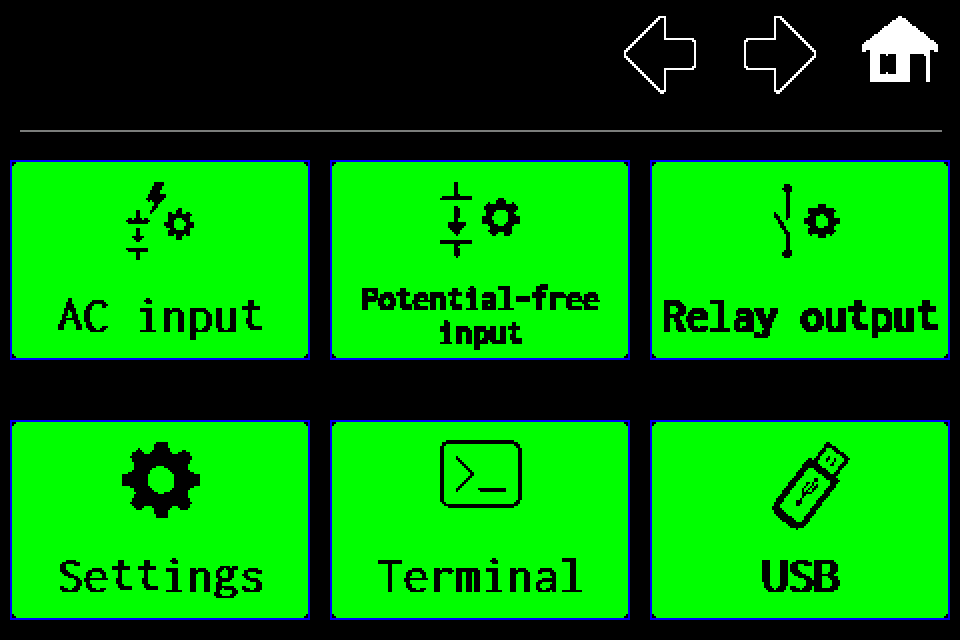
- Run manual tests and control luminaires; configure test schedules and test groups. - Search for and add luminaires, and edit their settings. - Configure the network, language, date and time, controller name, radio, buzzer, inputs and outputs. - View reports and the event log and export them to USB; import and export luminaire and group lists. - Perform available service operations, including restarting and confirmed data deletion, and change the controller’s service PIN. - In classic version 10.118d, create and restore SD/USB/Cloud backups and configure Cloud email. Cloud remains experimental.
Daily Gessler PIN and service entries in the logs
To add a service entry to the journal / logs (Logbuch), you need the Gessler service technician PIN. This is a daily changing six-digit code, obtained in EZF Service — the Gessler service app, under “Dzienny PIN Gessler” (Daily Gessler PIN).
Open this function in the app with Gessler service access, check the date and use the displayed code in the service entry confirmation window. The code date must match the date set in the controller. If the code is rejected, check the controller date and obtain the code for the correct day.
This access is separate from the controller’s standard five-digit service PIN. The PIN change described below affects only this controller’s service code; it does not change the daily Gessler PIN. Viewing and exporting the log use the usual permissions for those operations.
Download the current Gessler service app for Android and iOS. The download card below shows the release currently published on the portal; app files do not need a separate Wiki update after a new publication.
Signing in, signing out and missing access
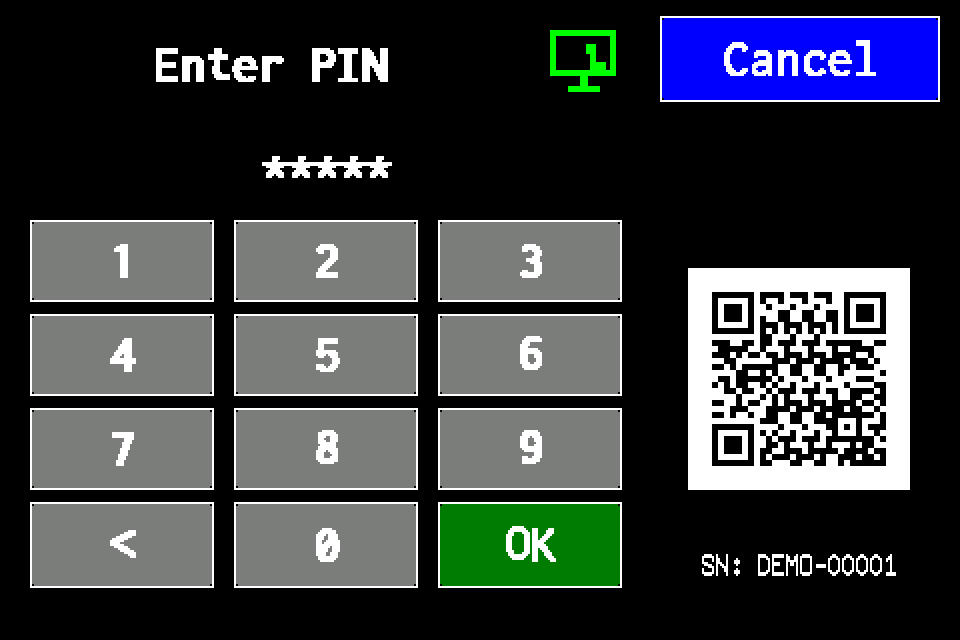
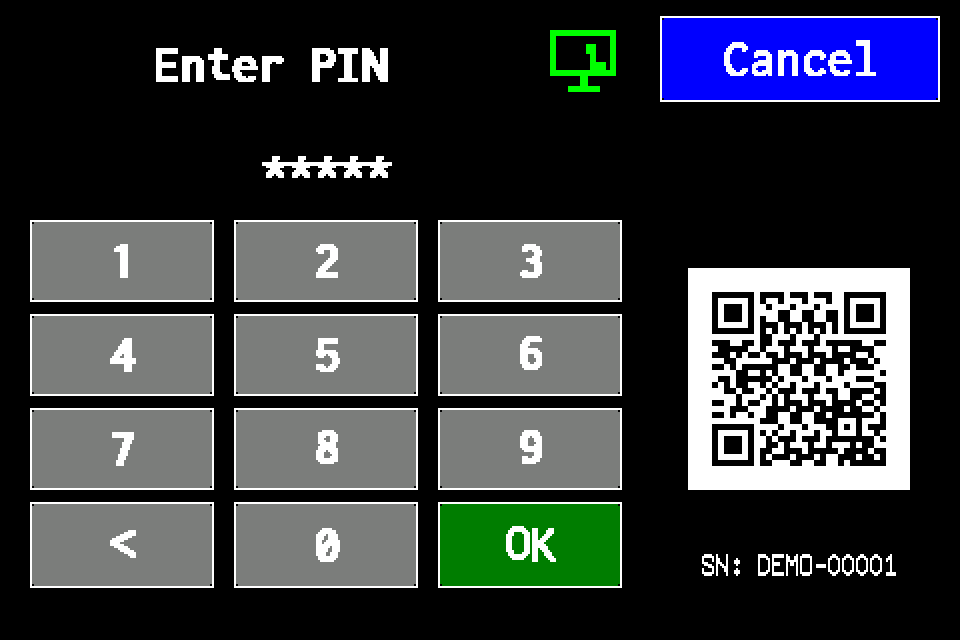
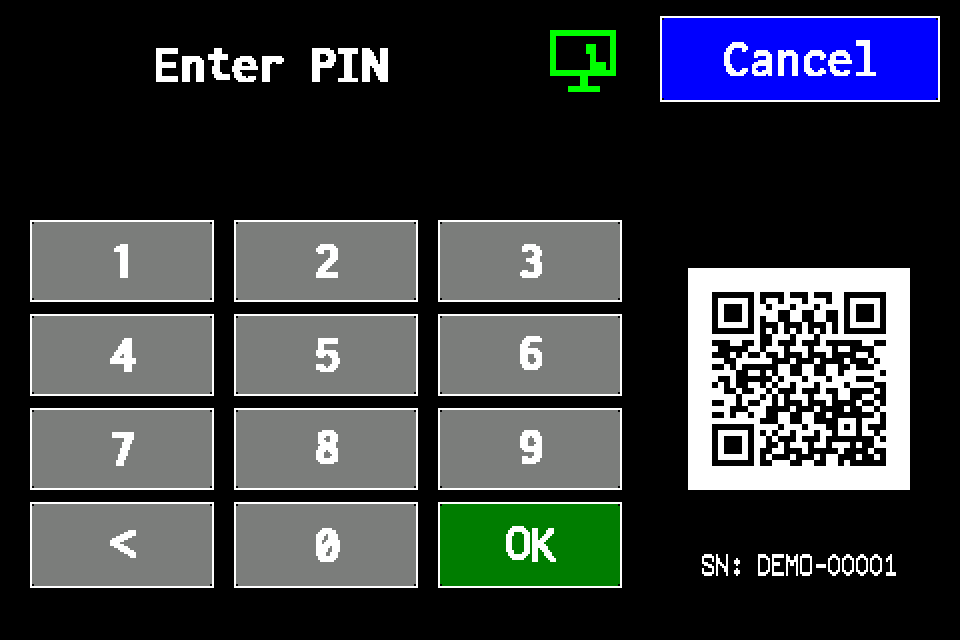
From the home screen, choose MENU, enter the current service PIN and confirm with OK. The standard service PIN has exactly 5 digits. “<” deletes the last digit and Cancel exits entry.
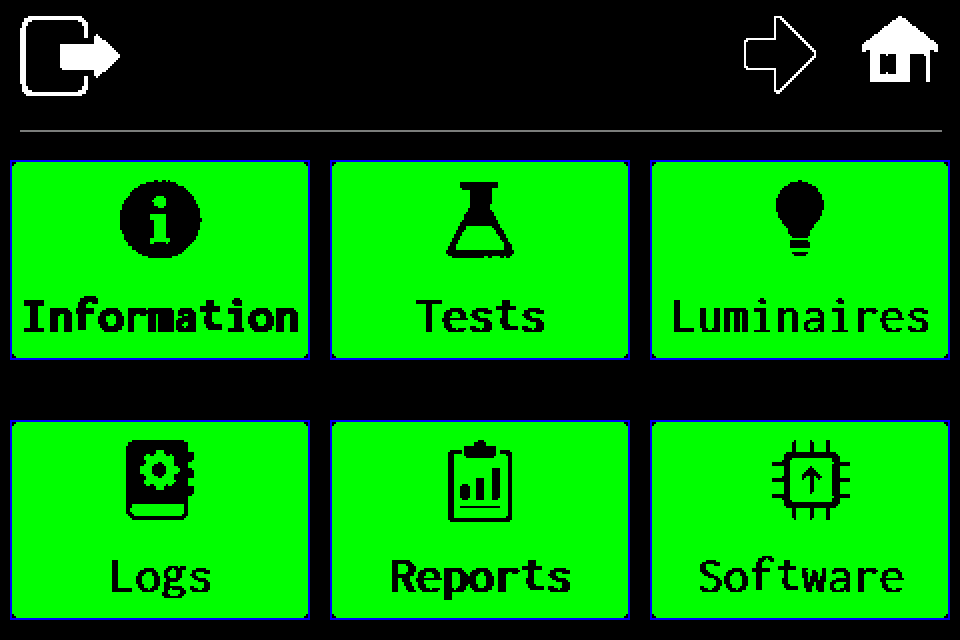
To sign out, tap the door / sign-out icon at the upper left of the first MENU page. The home button only returns to the home screen and leaves the session active. After 5 minutes without touching the display, the session expires automatically; each further touch restarts this period.
If the factory code does not work, it may have been changed. Ask the person responsible for the installation or an authorised service provider for the current code.
Before changing the PIN
This is one shared service-level PIN for this controller, rather than a separate personal account. Changing it affects every technician who uses that code.
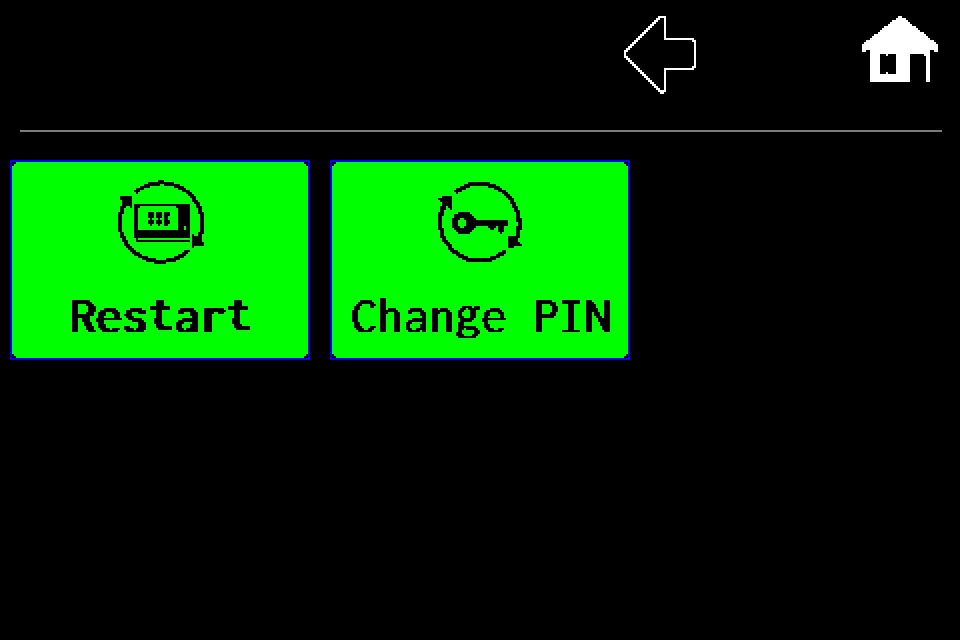
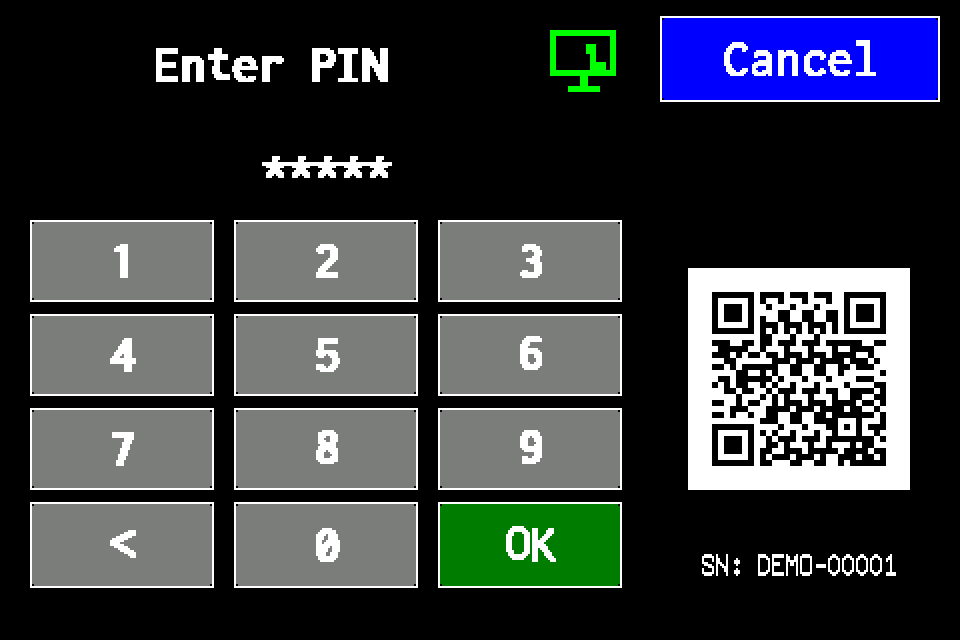
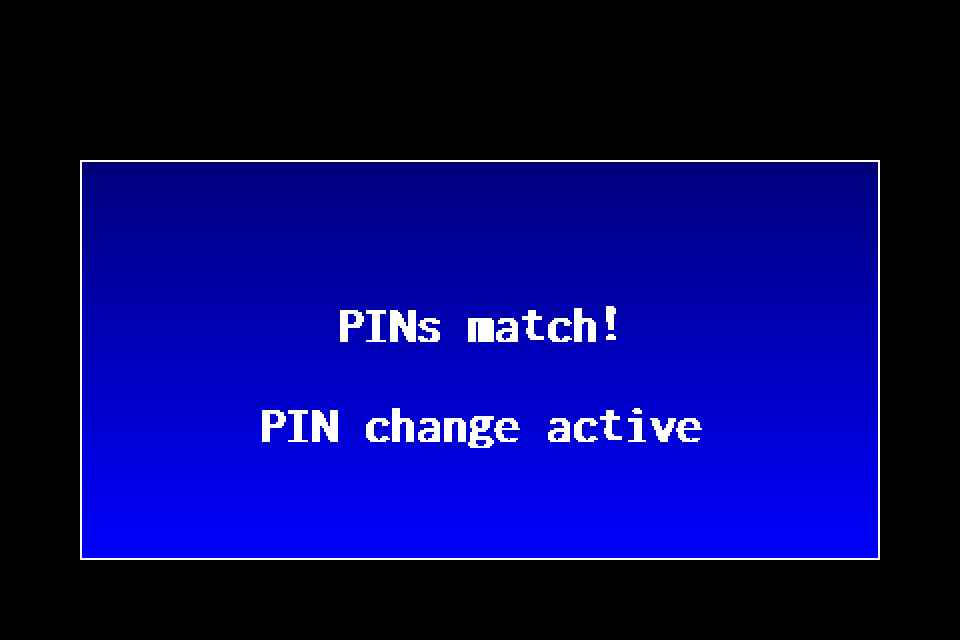
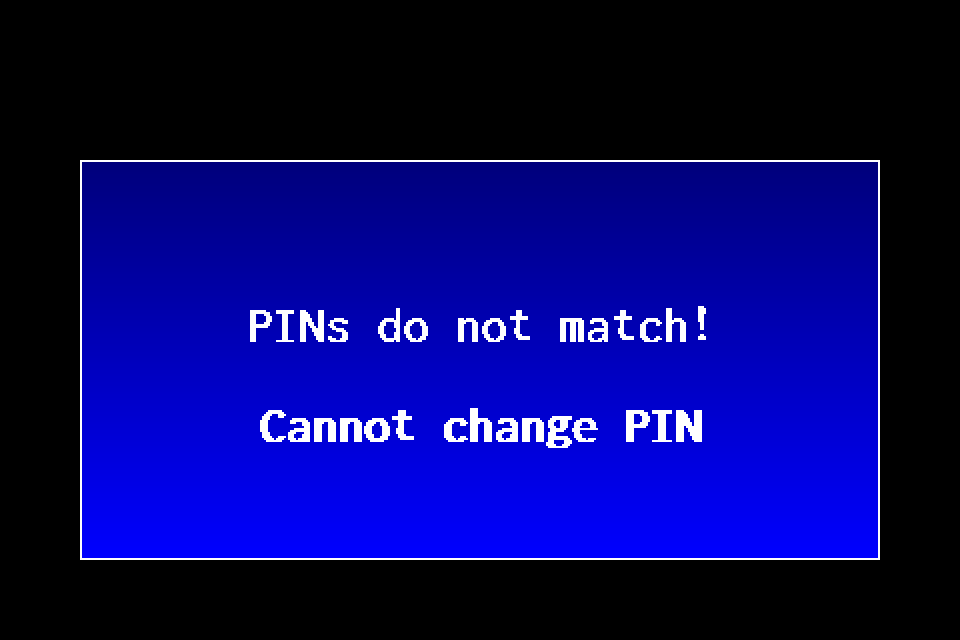
Sign in as a service technician using the current code. Prepare a new PIN of exactly 5 digits and enter it twice as shown below. Different entries, Cancel or an incorrect length leave the change unsaved. Keep the new code available to authorised people.
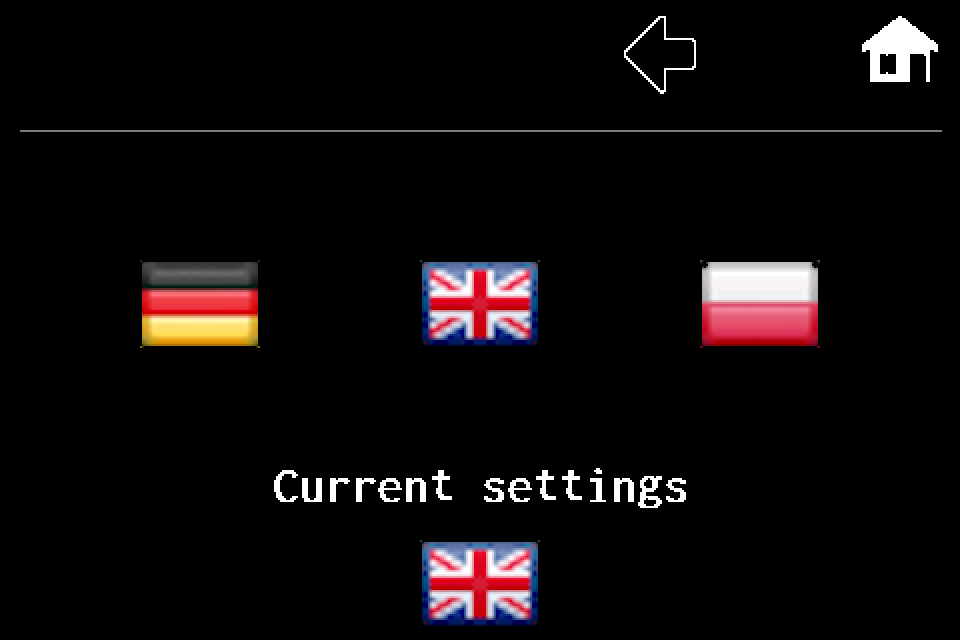
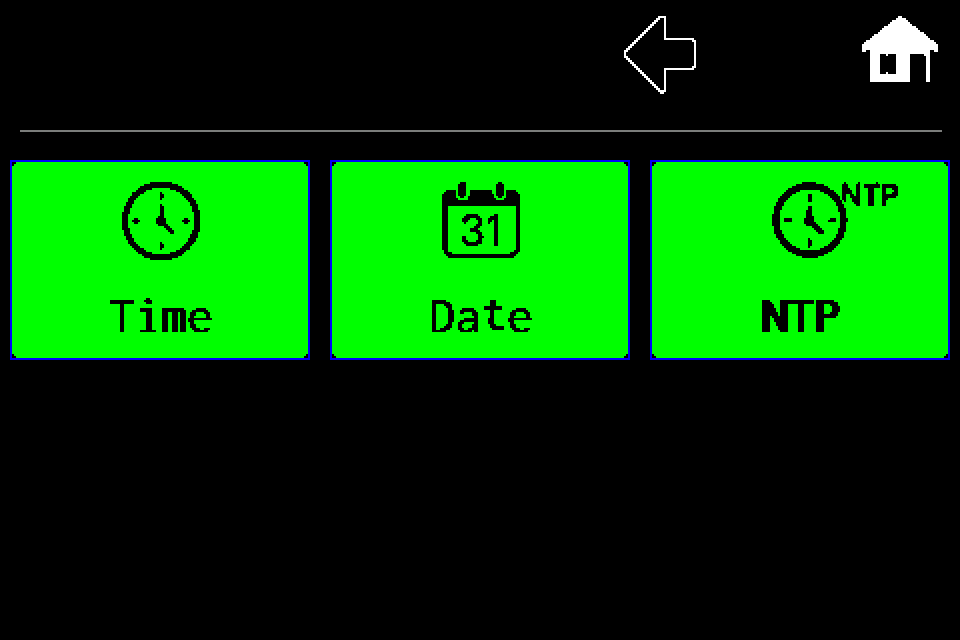
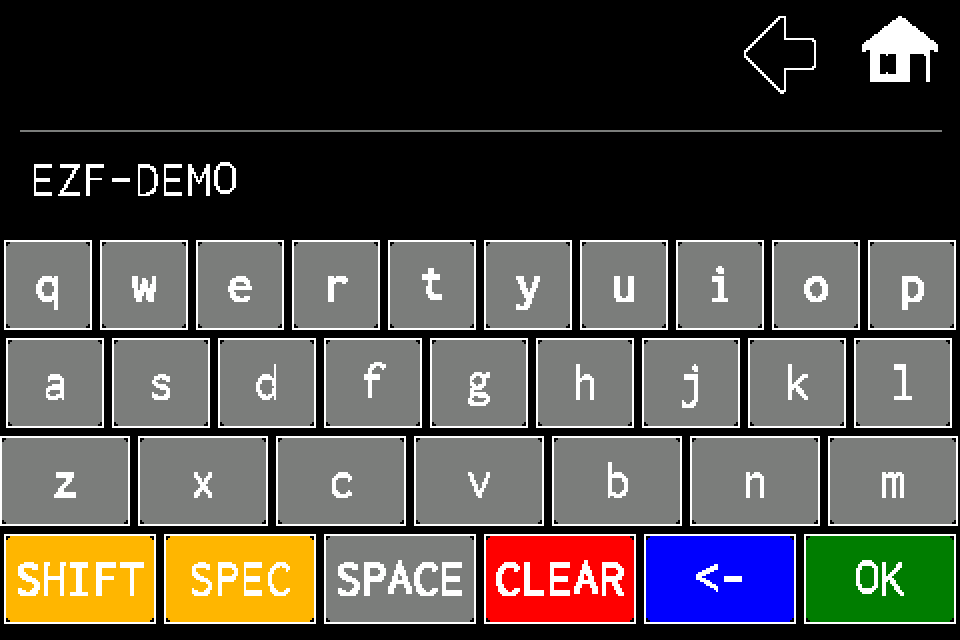
The images below come from the classic simulator. They explain the display layout; entering a code in the simulator does not change a real controller’s PIN.