
Find your answer.
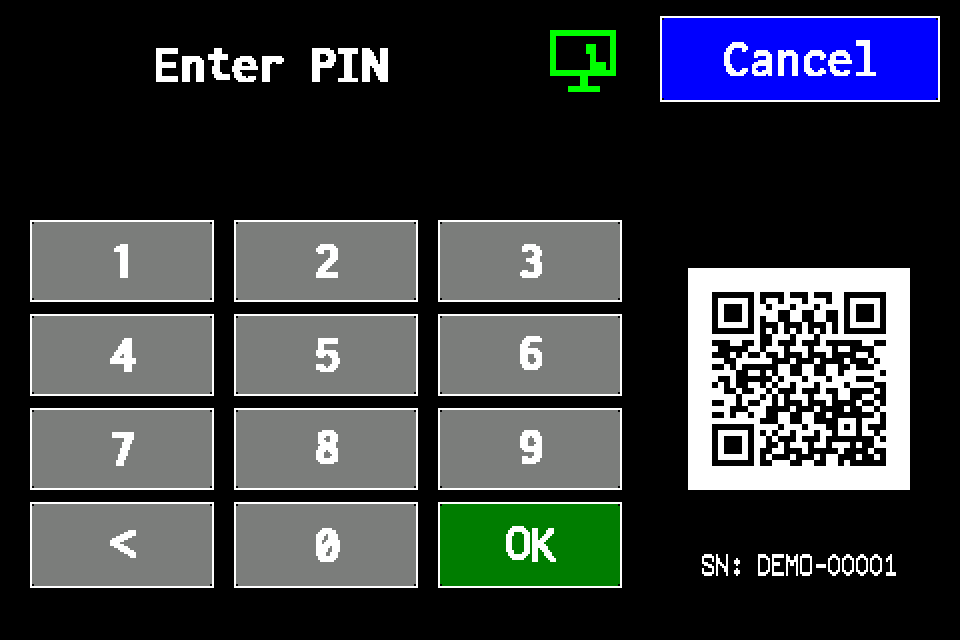
Controller access codes
User and service functions, the default service PIN, daily Gessler PIN and changing the code on the classic display.
EZF - operating manual 2026 (DE)
German operating manual for the EZF controller in PDF format.
Planer — building projects, luminaire placement and AirBUS connectivity
Load floor plans, draw walls, select catalogue luminaires and estimate 868 MHz radio connectivity.
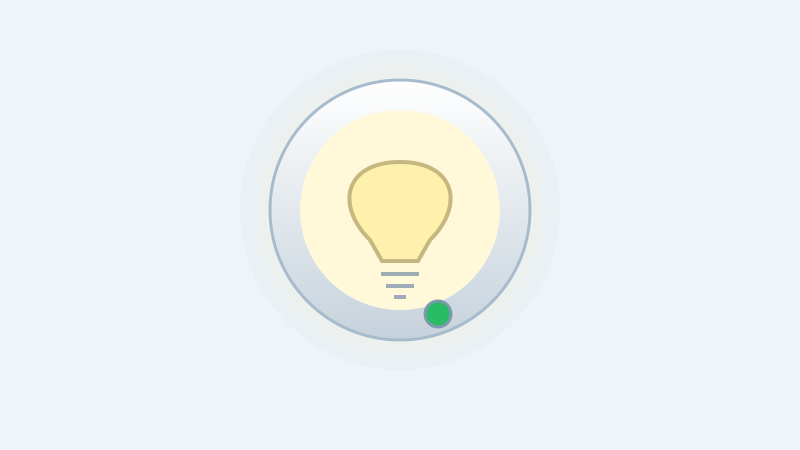
Standard and Gessler LED indication — reading luminaire faults
Distinguish the status LED from the main light. Function test, readout after complete power removal and an animated single-luminaire simulator.
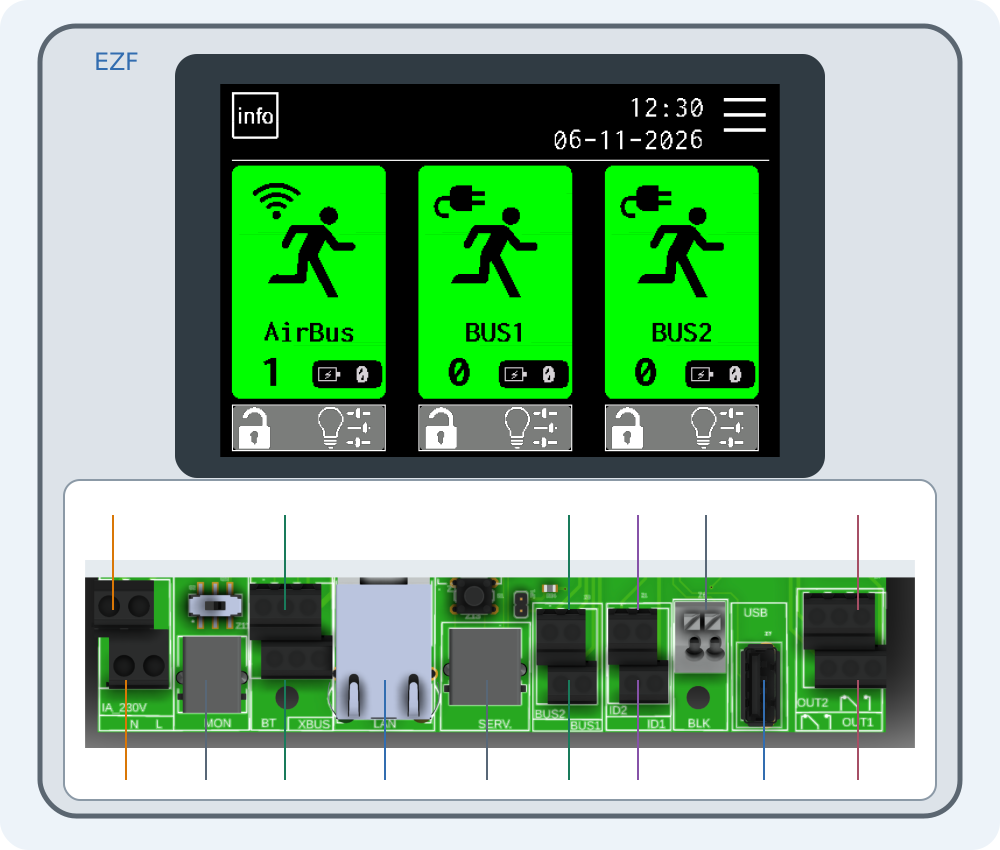
Connecting EZF — interactive connector guide
Select a number on the drawing or choose a connector below. Enlarge the drawing to read printed labels.
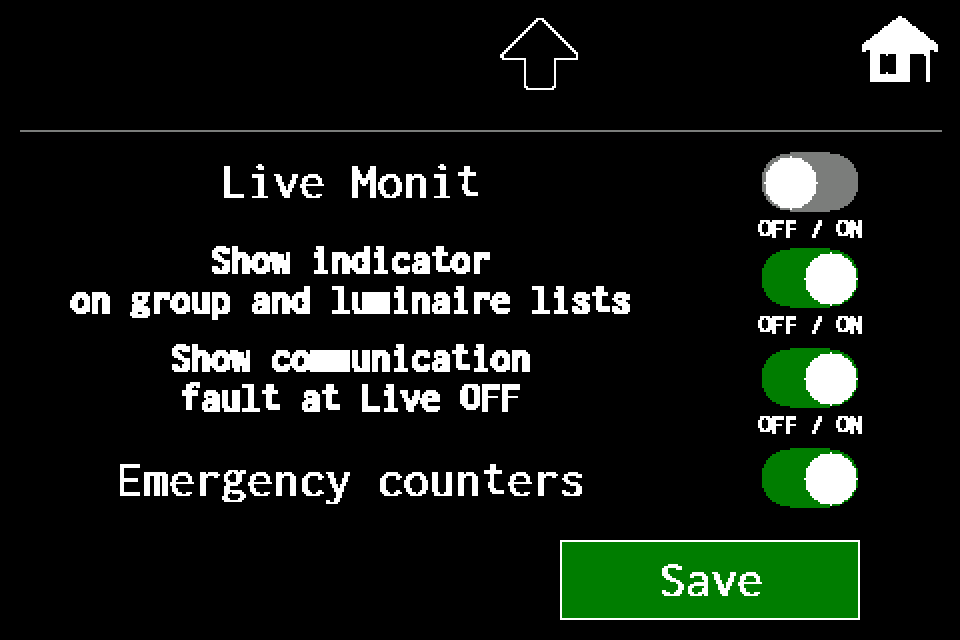
Live Monitoring — controller, group and luminaire-list states
Live OFF and Live ON, communication faults and emergency counters. MENU settings and experimental group/list shortcuts, with Classic/METRO display steps.
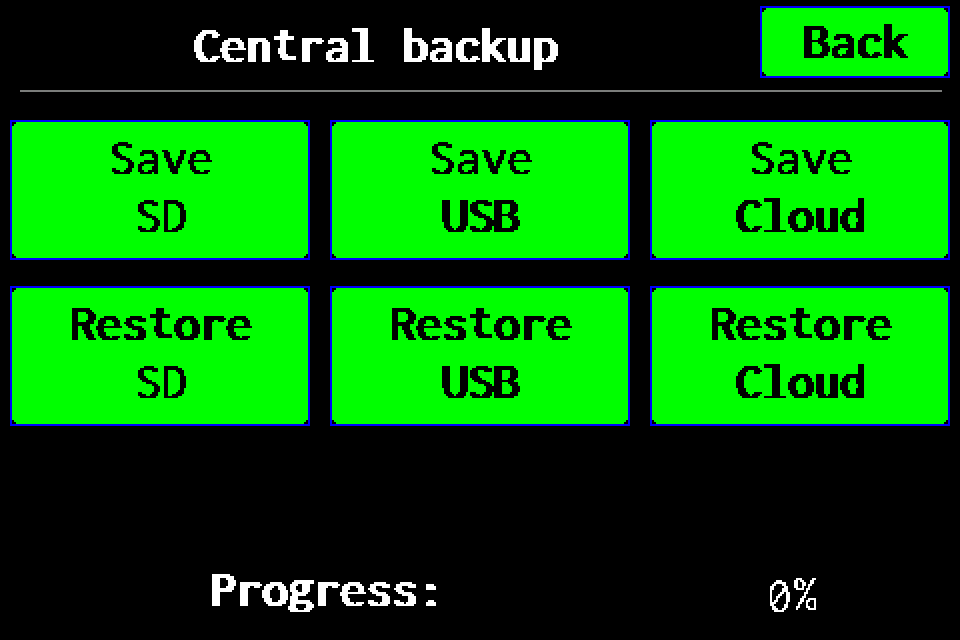
Full backup to USB
Full controller backup to a USB drive: menu path, saving, progress and checking the .ezb file. A working SD card is also required for USB.
Full backup to SD card
Full controller backup to SD card: menu path, saving, progress and checking the archive in /backups.
Full backup to Cloud — experimental
Experimental feature: prepare a full backup on SD and upload it to Cloud. Functions may be incomplete; keep a checked USB or SD backup.
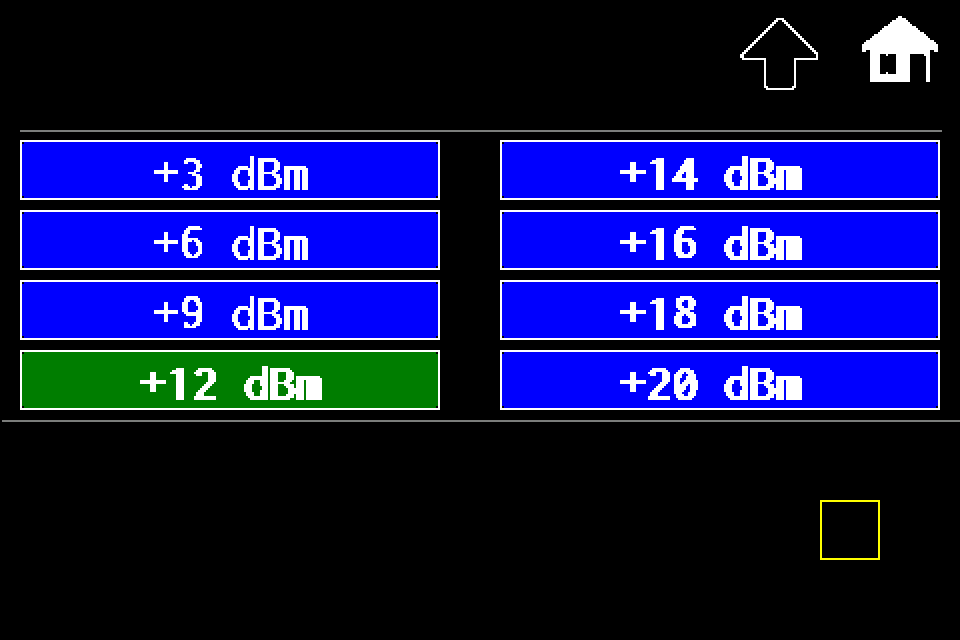
Controller — increase or reduce transmit power
MENU → Settings → Radio → Set Power → dBm level → disk icon. Controller radio power with Classic/METRO display steps.
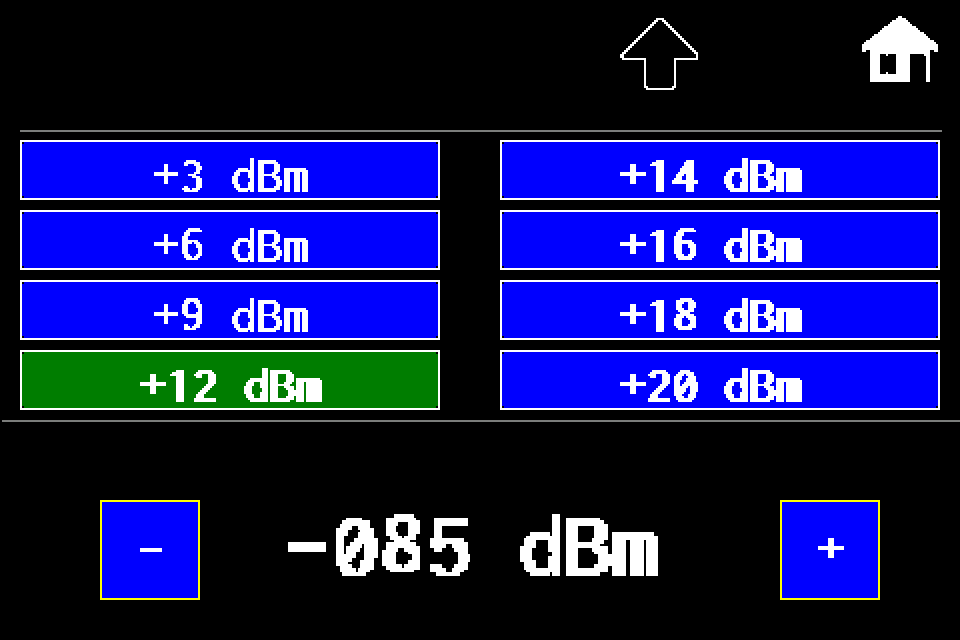
AirBUS — increase or reduce luminaire transmit power
MENU → Settings → Radio → In lumin. → dBm level → disk icon → Send SYNC. RSSI threshold explained, with a display image for each step.
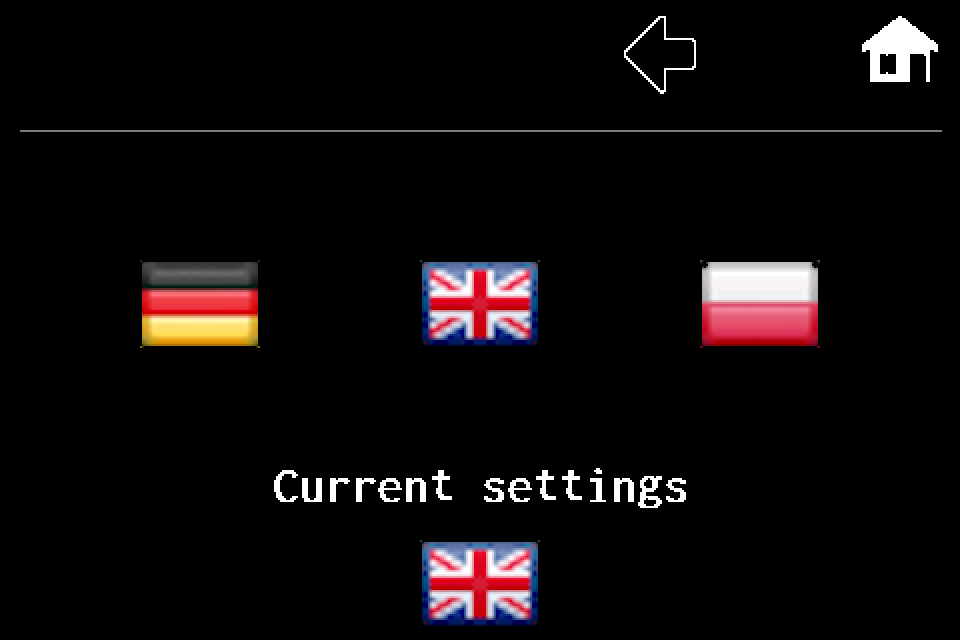
Controller — language settings
MENU → second page → Settings → Language. PL, DE and EN flags, saving on exit and a display image for each step.
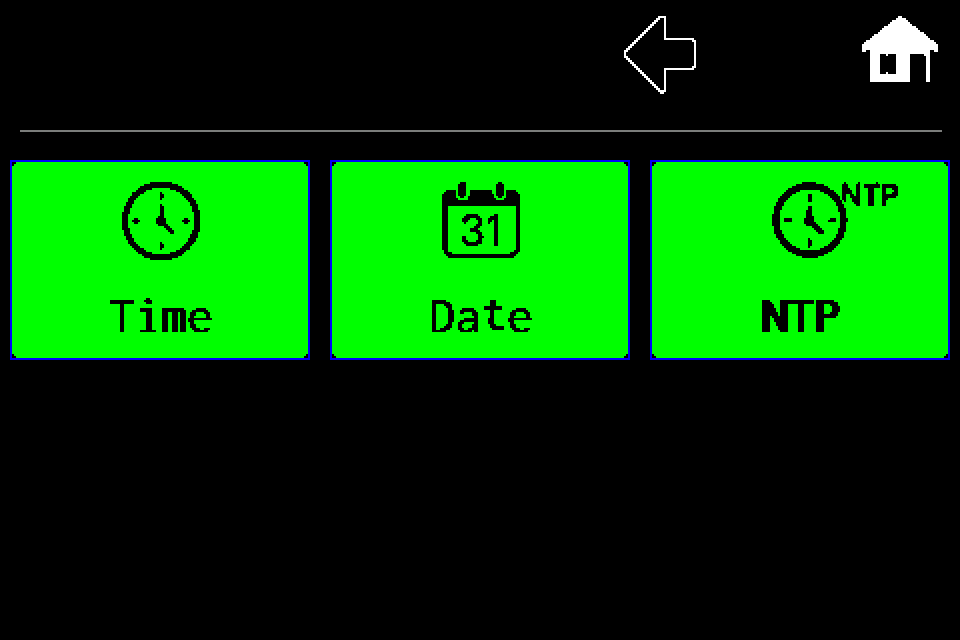
Controller — set the clock, date and NTP
RTC clock: set time and date manually or use NTP synchronization, correction and Summer time mode. Separate procedures with display screens.
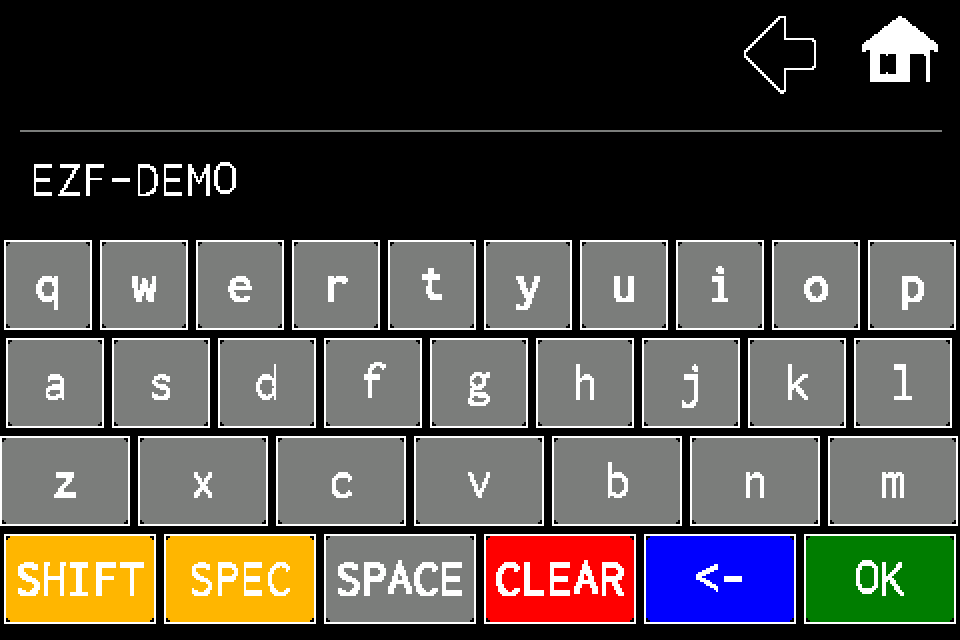
Controller — device name
MENU → Settings → Ctrl name. Keyboard editing, saving with OK and checking the name in Information, with display screens.
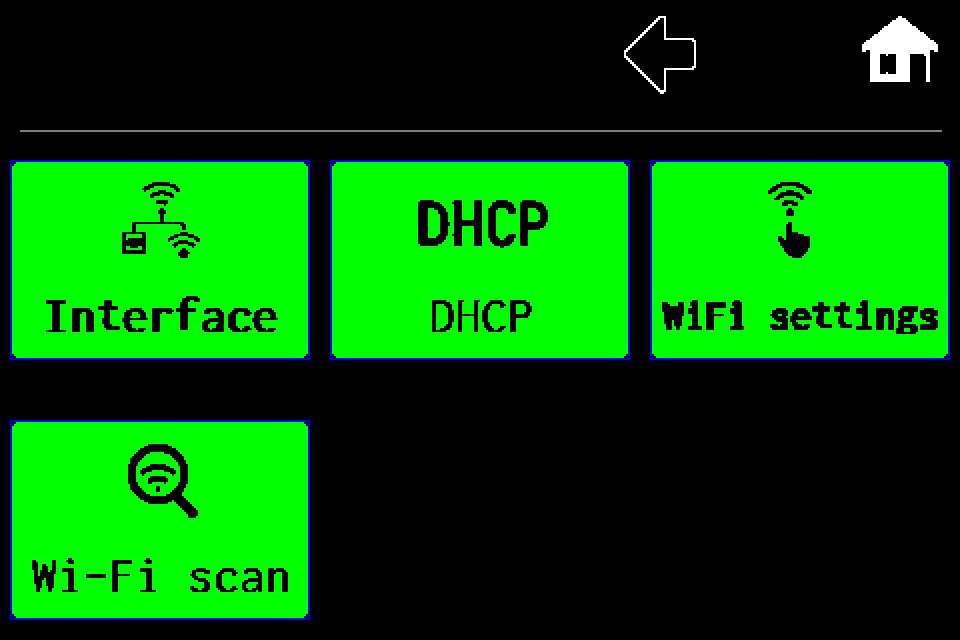
Network — Wi‑Fi client setup and network scanning
Client mode, Wi‑Fi scan, SSID and password, including the PIN screen, saving and restart.
Network — switch from Wi‑Fi client to LAN
Select wired LAN, save the profile and restart the controller.
Network — controller Access Point mode
Enable the controller’s own Wi‑Fi network and read connection details in INFO.
Network — DHCP and static IP configuration
Disable DHCP, edit IP, gateway and mask, then save and restart for LAN or Wi‑Fi client.
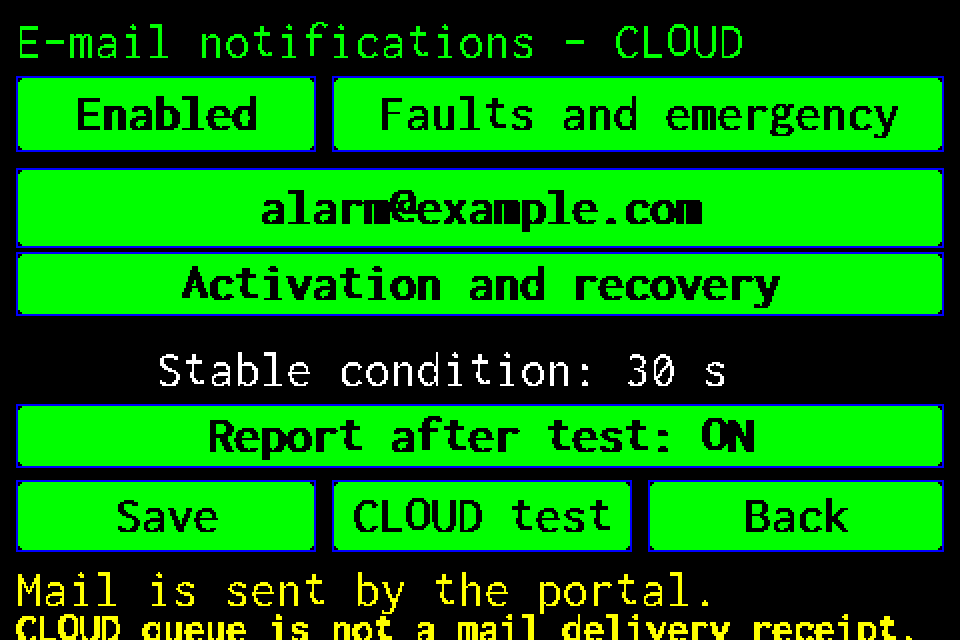
CLOUD email notifications — setup and test
Recipient, alarm conditions, reminders and reports after tests, with display screens and PIN login.
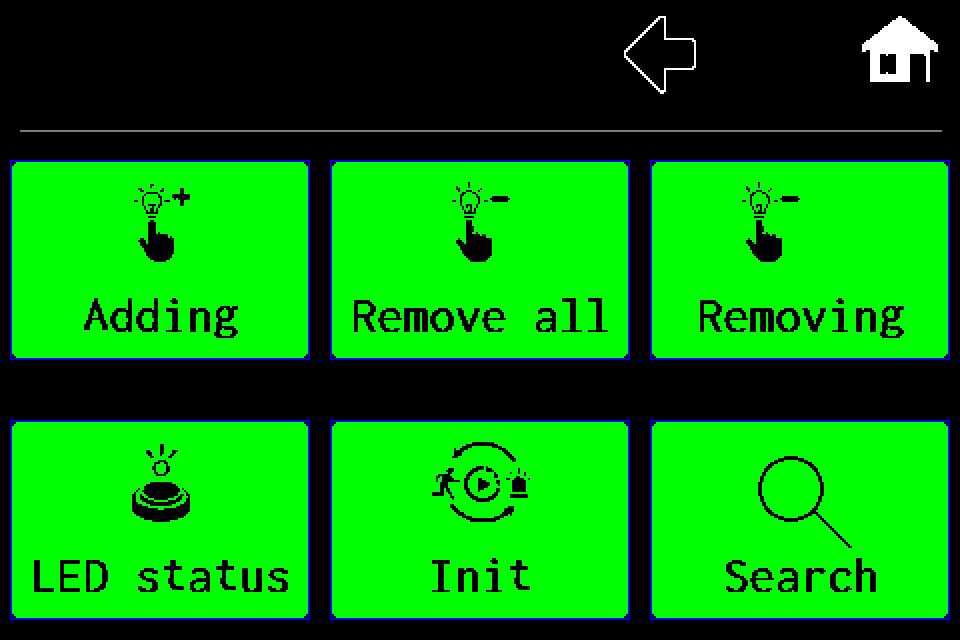
AirBUS — manually add a luminaire by address
MENU → Luminaires → Adding → Wireless → HEX address → OK, with display screens.
AirBUS — delete one luminaire
Remove one specified address, including the confirmation screen.
AirBUS — delete all luminaires
Delete the entire Wireless channel list, with both confirmation screens.
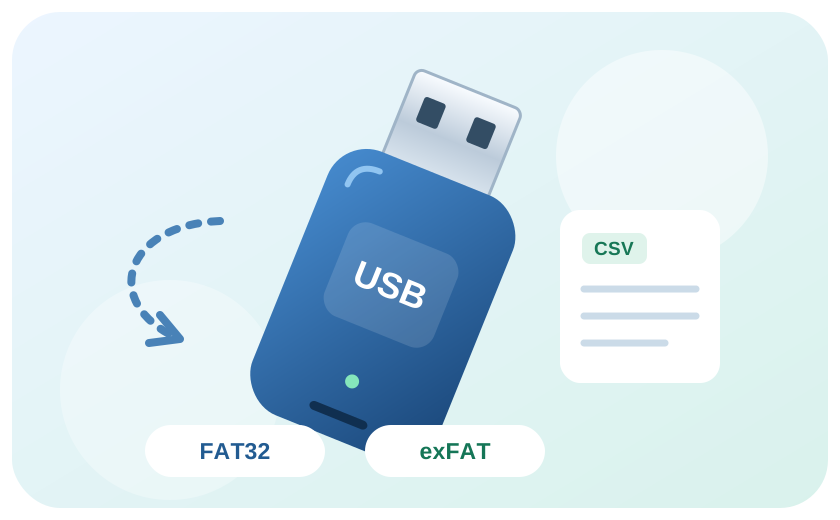
Import a luminaire list from CSV
Prepare and validate a list for AirBUS, BUS1 or BUS2, then import it over USB.
Export luminaires and transfer them to another controller
Transfer luminaire lists by channel and verify the imported configuration.
Export test group assignments
Export gruppetest.csv and check other settings separately.
Export test reports
Save test results to USB for archiving.
Export the event log
Archive logs.csv and service journal entries.
Web Master — setting up the integration
Connect Web Master to an EZF controller, synchronise luminaires and read their status.
Modbus IP — configuration and status monitoring
Enable Modbus TCP, check the register map and test AirBus luminaires.
EZF API — JSON, TSV and error handling
HTTP request examples, luminaire IDs, NVG diagnostics and error codes.
Integration tools — Windows, macOS and simulators
Download the tester, practise locally and prepare the integration without firmware source code.
USB drives for the controller: FAT32 and exFAT
Prepare a USB drive, check format compatibility and resolve errors.
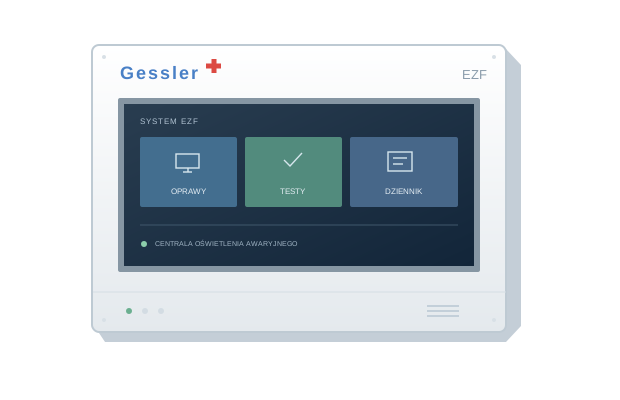
EZF simulators: classic, METRO and comparison
Three interactive R6 views from EZF 10.107 / METRO 10.109.
Meet the EZF control unit
Your starting point for luminaires, tests and system documentation.
BUS and AirBUS. Find your luminaire
The address, channel and location help identify a device unambiguously.
Function test and duration test
How the tests differ and why the configured duration matters.
Results, reports and the event log
Keep the test context and prepare a clear service request.
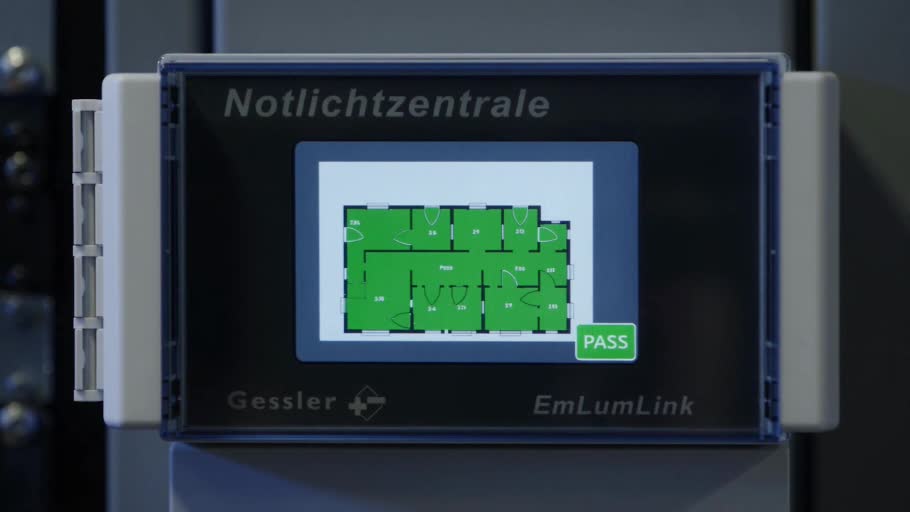
EZF. Safety starts with knowledge
A short opening film for the EZF control-unit knowledge hub.