
Live Monitoring — controller, group and luminaire states
Live Monitoring — controller, group and luminaire states
480 × 320 display screens in the selected language. The yellow outline marks where to tap. Illustrated data is for demonstration.
Have your own Service-access PIN ready. Choose between saved test results (Live OFF) and current luminaire status (Live ON). Changing the view does not start a test. Controller access codes →
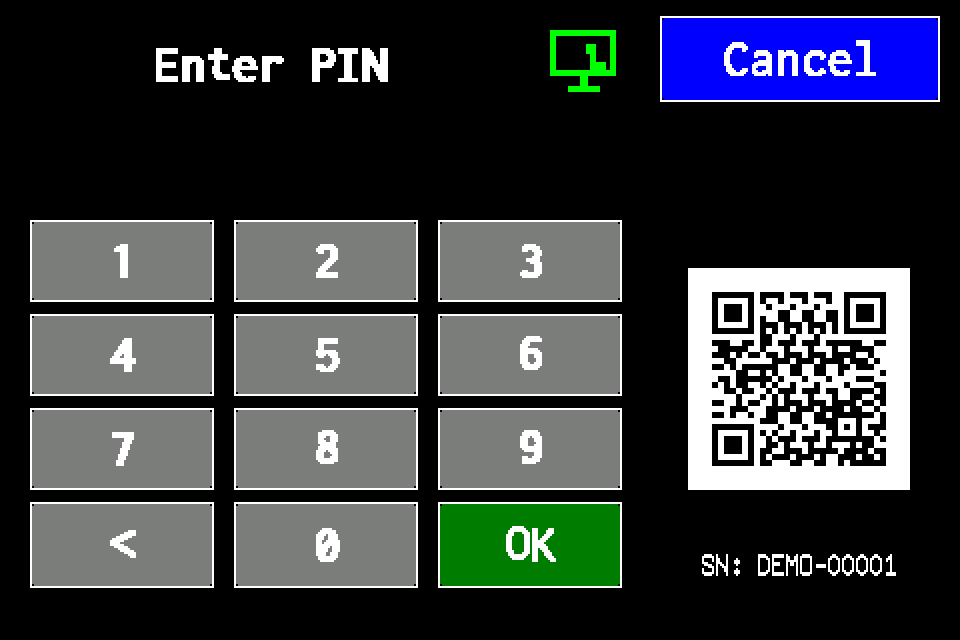
If the controller asks for a PIN
Enter your own Service-access PIN and confirm with OK. If already signed in with Service access, continue to the next screen. Controller access codes →
In METRO, the PIN window retains its original appearance. Controller access codes →
-
EZF480 × 320 · Classic
 1Step 1 / 11
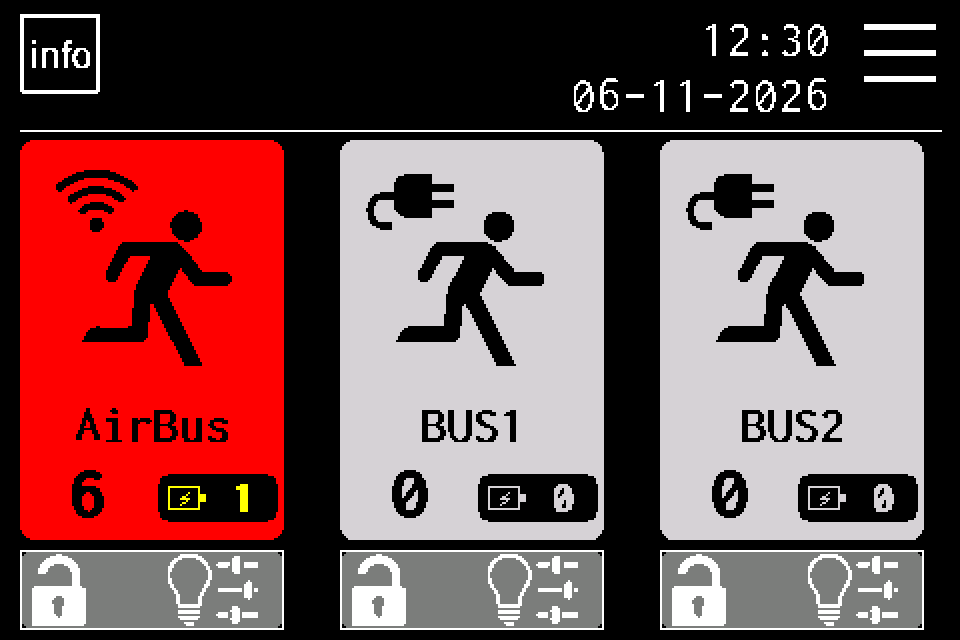
Open MENU
On the home screen, tap MENU in the upper right. If asked, enter your own Service-access PIN and confirm with OK. Controller access codes →
-
EZF480 × 320 · Classic
 2Step 2 / 11
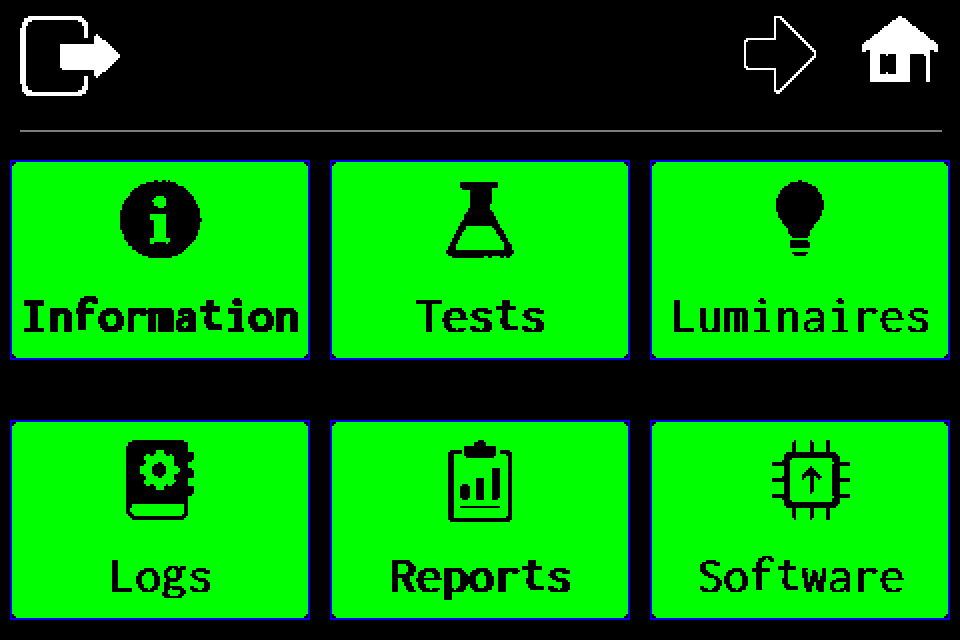
Open the second menu page
Tap the right arrow in the top bar.
-
EZF480 × 320 · Classic
 3Step 3 / 11
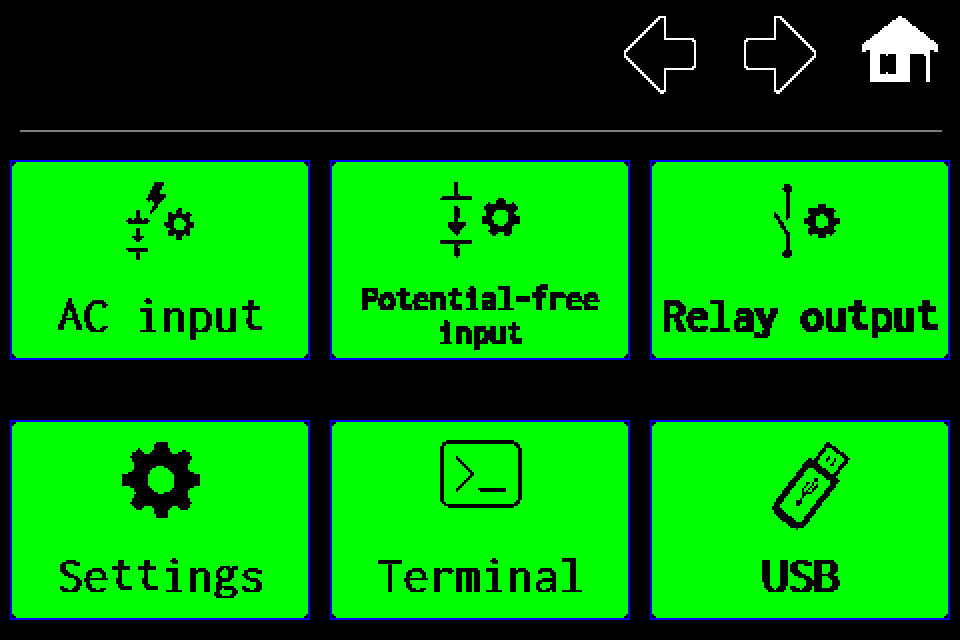
Choose “Settings”
On the second menu page, choose Settings.
-
EZF480 × 320 · Classic
 4Step 4 / 11
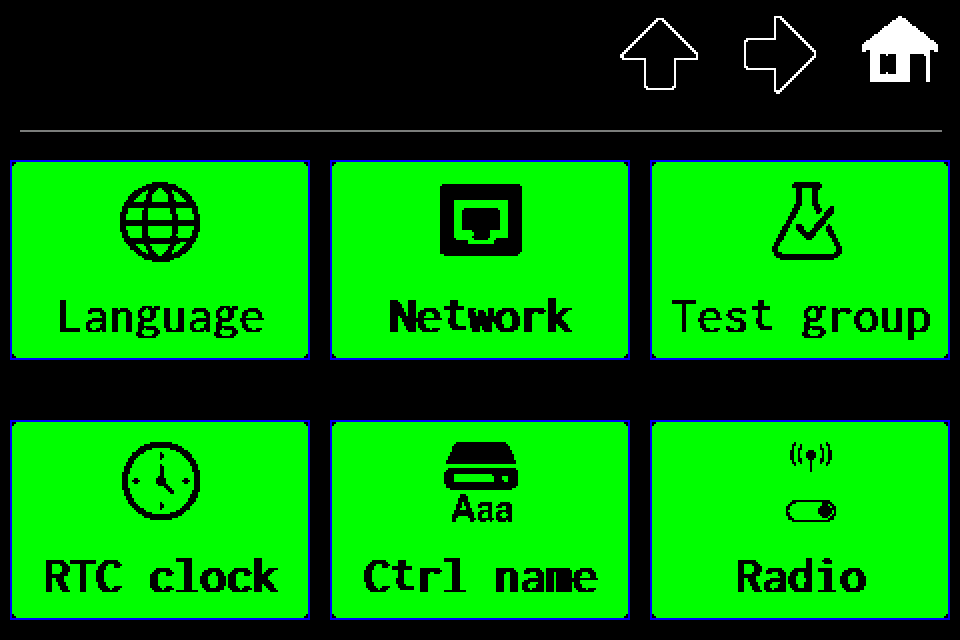
Open the second settings page
Tap the right arrow.
-
EZF480 × 320 · Classic
 5Step 5 / 11
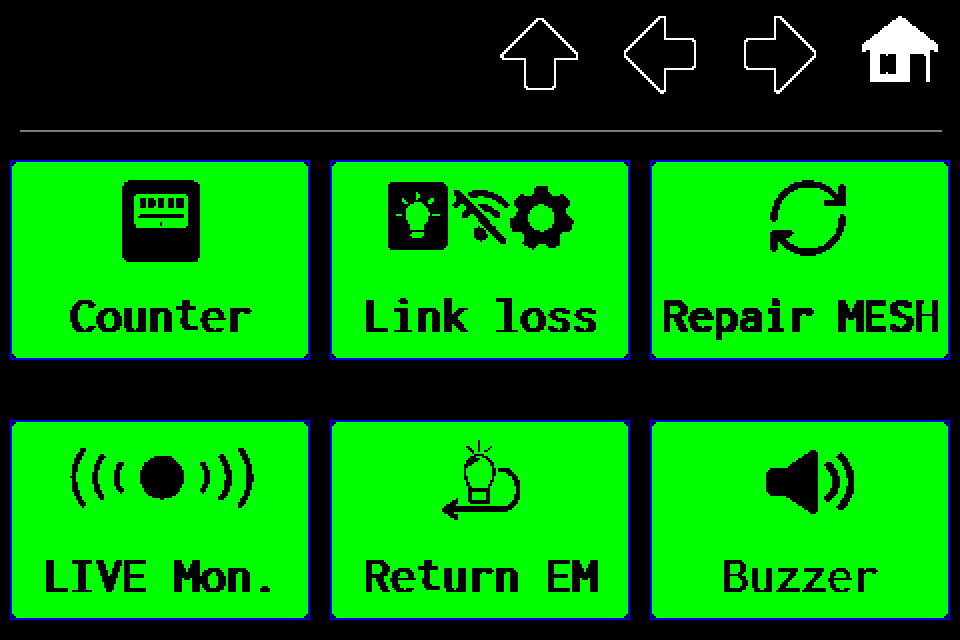
Open “LIVE Mon.”
Tap the yellow-outlined LIVE Mon. tile.
-
EZF480 × 320 · Classic
 6Step 6 / 11
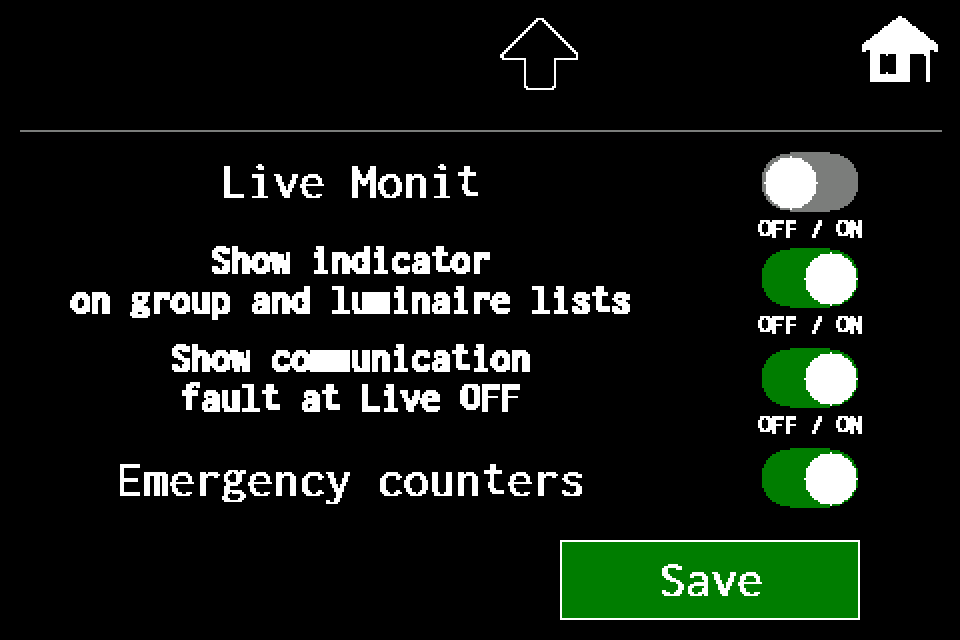
Choose Live OFF or Live ON
The first switch selects the mode: OFF — saved test results; ON — current luminaire states. The image shows OFF. Switching modes does not start a test.
-
EZF480 × 320 · Classic7Step 7 / 11
Enable the group and luminaire-list indicator
Show indicator on group and luminaire lists controls the Live monitoring header. When enabled, it may provide the experimental shortcut with Service access. Hiding the indicator does not change Live ON/OFF mode.
-
EZF480 × 320 · Classic8Step 8 / 11
Choose communication-fault display at Live OFF
Enable Show communication fault at Live OFF to also show communication loss in test-results mode. Disabling it hides that orange indication; saved failed tests remain. This preference applies only to Live OFF.
-
EZF480 × 320 · Classic9Step 9 / 11
Optionally enable emergency counters
Emergency counters adds a battery and count on the home screen and group tiles. It does not control the yellow battery of an individual luminaire in the list. A large network may take up to an hour to collect complete emergency-state data. This setting changes visibility only; it does not switch luminaires into emergency operation.
-
EZF480 × 320 · Classic10Step 10 / 11
Tap “Save”
After setting the switches, tap Save. A confirmation asks whether to save the changes.
-
EZF480 × 320 · Classic
 11Step 11 / 11
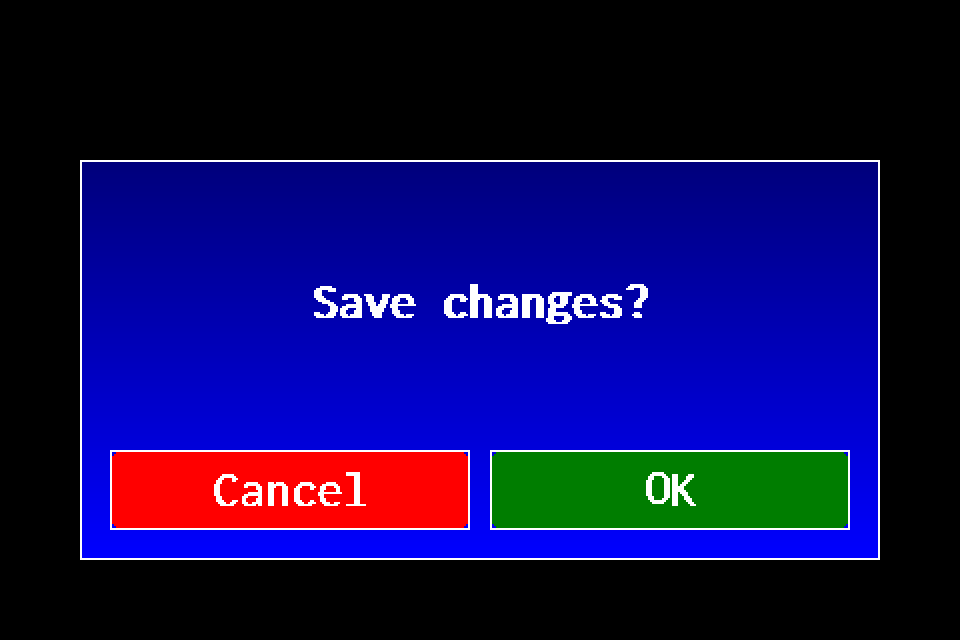
Confirm saving with OK
In the confirmation dialog, tap OK. This confirmation saves the settings selected in this menu.
After saving, return to the home screen, groups or luminaire list and check the selected mode. Live OFF shows test results; Live ON shows current states. After enabling emergency counters, a large network may take up to an hour to collect complete emergency-state data.