
AirBUS: delete all luminaires
AirBUS: delete all luminaires
480 × 320 display screens in the selected language. The yellow outline marks where to tap. Illustrated data is for demonstration.
This operation deletes the entire AirBUS list and current AirBUS test group states/results. Export the list and any required reports before starting. Do not use it to remove just one luminaire.
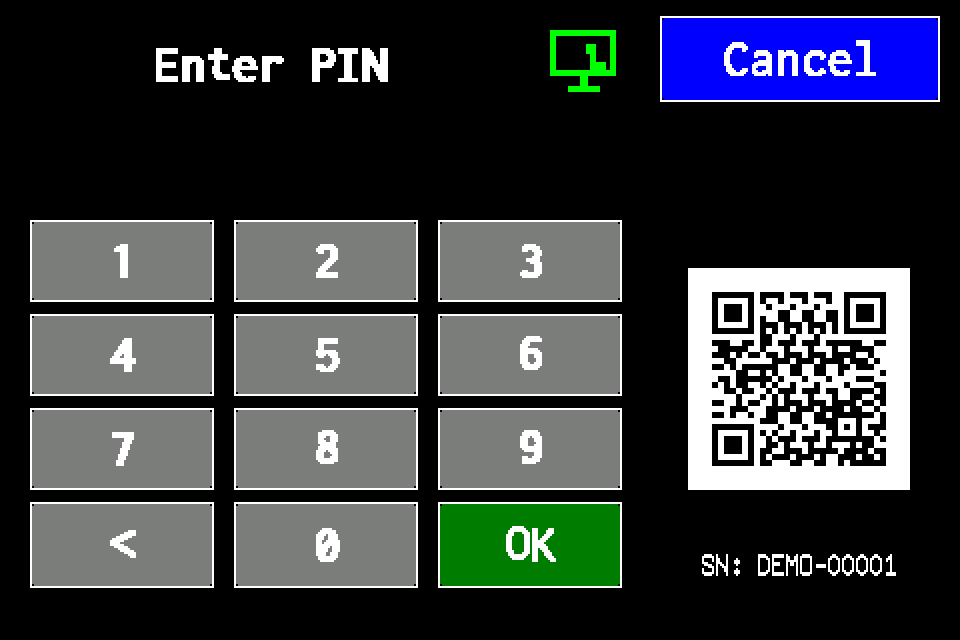
If the controller asks for a PIN
Enter your own PIN on the display keypad and confirm with OK. Use an account authorised for the operation. If already signed in, continue to the next menu screen. Controller access codes →
In METRO, the PIN window retains its original appearance. Controller access codes →
-
EZF480 × 320 · Classic
 1Step 1 / 6
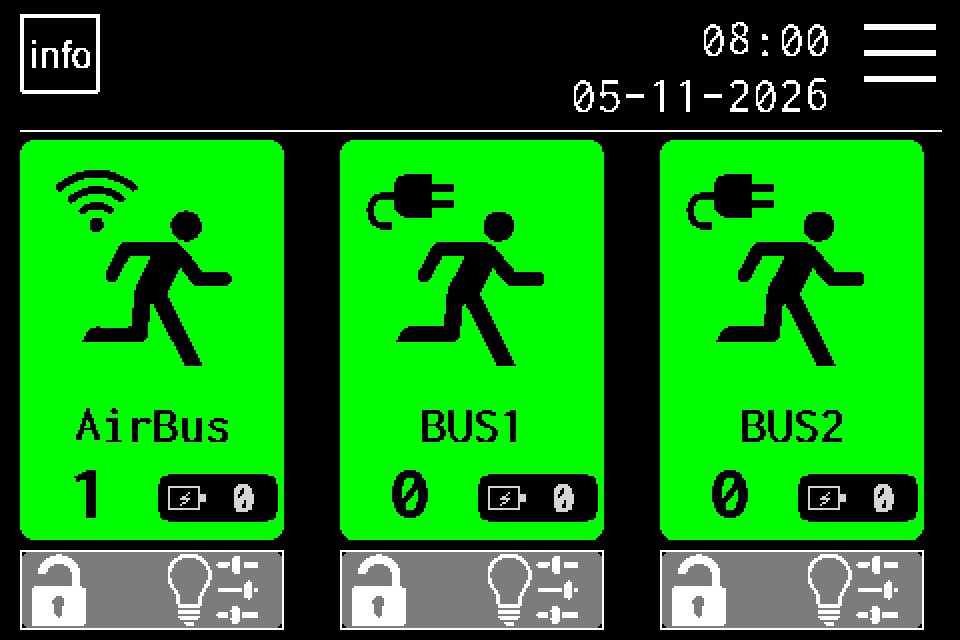
Open MENU
On the home screen, tap the menu icon in the upper right. If a PIN keypad appears, sign in with access to luminaire management. Controller access codes →
-
EZF480 × 320 · Classic
 2Step 2 / 6
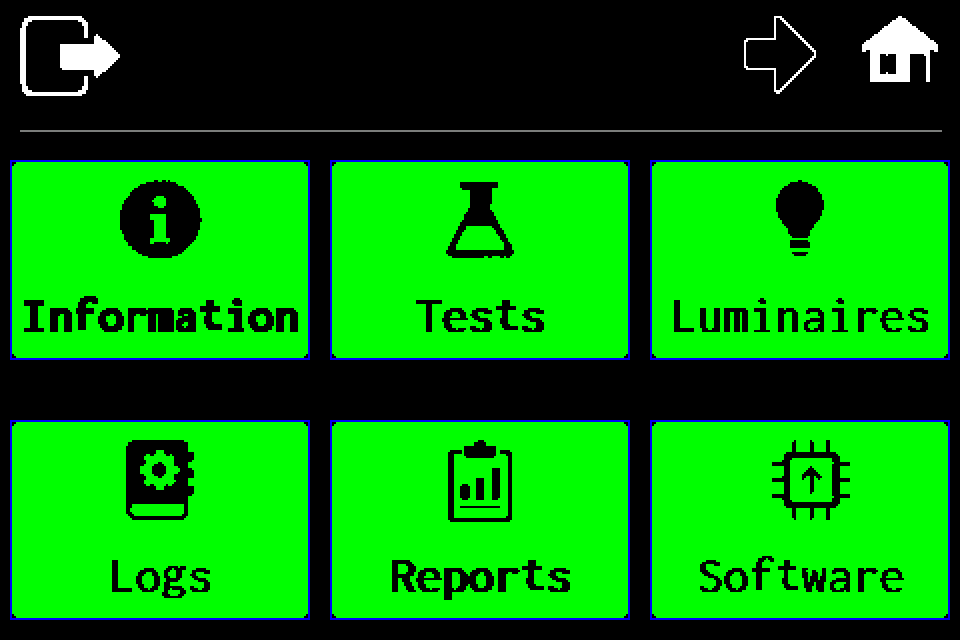
Choose “Luminaires”
Stay on the first menu page and tap the luminaires tile in the upper right.
-
EZF480 × 320 · Classic
 3Step 3 / 6
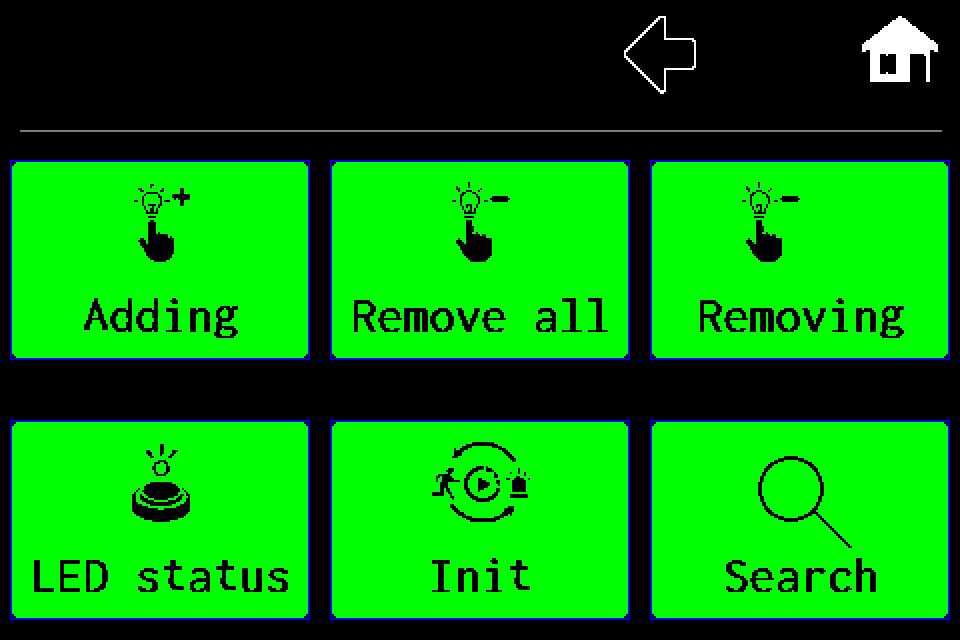
Tap “Remove all”
Tap the middle tile in the upper row. This is a separate action for all luminaires on the selected channel.
-
EZF480 × 320 · Classic
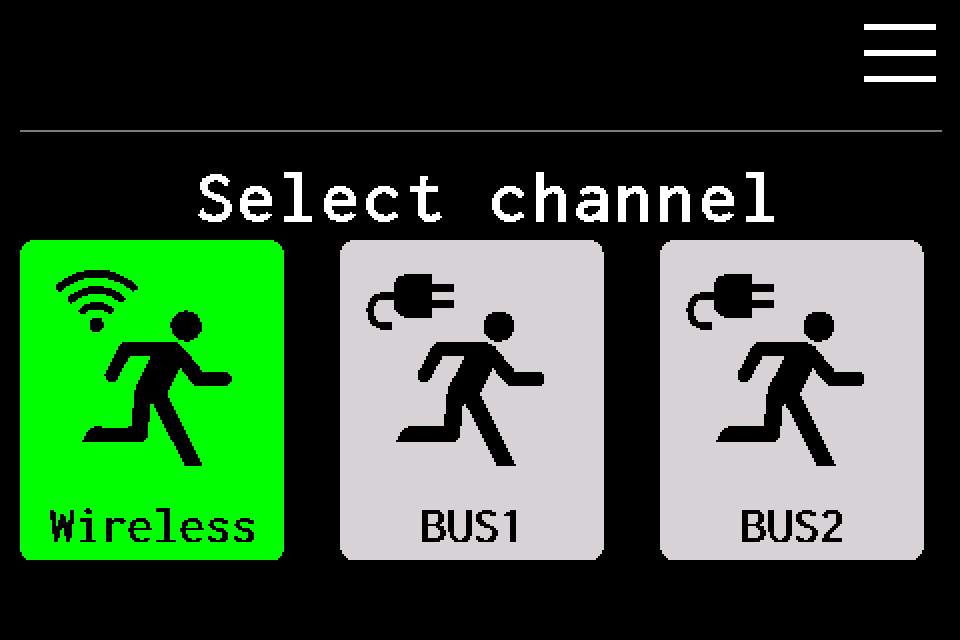 4Step 4 / 6
Choose “Wireless” — AirBUS
Tap Wireless on the left. This guide applies to the AirBUS radio channel. Do not select BUS1 or BUS2.
-
EZF480 × 320 · Classic
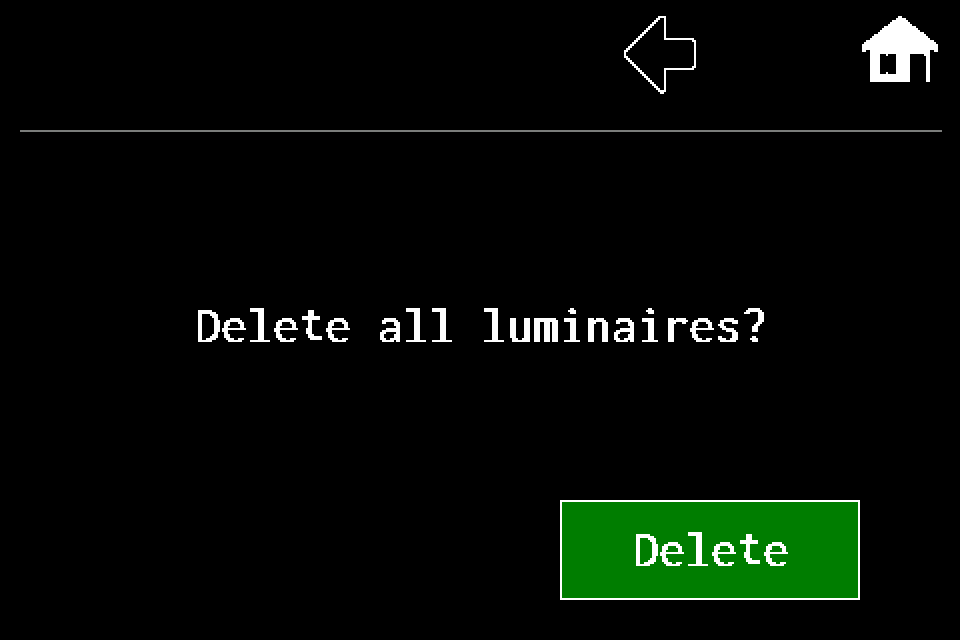 5Step 5 / 6
Press Delete on the question screen
On the screen asking about deleting all luminaires, press Delete in the lower right. A final confirmation follows. To stop, use the back arrow.
-
EZF480 × 320 · Classic
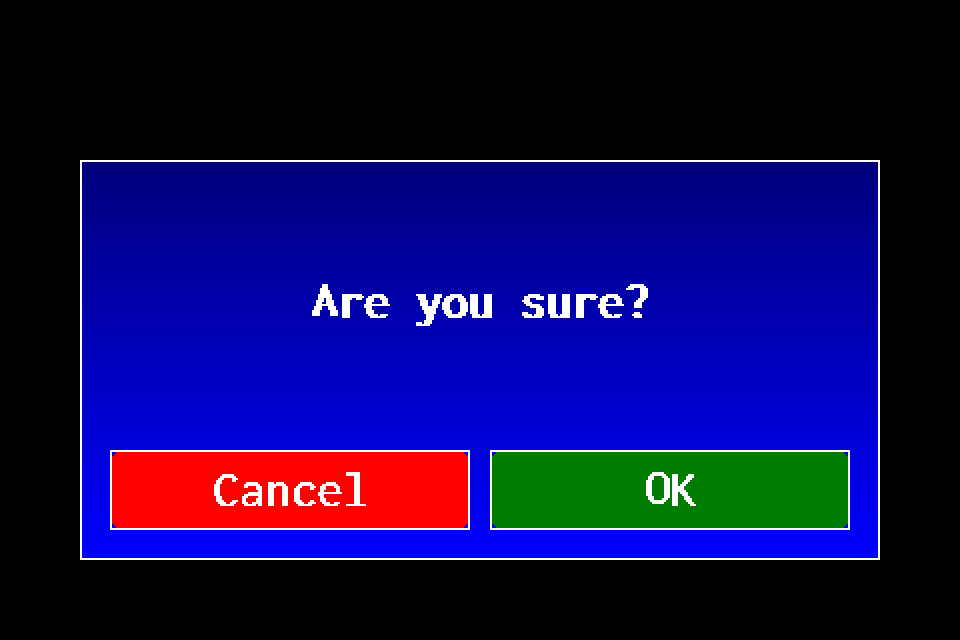 6Step 6 / 6
Confirm “Are you sure?”
OK on the right confirms deleting the entire AirBUS list. If you do not intend to remove every entry on this channel, press Cancel.
Wait for completion and check that the AirBUS list is empty. Selecting Wireless does not delete BUS1/BUS2 lists. The controller also broadcasts a delete-all command by radio. To resume monitoring, add the luminaires and check test settings.