
Two display modes
Live OFF — test-results mode. A red indication is based on a saved, valid failed function or duration test. A current luminaire fault is not treated as a new red Live alarm in this mode.
Live ON — current-state monitoring. A red indication is based on a known current luminaire fault. The controller evaluates data received from the luminaires. Switching to Live ON does not immediately read the entire network and does not start a test.
| Indication | Live OFF | Live ON |
|---|---|---|
| Red state | Valid saved failed function or duration test | Known current fault |
| Orange communication state | Current communication loss or saved communication test result, when Show communication fault at Live OFF is enabled | Current communication loss, unless its indication is blocked |
| Green state | No displayed fault in this mode; also possible when no valid failed result exists | No displayed fault in this mode |
Red takes priority over orange. A grey channel or group state can indicate an empty set of luminaires or data that is not ready yet. Green alone does not confirm that a test was performed and passed. Check the function and duration test results and dates for that confirmation.
Enable or disable Live Monitoring from the menu
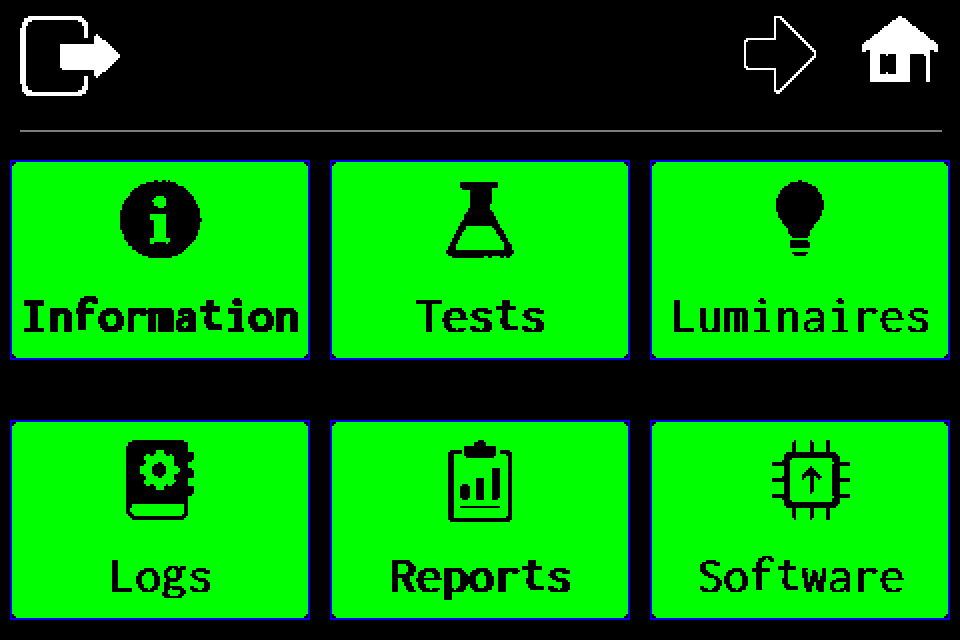
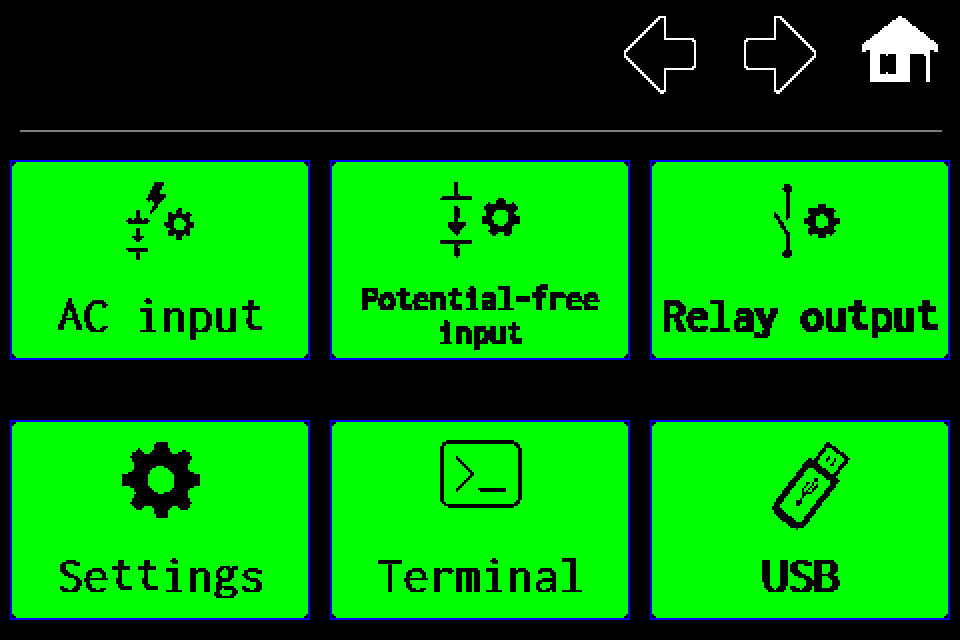
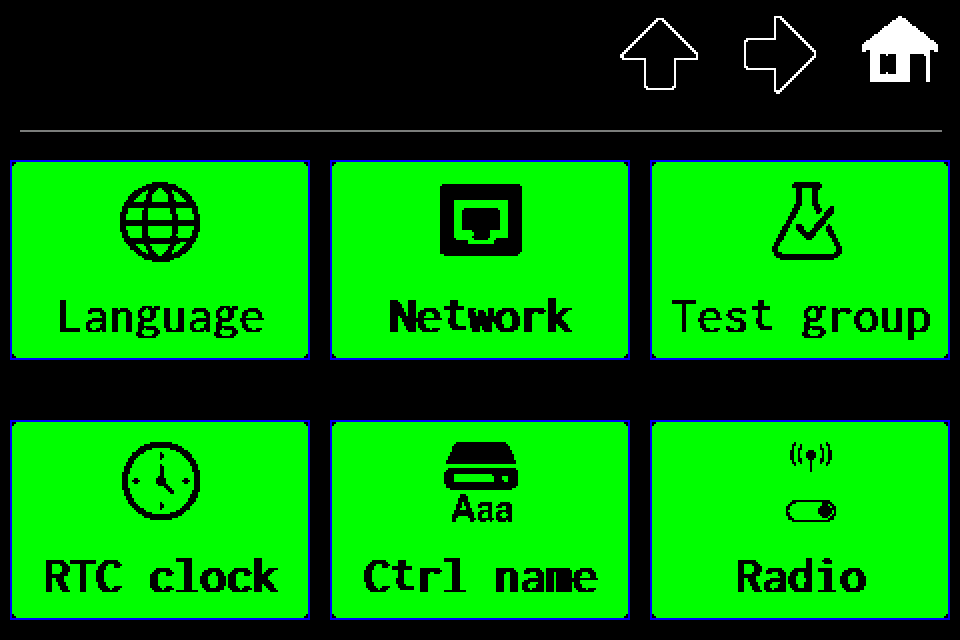
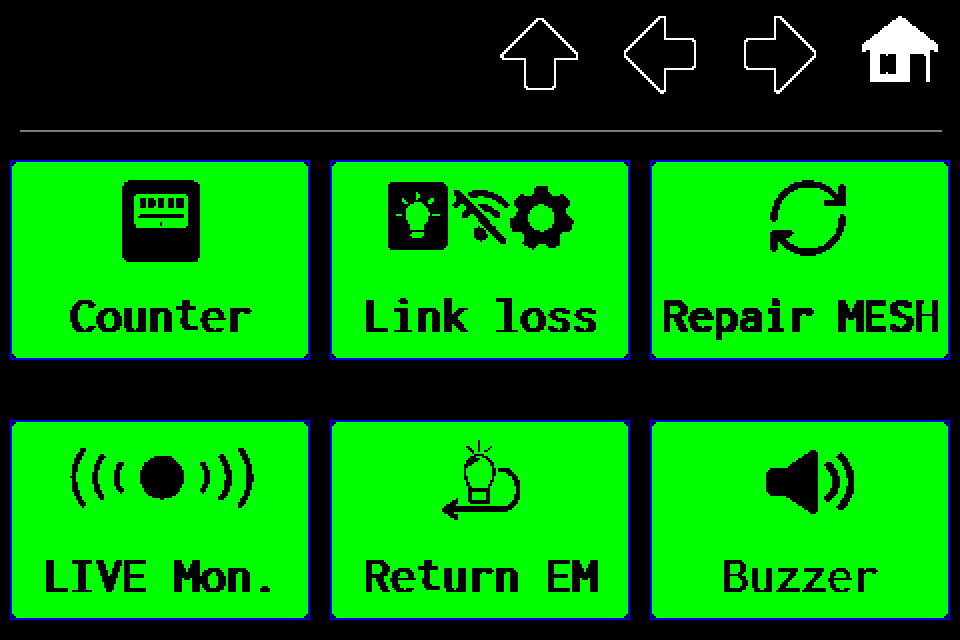
MENU → right arrow → Settings → right arrow → LIVE Mon.. If asked to sign in, use your own Service-access PIN. Controller access codes →
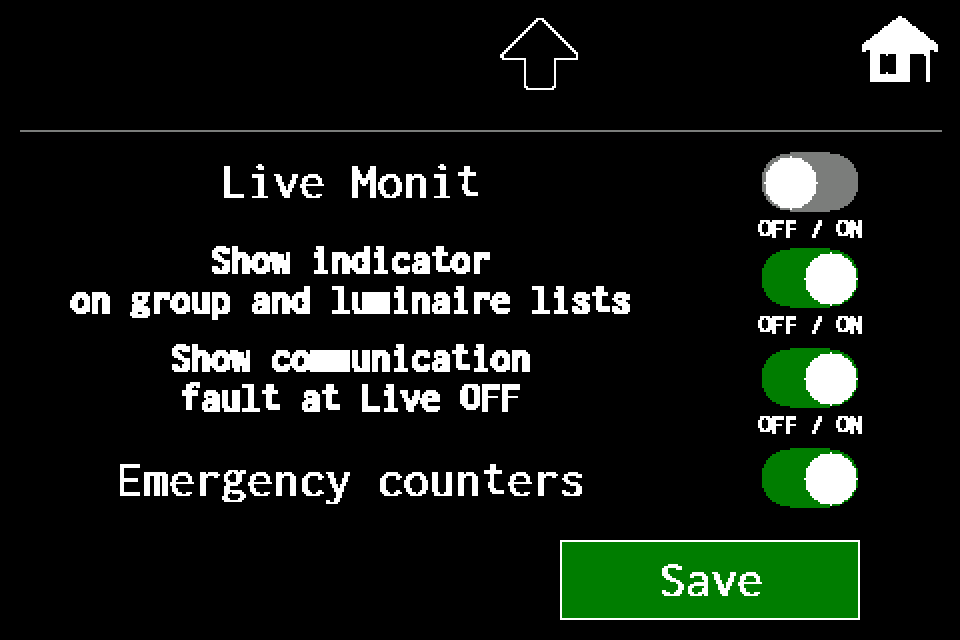
On the settings screen, select:
- Live Monit — OFF for test results, ON for current states.
- Show indicator on group and luminaire lists — shows or hides the Live monitoring header. Hiding it does not switch Live ON off.
- Show communication fault at Live OFF — selects communication-fault visibility in test-results mode.
- Emergency counters — shows or hides the battery and count on the home and group screens.
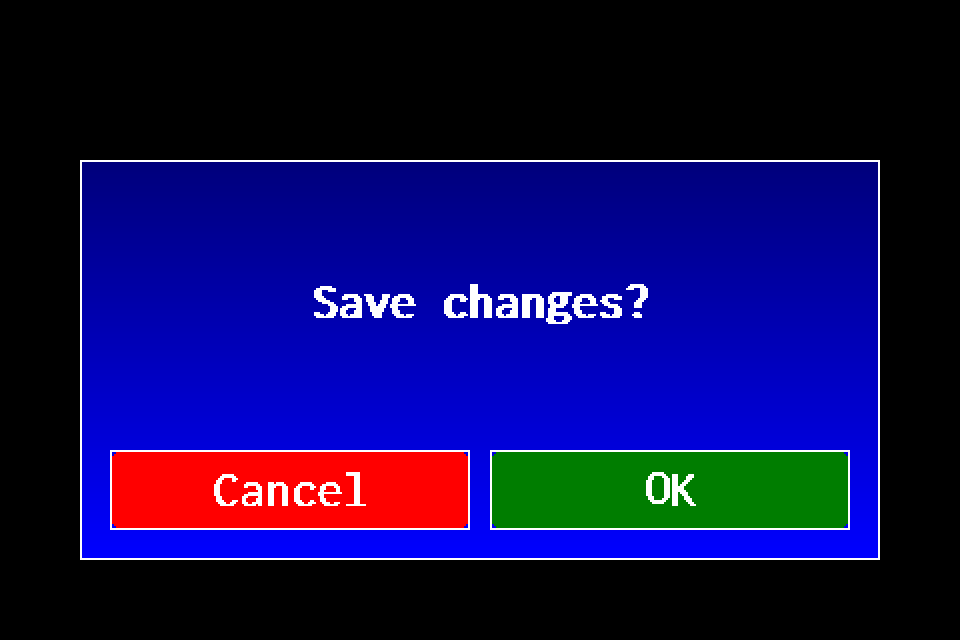
Tap Save, then tap OK in the confirmation dialog. Leaving without this operation does not save the selections made in this menu.
Group and luminaire-list shortcuts — experimental
The option on the group screen and luminaire list is experimental, with limited availability. The examples show AirBUS. Availability depends on version and channel. It requires Service access and the indicator enabled in the menu. If the shortcut is unavailable, open the normal settings screen through MENU.
Path from groups · Path from the luminaire list.
On the illustrated AirBUS group screen or luminaire list, tap the Live monitoring header. Green means ON; gray means OFF. The window offers Live ON, Live OFF, Show LED light, Communication fault at Live OFF, and Emergency counters. Changes are saved immediately. Live ON and Live OFF select the mode and close the window; Back closes it without another mode change. This window has no additional Save button.
Show or hide communication faults
At Live OFF, enable the third switch to show communication loss in orange. Disabling it hides both current loss and the saved communication test indication. A valid failed test may still be red.
This switch applies only to Live OFF. At Live ON, communication is evaluated as a current state. Separate global and individual settings that hide communication faults apply in both modes. Such a block can leave a green indication despite communication loss; it does not delete failed test results.
Home screen, groups and luminaire list
| Screen | Where the state appears |
|---|---|
| Home | Classic: channel-tile color. METRO: status stripe and channel symbol. A channel summarizes its luminaires. |
| Groups | The group-tile color summarizes its assigned luminaires. Red takes priority over orange communication loss. |
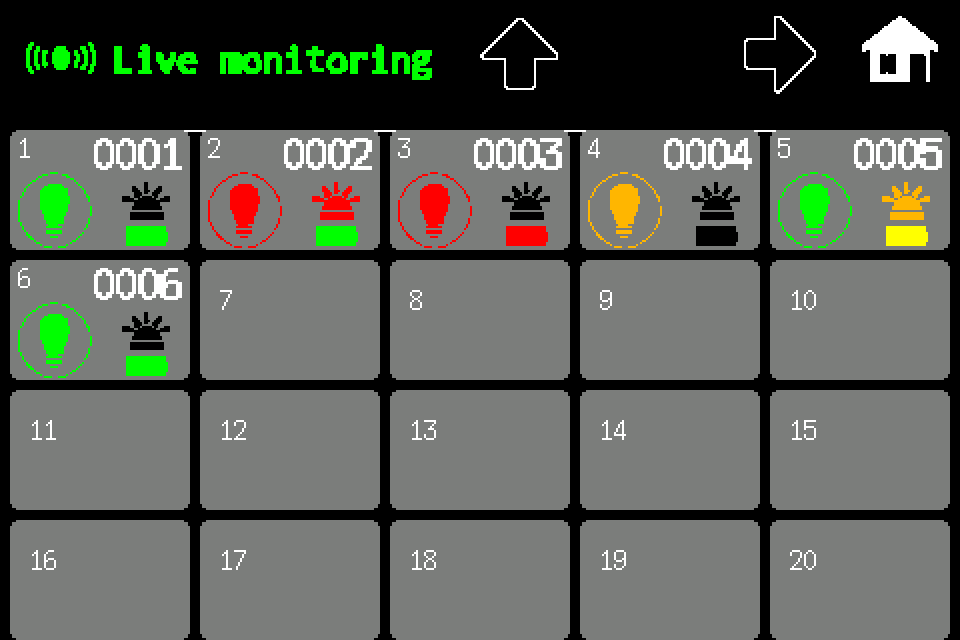
| Luminaire list | The state color appears on the luminaire pictogram. A fault does not turn the entire list tile red. The normal background is dark gray; during function and duration tests it may be maroon and violet, respectively. |
Other symbols have separate meanings:
- An orange LED icon means known LED illumination. Show LED light can enable this indication even at Live OFF; fault evaluation still uses test results.
- A red LED icon may indicate a current LED fault at Live ON. The LED-light indication and the overall luminaire-state pictogram serve different purposes.
- Battery in the list: known emergency operation is yellow, even at Live OFF with counters disabled. A detected battery fault takes priority and may make it red. Outside emergency operation, the battery is available at Live ON. Its indication is hidden when current communication is unknown.
Emergency operation and data-collection time
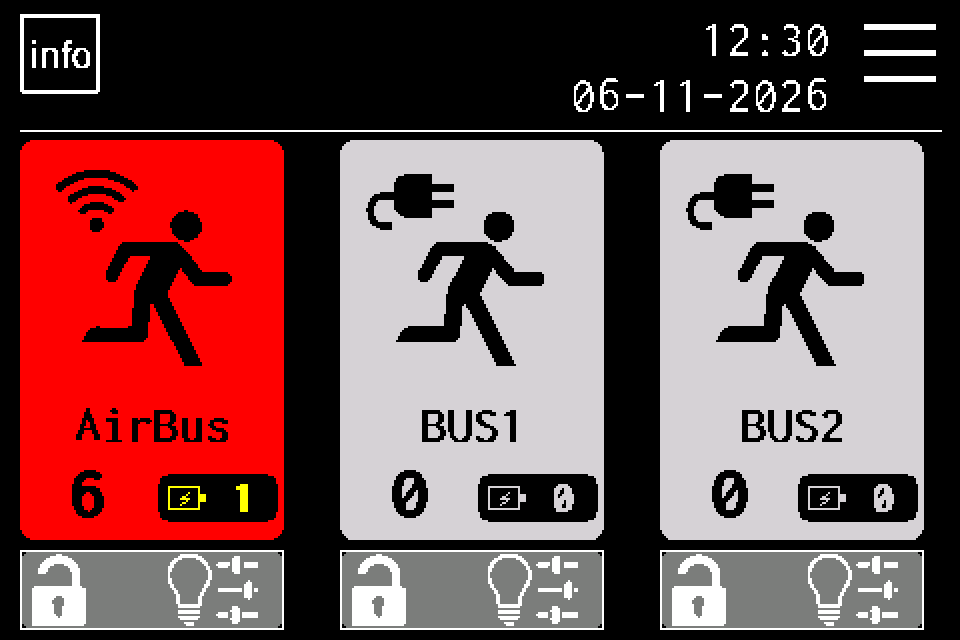
Enable Emergency counters to show a battery and the number of luminaires in emergency operation on the home and group screens. A positive count is yellow; zero or an unknown indication is light gray. Disabling this option removes these counters from home and groups but does not hide a luminaire's yellow battery in the list.
This setting changes indication visibility only. It does not switch luminaires into emergency operation.
A large network may take up to an hour to collect complete emergency-state data. Counters use the most recently received states and may update gradually. Communication loss does not confirm that a luminaire returned to normal operation; a counter may retain the last known information. Emergency operation alone is not a red luminaire fault.
AirBUS example — the same luminaires in two modes
The following images use the same illustrative dataset. Communication-fault display and emergency counters are enabled in the main comparison. These are example data, not readings from your controller.
| Screen | Live OFF | Live ON |
|---|---|---|
| Home | 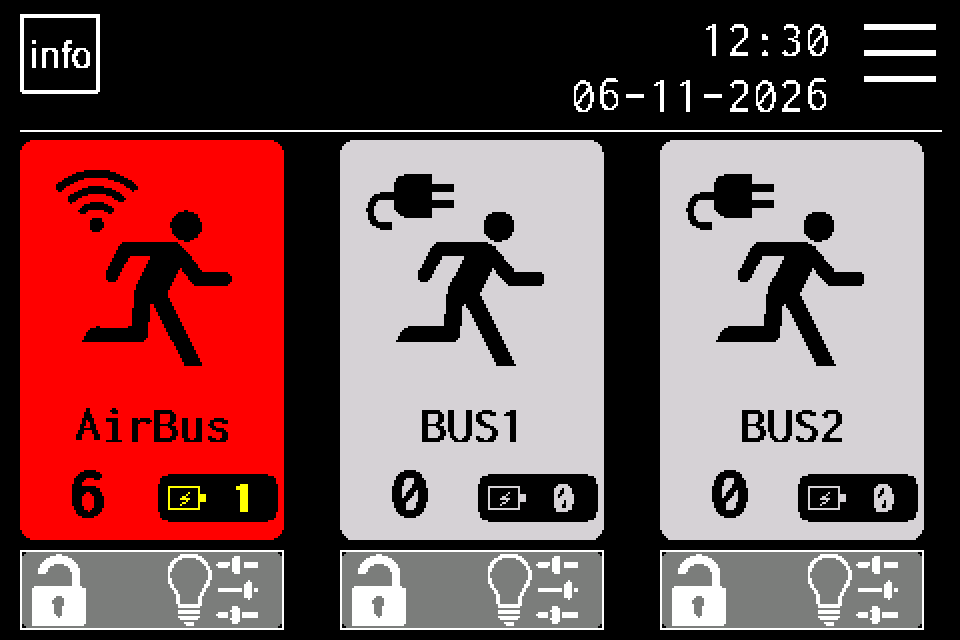 |
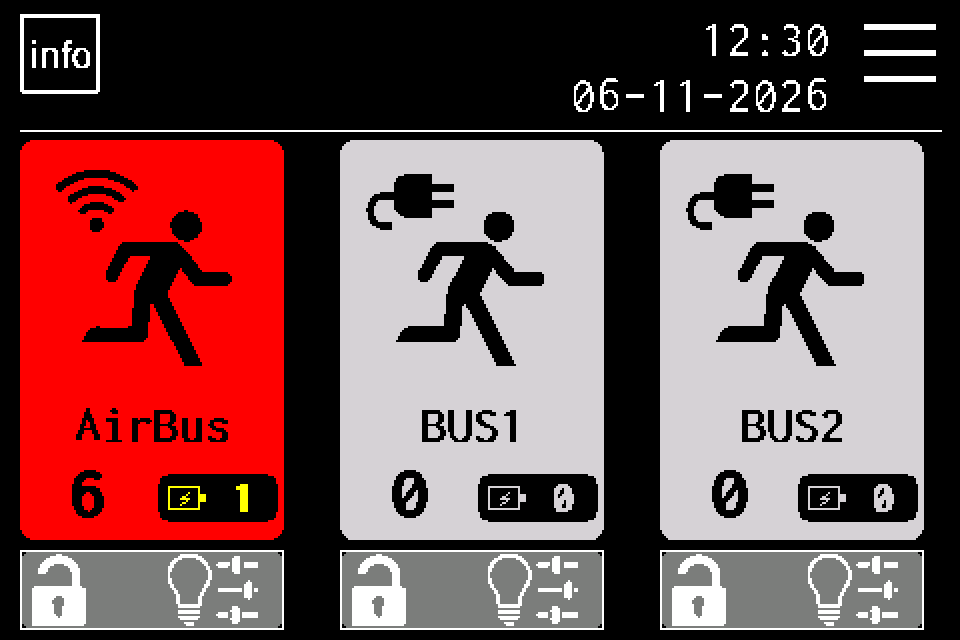 |
| AirBUS groups | 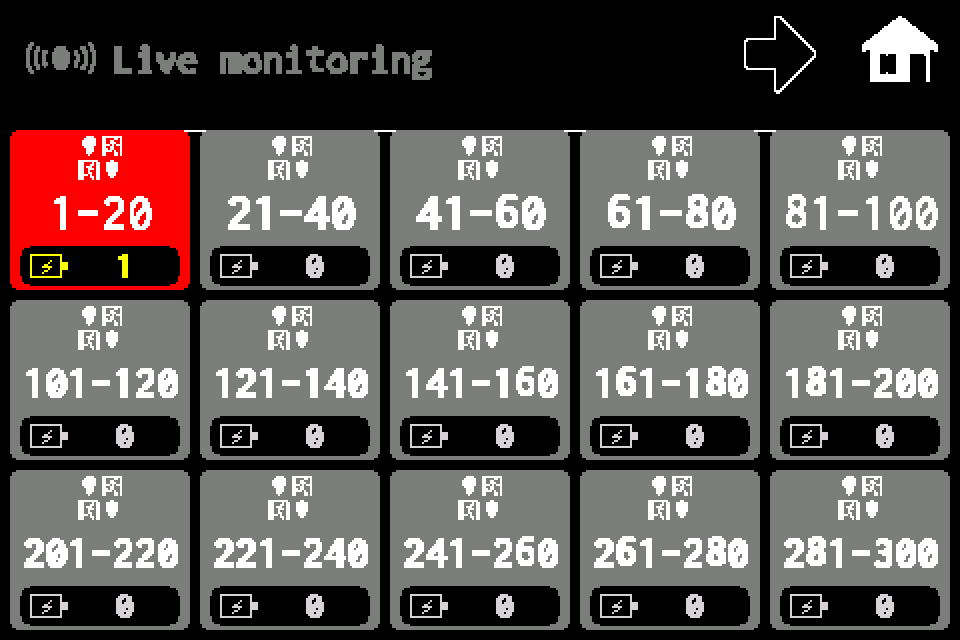 |
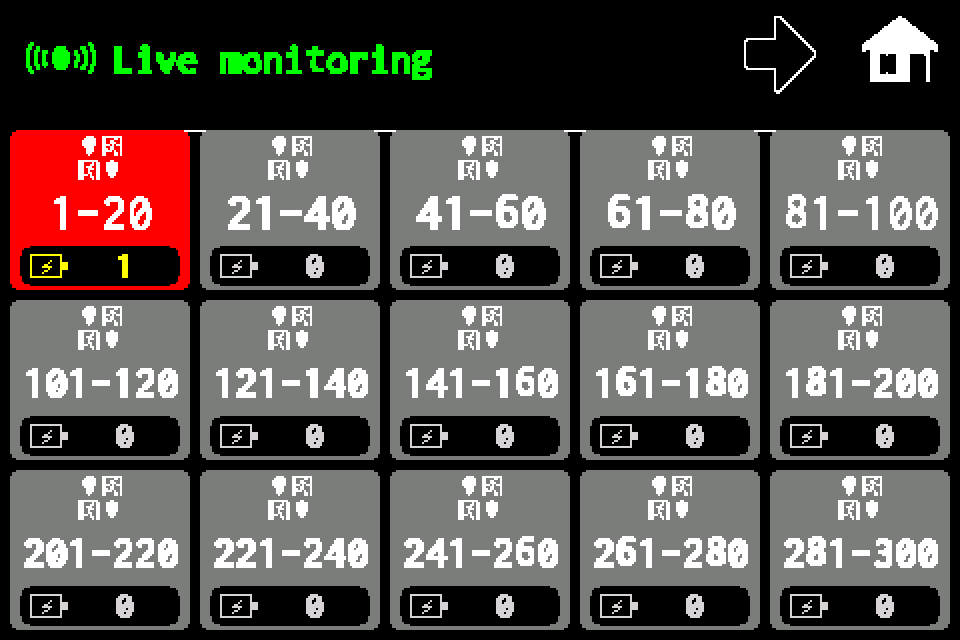 |
| AirBUS luminaire list | 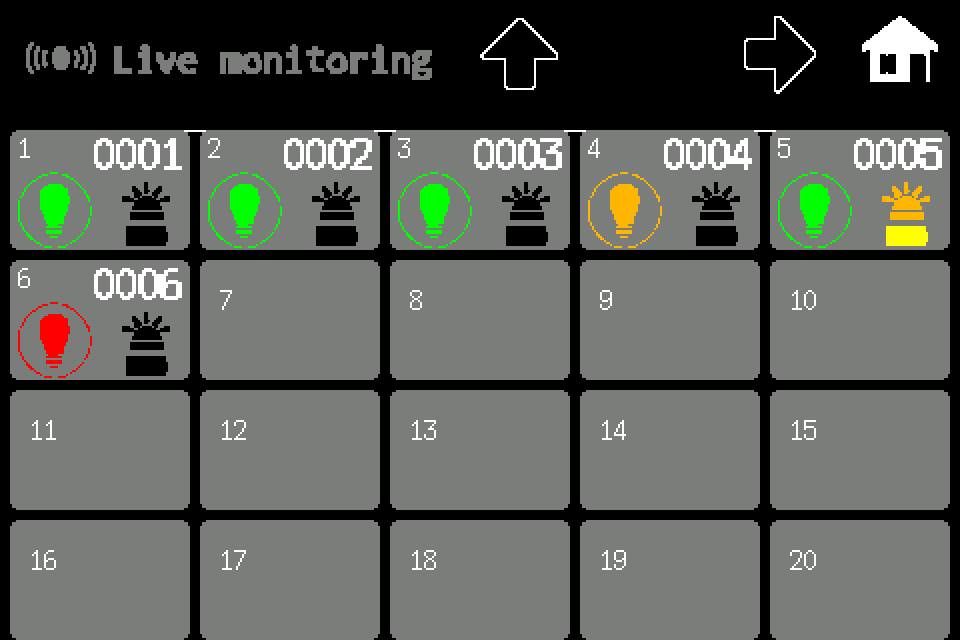 |
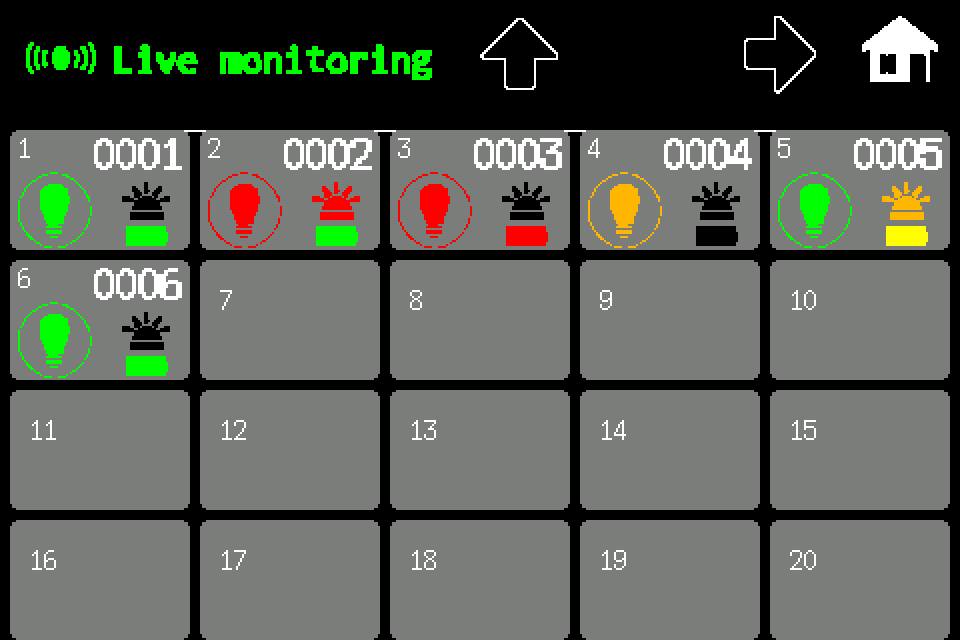 |
Data used in the examples
| Address | Current example state | Saved example result | State indication OFF → ON |
|---|---|---|---|
| 0001 | Healthy luminaire | Tests passed | Green → green |
| 0002 | LED fault | Tests passed | Green → red |
| 0003 | Battery fault | Tests passed | Green → red |
| 0004 | Communication loss | Tests passed | Orange when communication loss is shown |
| 0005 | Emergency operation without a fault | Tests passed | Green pictogram; yellow battery |
| 0006 | Healthy luminaire | Failed function test | Red → green |
Communication-fault display at Live OFF
This pair has communication loss only, without a failed test. Hiding the indication changes its presentation but does not restore communication.
| Screen | Communication loss shown | Communication loss hidden |
|---|---|---|
| Home | 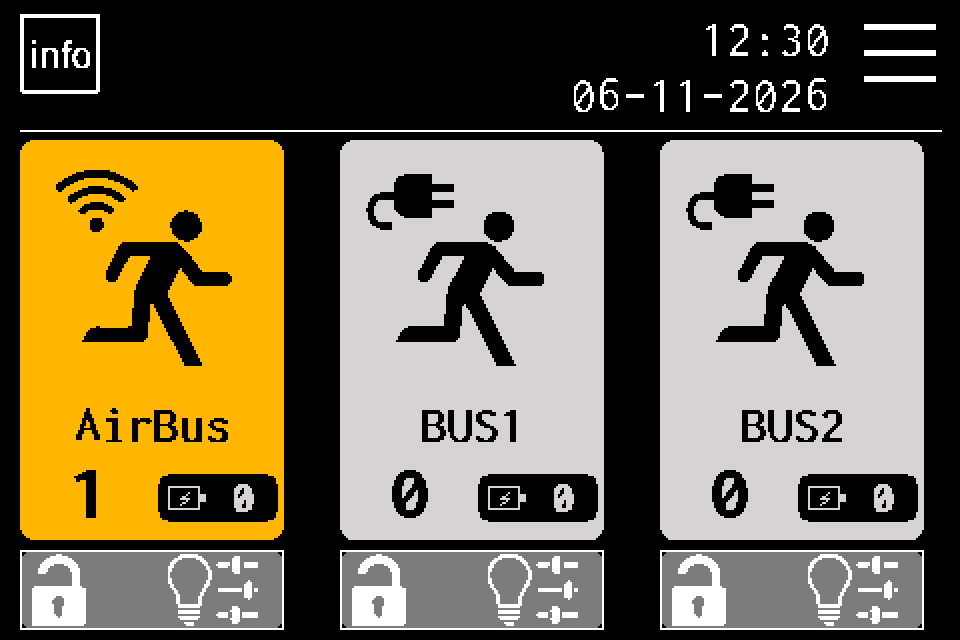 |
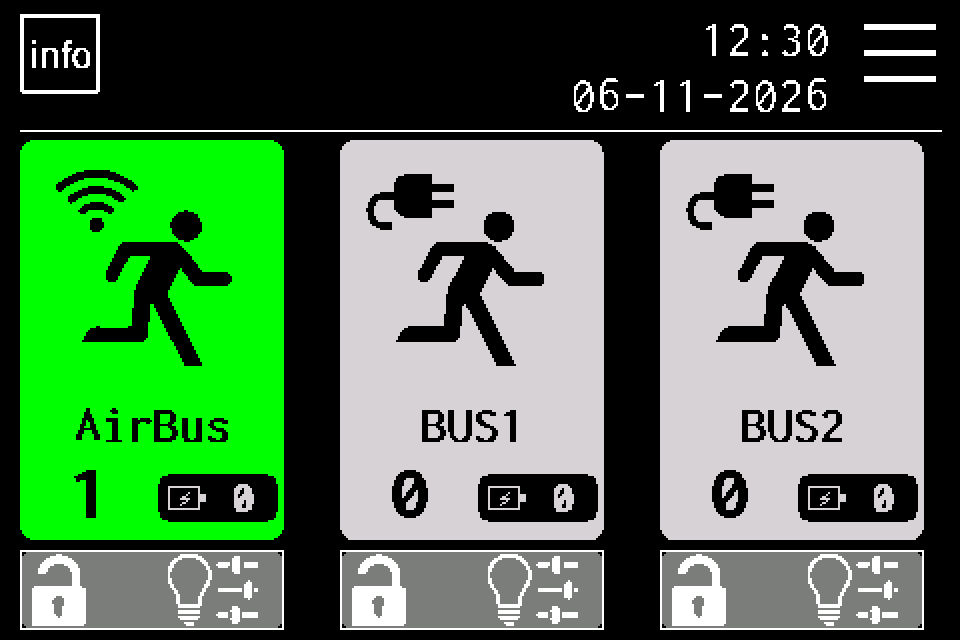 |
| AirBUS groups | 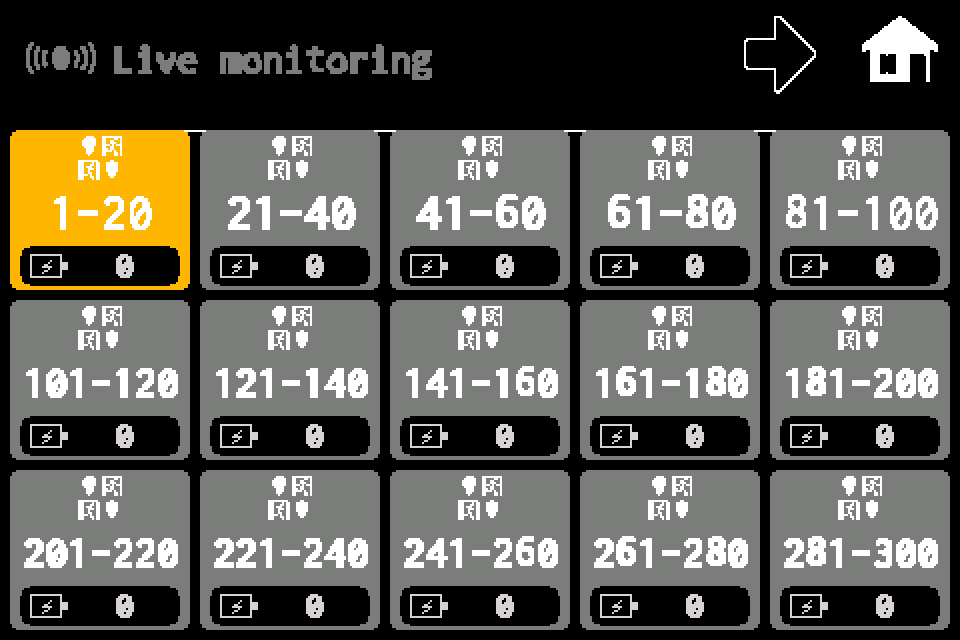 |
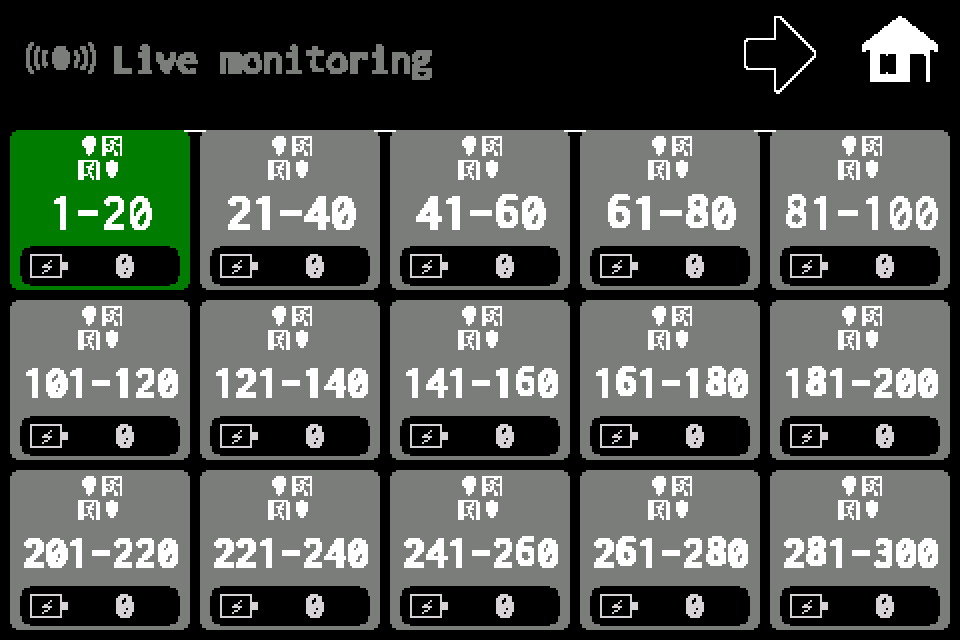 |
Emergency counters ON/OFF
Compare the battery and count on home and group screens. The battery of individual luminaire 0005 in the list stays yellow after disabling the counters.
| Screen | Counters ON | Counters OFF |
|---|---|---|
| Home | |
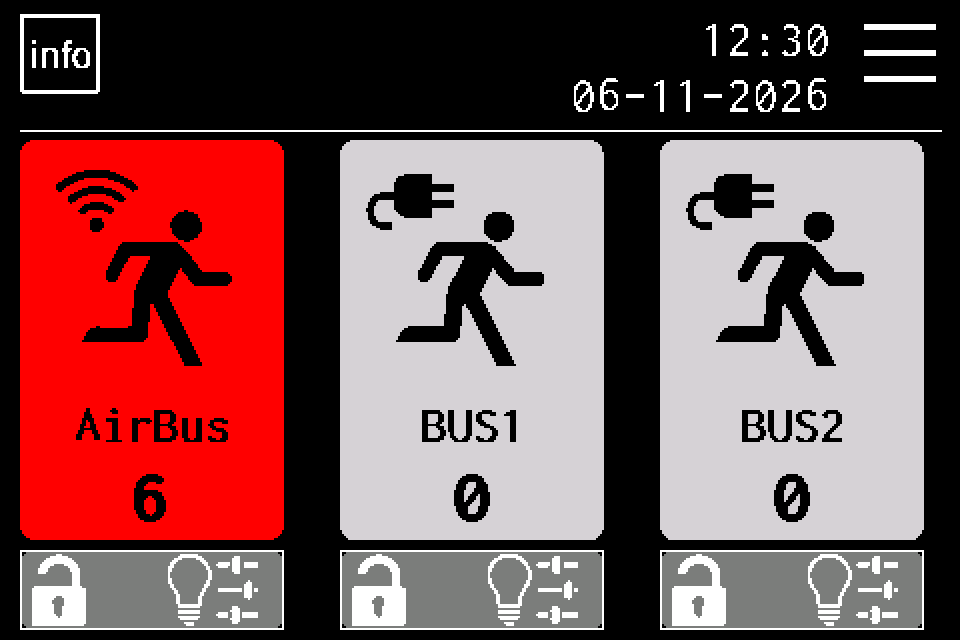 |
| AirBUS groups | |
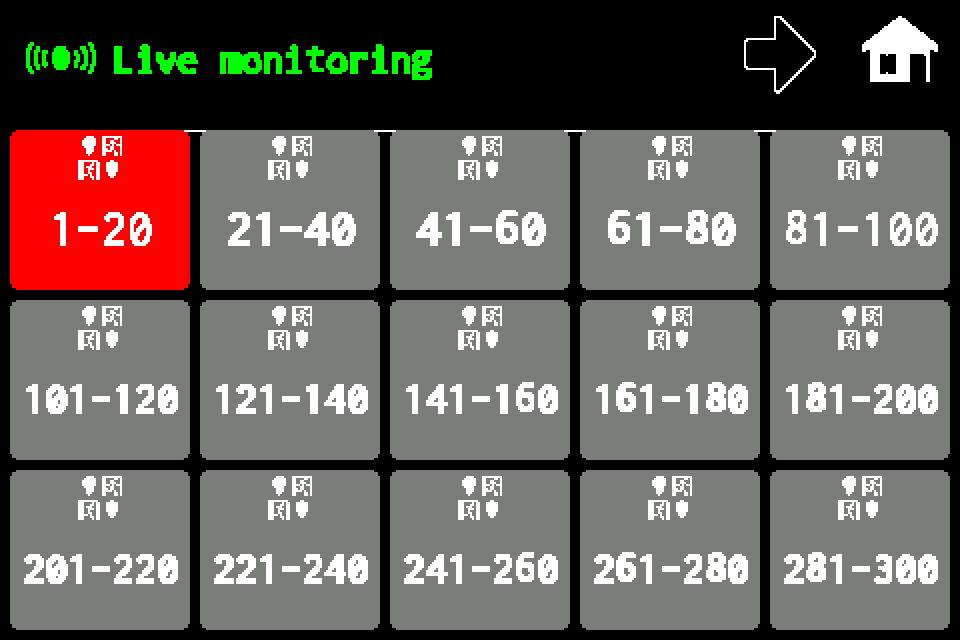 |
| AirBUS luminaire list | |
 |