
Full backup to Cloud — experimental
Full backup to Cloud — experimental
480 × 320 display screens in the selected language. The yellow outline marks where to tap. Illustrated data is for demonstration.
First create and check an independent backup on USB or SD. Have the administrator PIN ready. The controller needs a working SD card with free space, Internet access, the correct date and time, and configured Cloud access. Internet access alone does not mean the Cloud service is ready. Controller access codes →
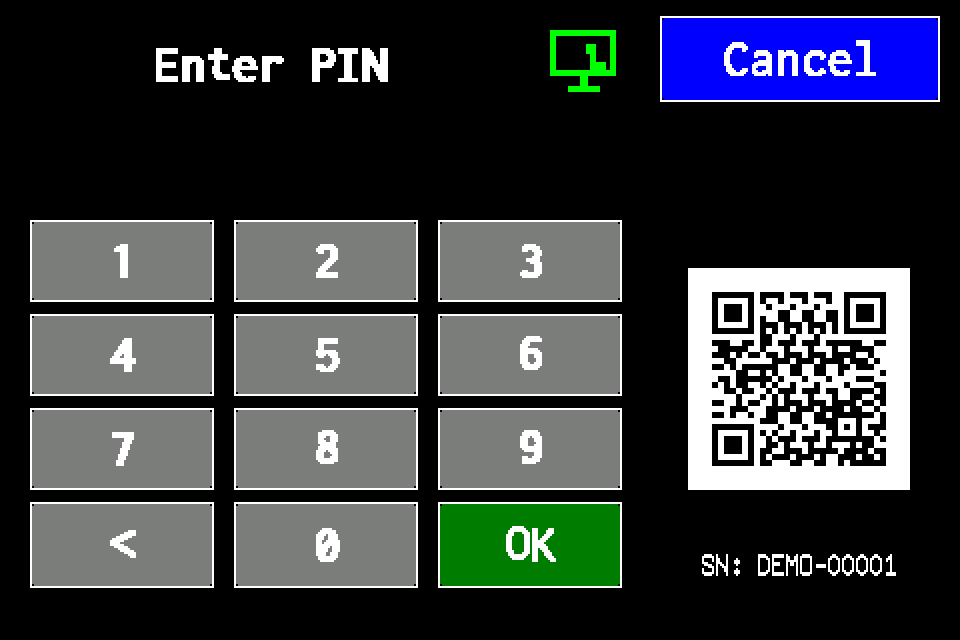
If the controller asks for a PIN
Enter your own administrator PIN and confirm with OK. The backup function is available when signed in as an administrator. If already signed in, continue to the next menu screen. Controller access codes →
In METRO, the PIN window retains its original appearance. Controller access codes →
-
EZF480 × 320 · Classic
 1Step 1 / 10
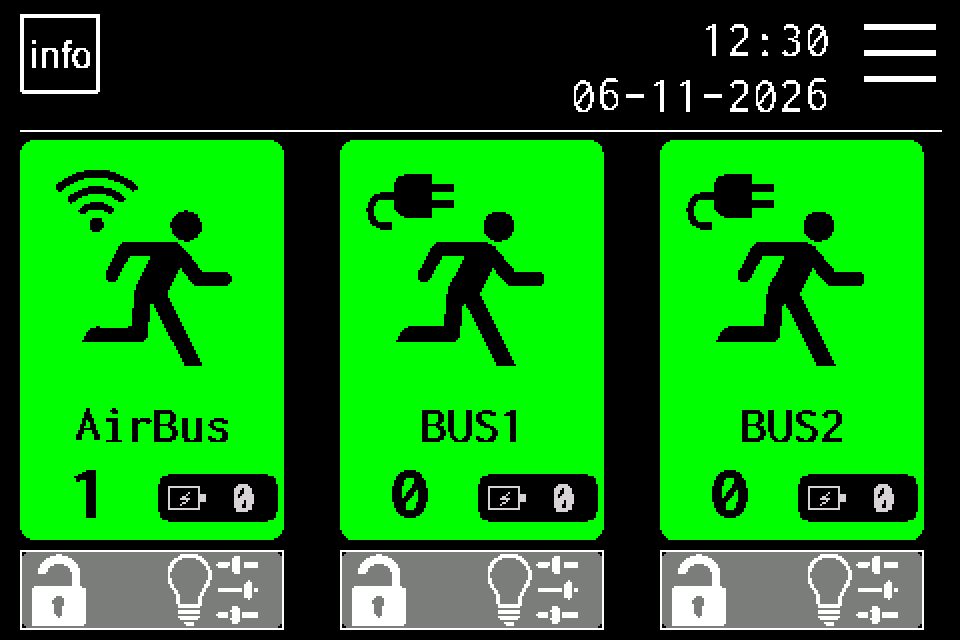
Open MENU
On the home screen, tap MENU in the upper right. If the PIN window appears, sign in with your own administrator PIN and confirm with OK. Controller access codes →
-
EZF480 × 320 · Classic
 2Step 2 / 10
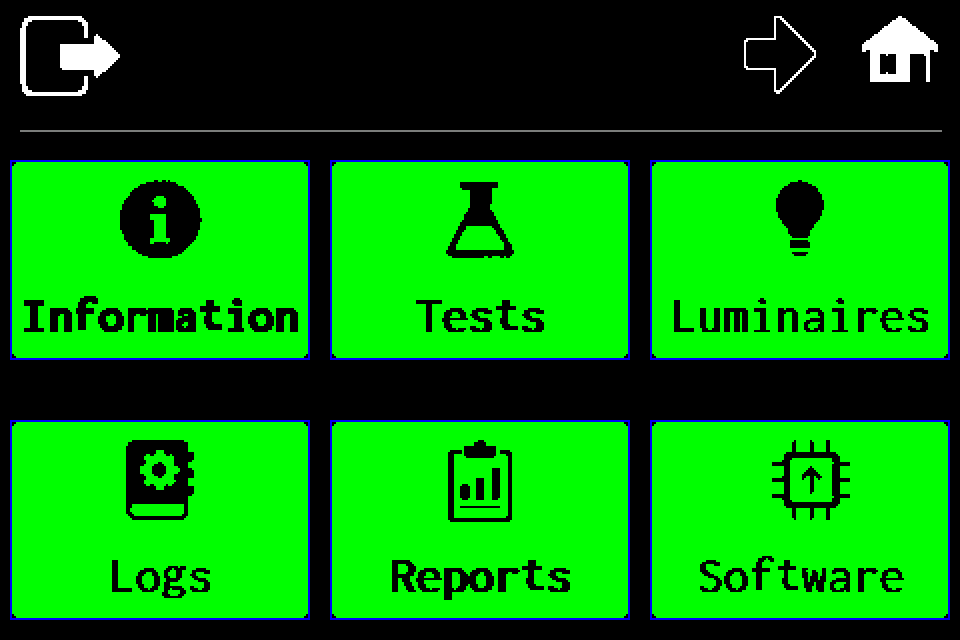
Open the second menu page
Tap the right arrow in the top bar.
-
EZF480 × 320 · Classic
 3Step 3 / 10
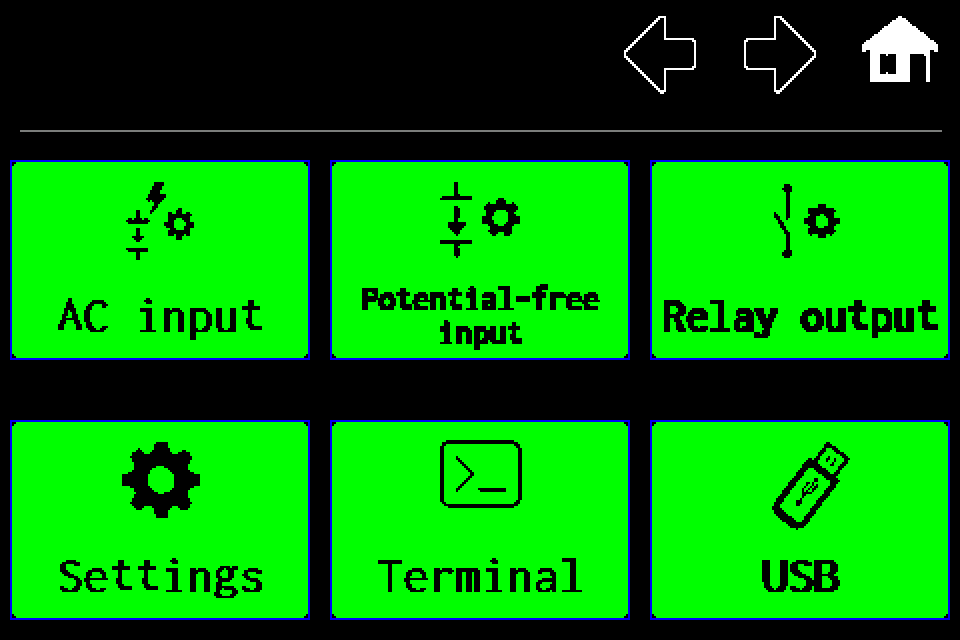
Open “Settings”
On the second menu page, choose Settings.
-
EZF480 × 320 · Classic
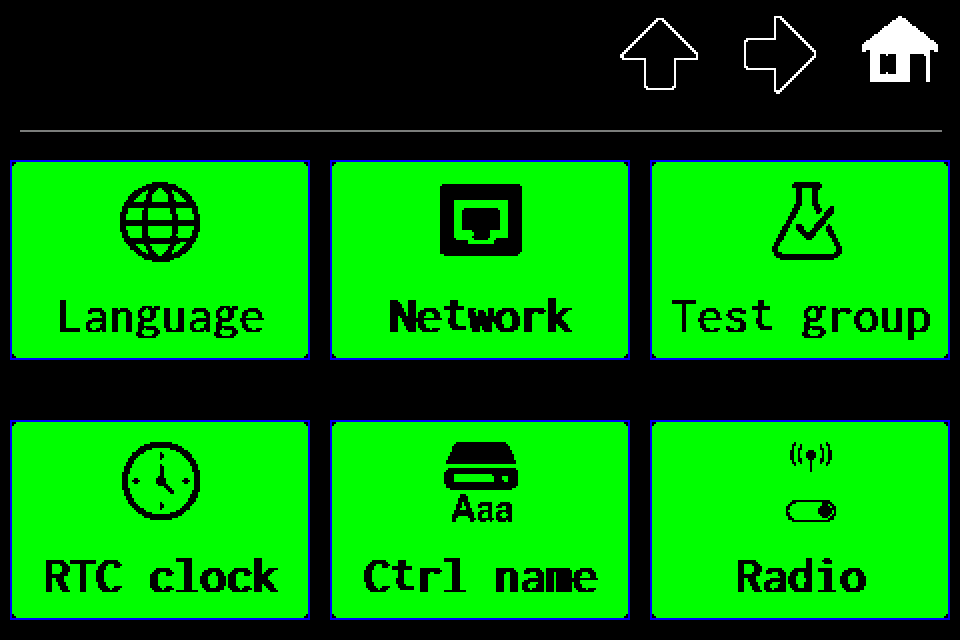 4Step 4 / 10
Second settings page
On the first settings page, tap the right arrow.
-
EZF480 × 320 · Classic
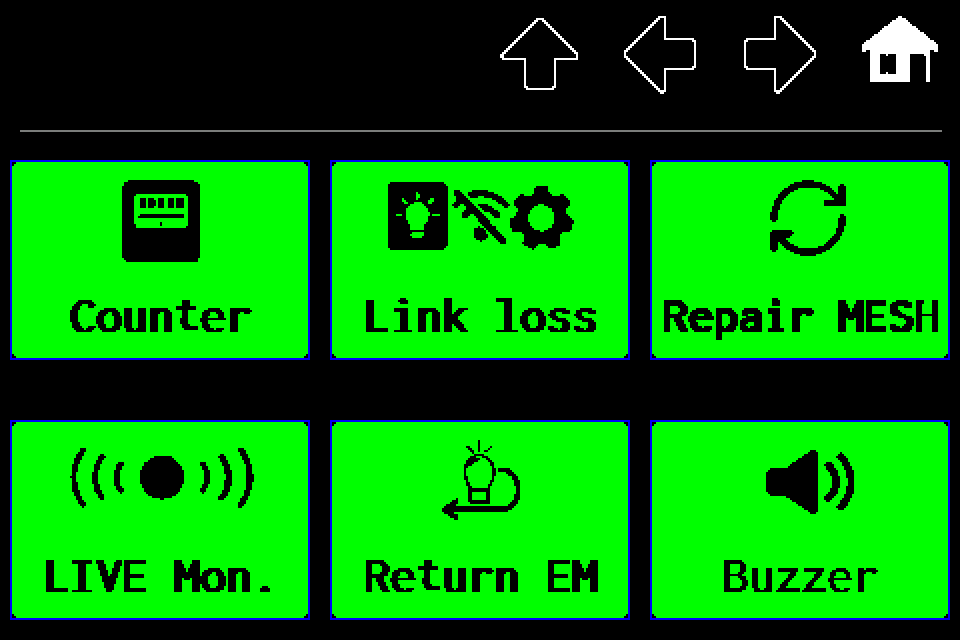 5Step 5 / 10
Third settings page
Tap the right arrow again.
-
EZF480 × 320 · Classic
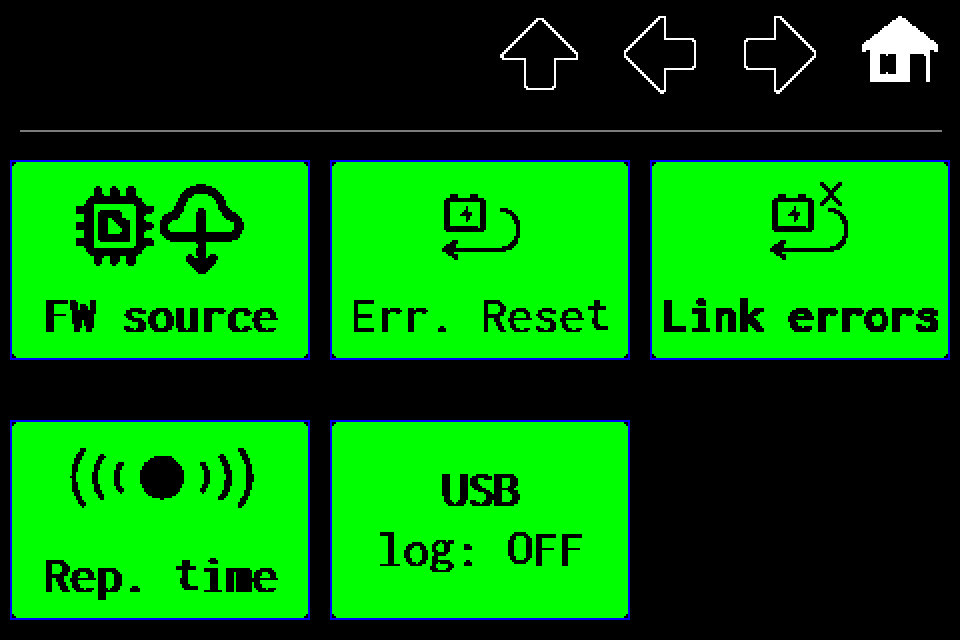 6Step 6 / 10
Fourth settings page
Tap the right arrow once more. The next page contains Backups.
-
EZF480 × 320 · Classic
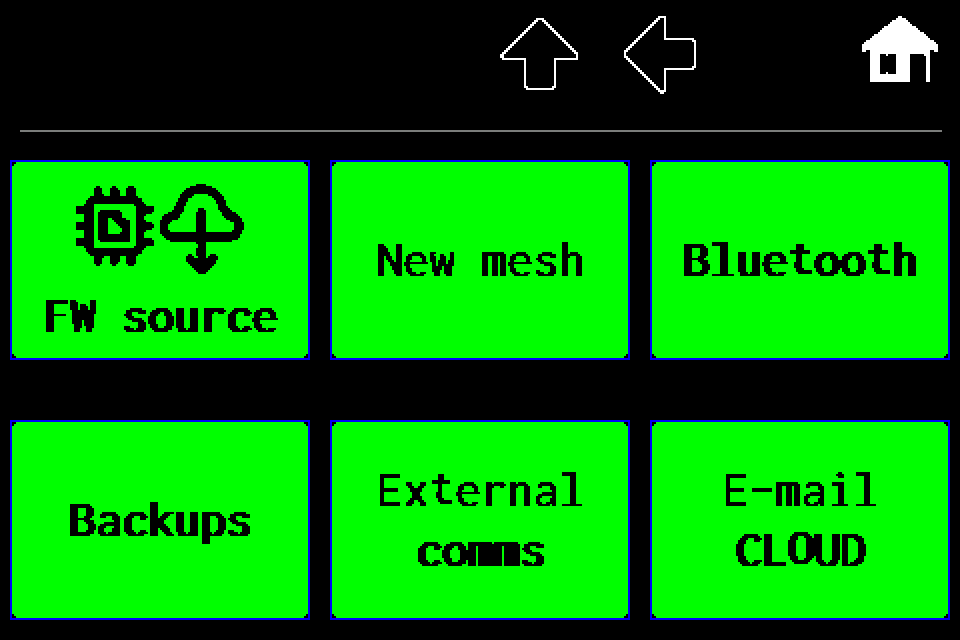 7Step 7 / 10
Choose “Backups”
Tap the yellow-outlined Backups tile. Central backup opens with separate Save and Restore controls.
-
EZF480 × 320 · Classic
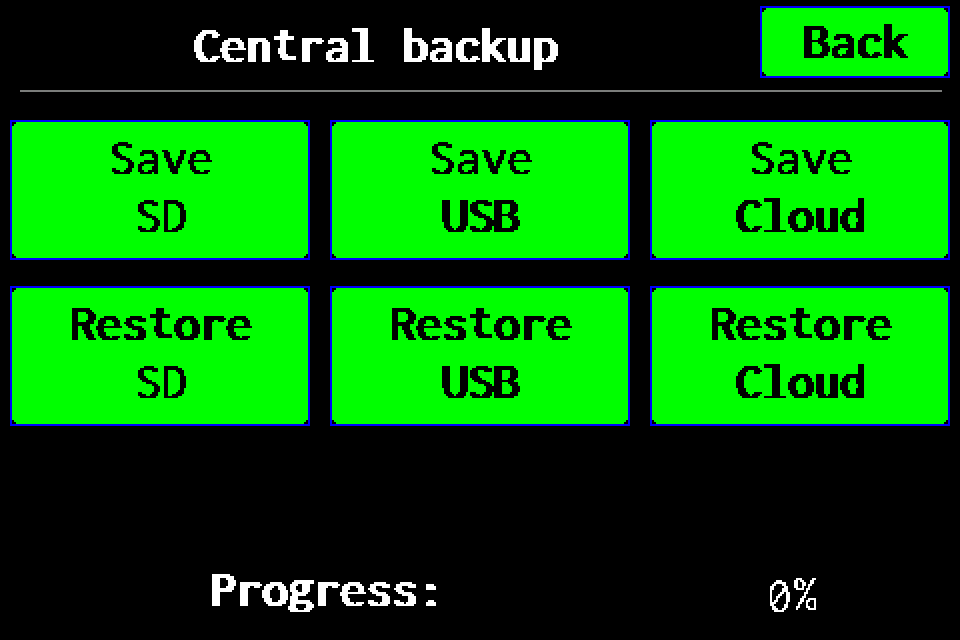 8Step 8 / 10
Start saving to Cloud
In the upper Save row, tap Cloud. The controller first creates and verifies the archive on SD, then uploads it to Cloud. Do not choose the lower Restore button. If an earlier upload is pending, use Retry upload or New backup as described below.
-
EZF480 × 320 · Classic
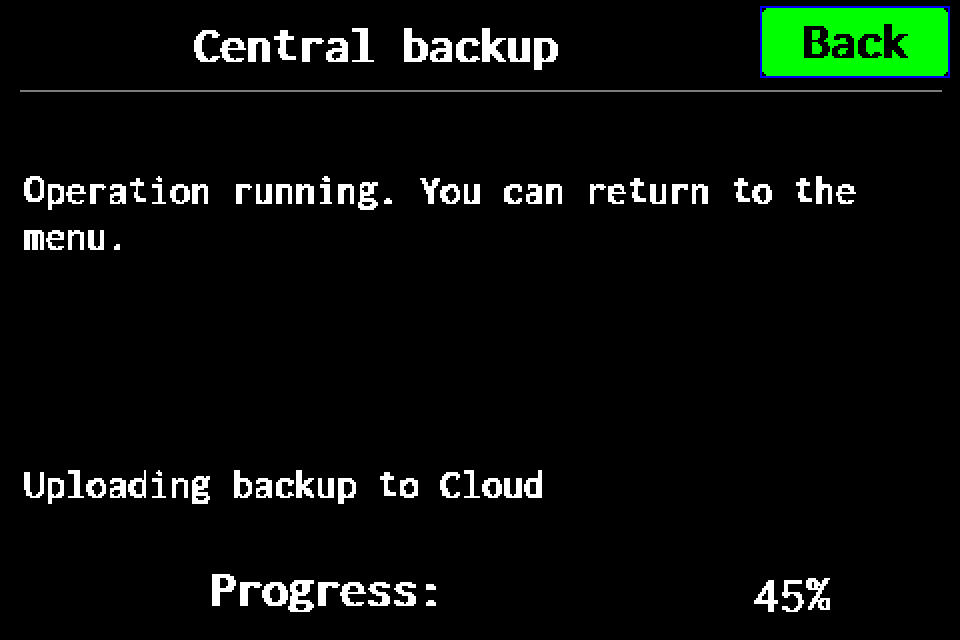 9Step 9 / 10
Wait for the operation to finish
The controller prepares the backup on SD, verifies it and uploads it to Cloud. Keep the SD card and Internet connection available. Saving the intermediate SD archive does not yet confirm a Cloud backup.
-
EZF480 × 320 · Classic
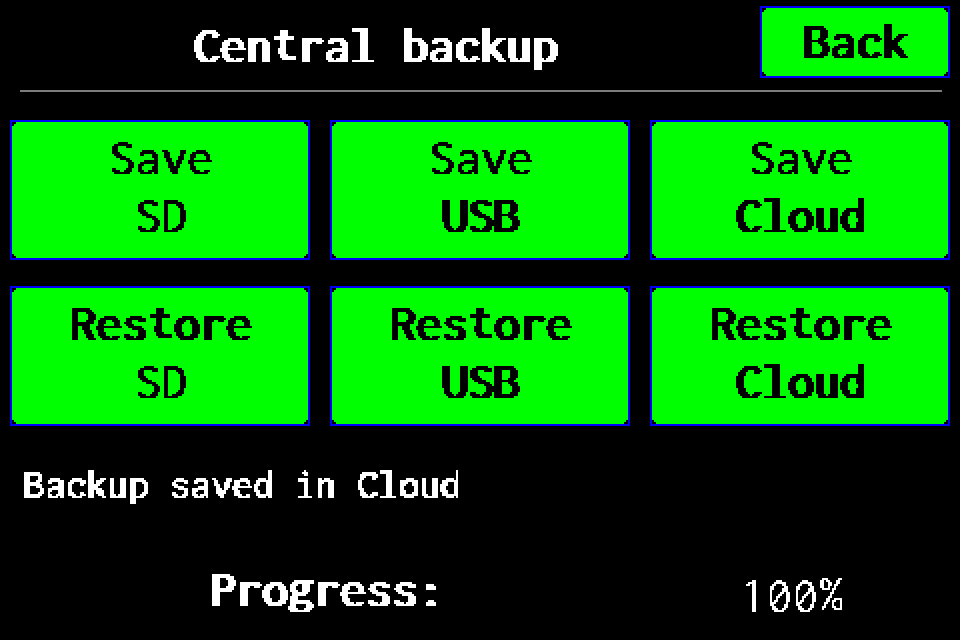 10Step 10 / 10
Check the final confirmation
Wait for the final 100% and “Backup saved in Cloud”. A message that the SD backup was saved and verified does not by itself confirm a Cloud upload. If an error occurs, do not treat the operation as complete; keep the local copy and retry the upload.
Wait for the final 100% and “Backup saved in Cloud”. A message that the SD backup was saved and verified does not by itself confirm a Cloud upload. If an error occurs, do not treat the operation as complete; keep the local copy and retry the upload.