
Export luminaires to USB
Export luminaires to USB
480 × 320 display screens in the selected language. The yellow outline marks where to tap. Illustrated data is for demonstration.
Connect a FAT32 or exFAT USB drive. An existing file with the same name may be replaced; keep a copy first.
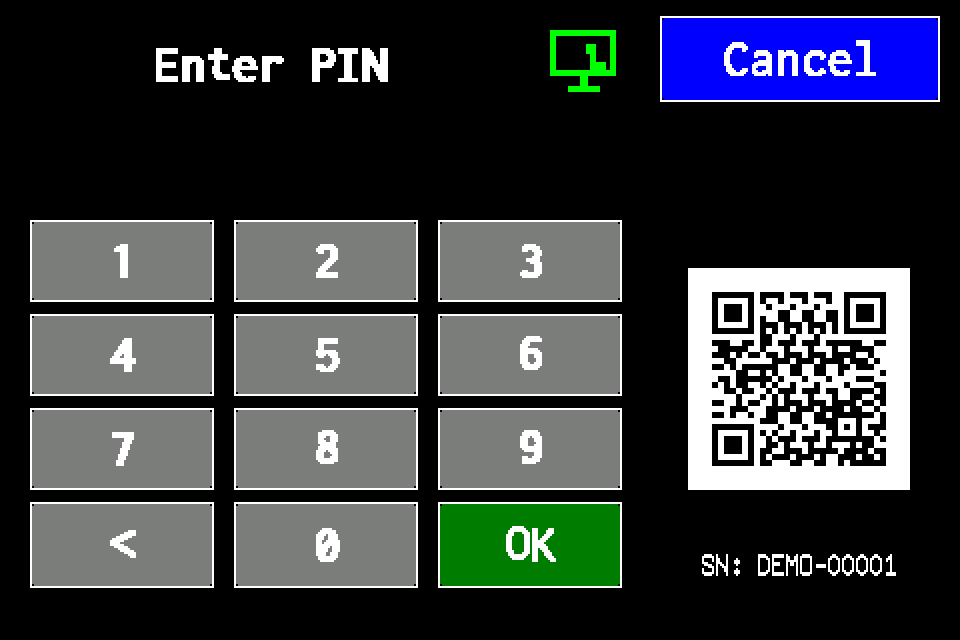
If the controller asks for a PIN
Enter your own PIN on the display keypad and confirm with OK. Use an account authorised for the operation. If already signed in, continue to the next menu screen. Controller access codes →
In METRO, the PIN window retains its original appearance. Controller access codes →
-
EZF480 × 320 · Classic
 1Step 1 / 6
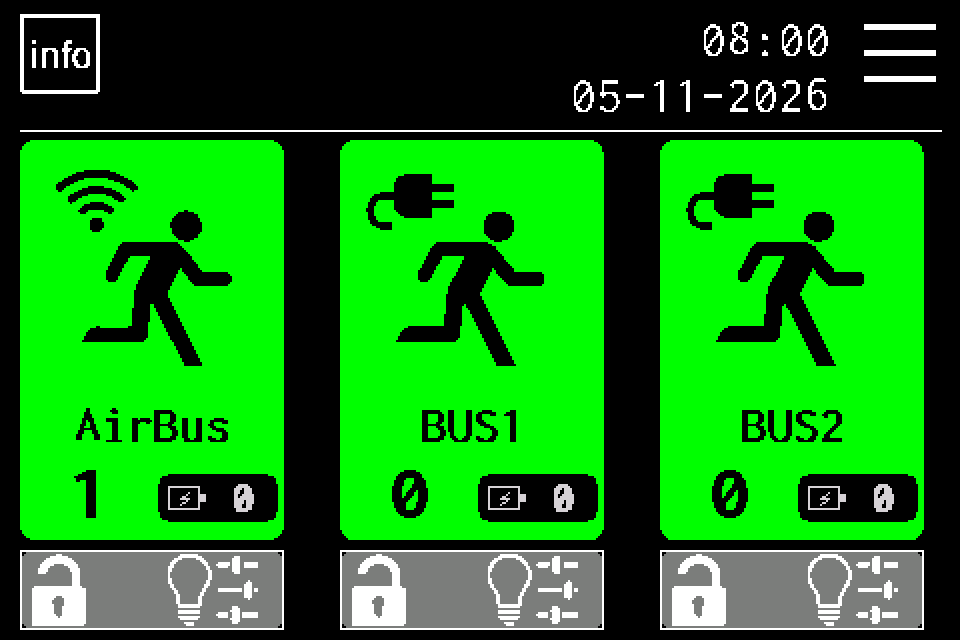
Press MENU
On the home screen, tap MENU in the upper right. If prompted for a PIN, sign in with an authorised account. Controller access codes →
-
EZF480 × 320 · Classic
 2Step 2 / 6
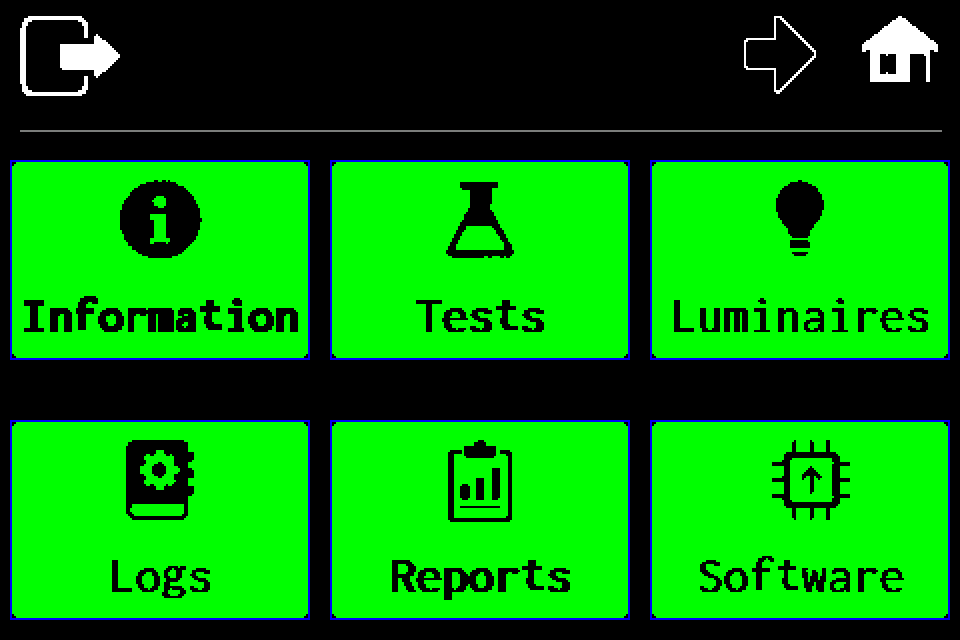
Open the second menu page
Tap the right arrow in the top bar. USB is on the second menu page.
-
EZF480 × 320 · Classic
 3Step 3 / 6
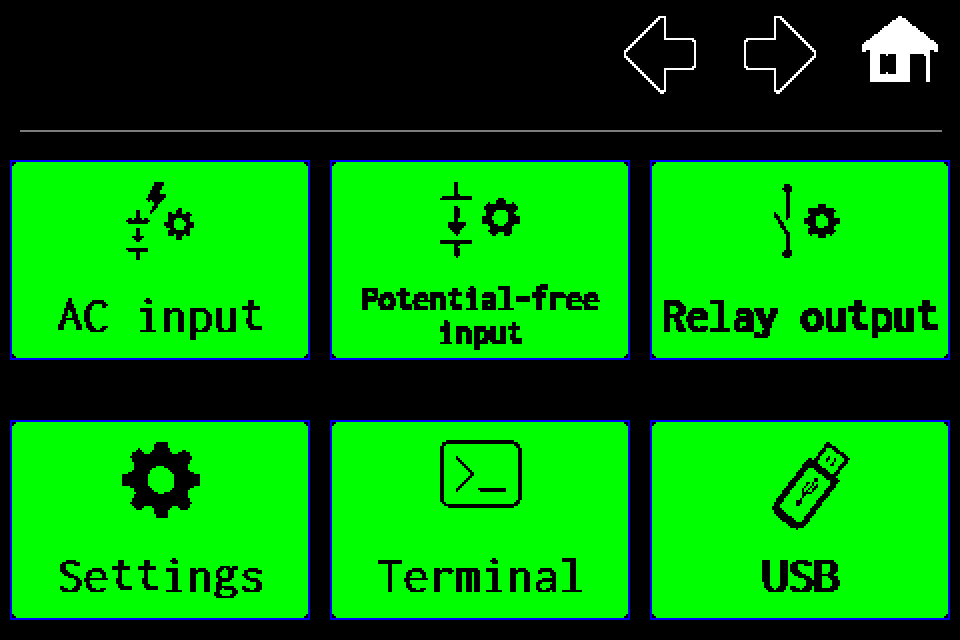
Open USB
Tap the USB tile in the lower right.
-
EZF480 × 320 · Classic
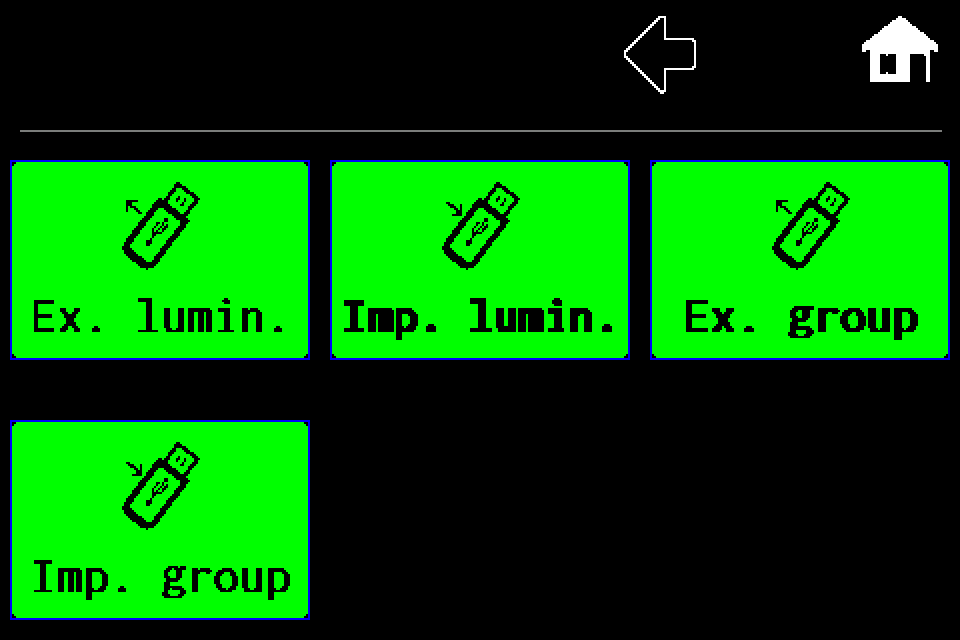 4Step 4 / 6
Tap “Ex. lumin.”
This exports the luminaire list. Do not choose “Ex. group”, which creates a separate test group assignment file.
-
EZF480 × 320 · Classic
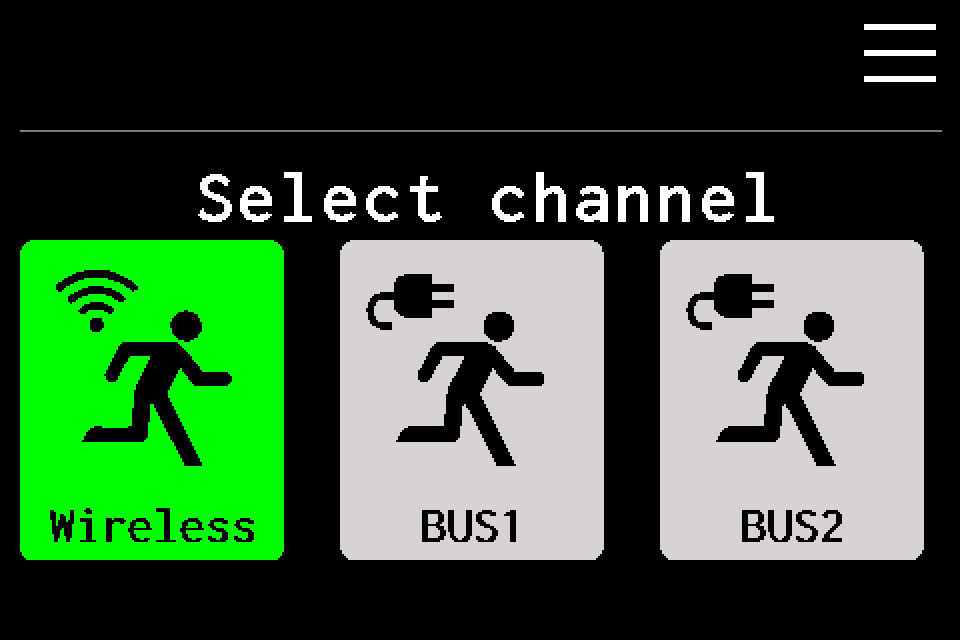 5Step 5 / 6
Choose the luminaire channel · Wireless / AirBUS
Wireless means AirBUS. Choose the channel matching the file and installation. The USB operation starts after selecting the channel.
-
EZF480 × 320 · Classic
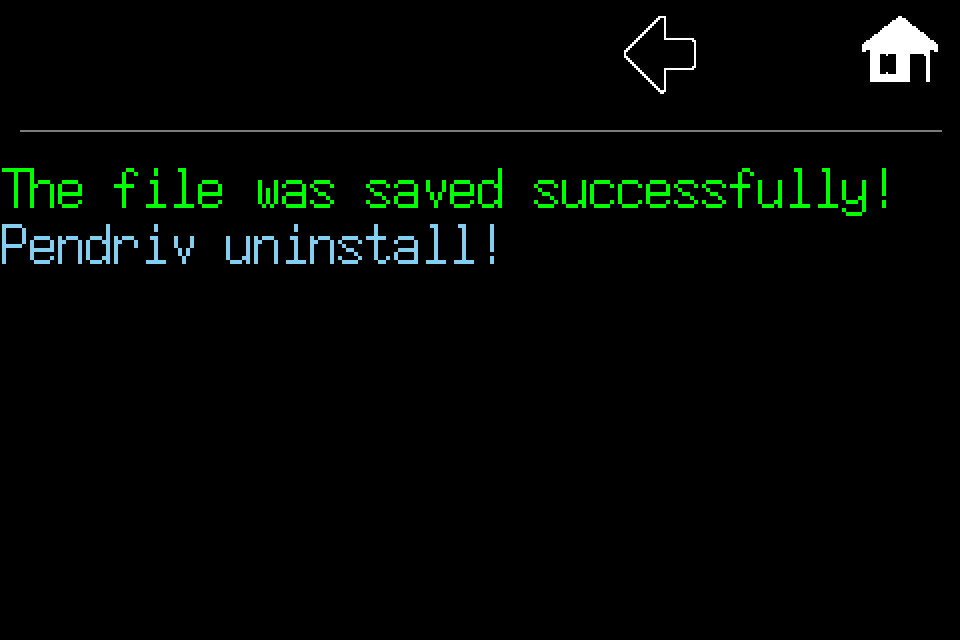 6Step 6 / 6
Check save confirmation
This message confirms saving has finished. If an error or USB prompt appears instead, check the drive and retry. Do not remove the drive while saving.
Wait for the successful-save message. AirBUS: lamps.csv; BUS1: lamps_BUS1.csv; BUS2: lamps_BUS2.csv. Disconnect only after completion, then check the file on a computer.