
Before you start
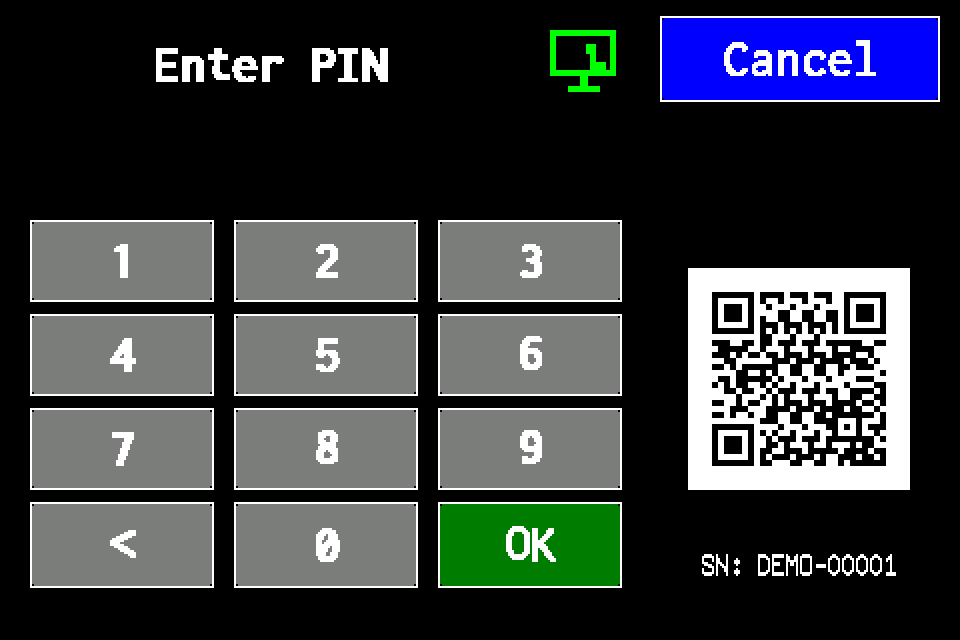
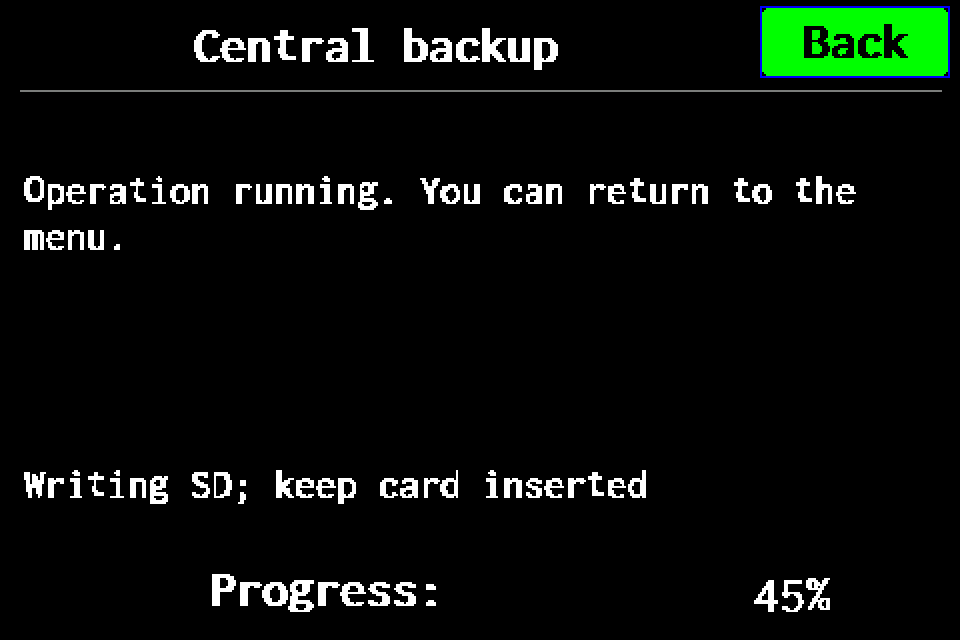
Have your own administrator PIN ready. Make sure the SD card is correctly installed, working and has free space. Keep power connected and do not remove the card during the operation. Controller access codes →
Display steps
Open the guide with display images and highlighted controls.
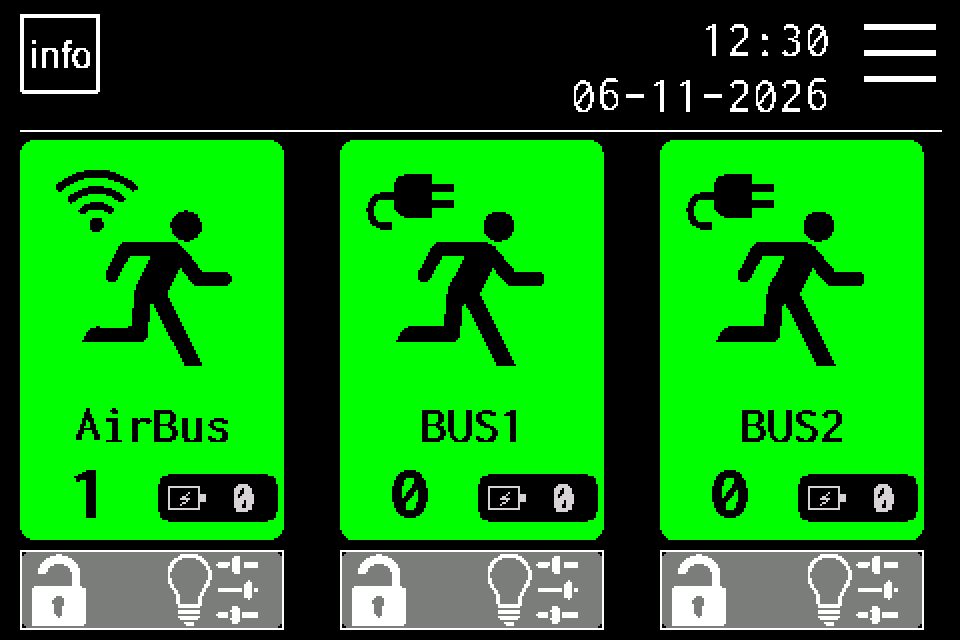
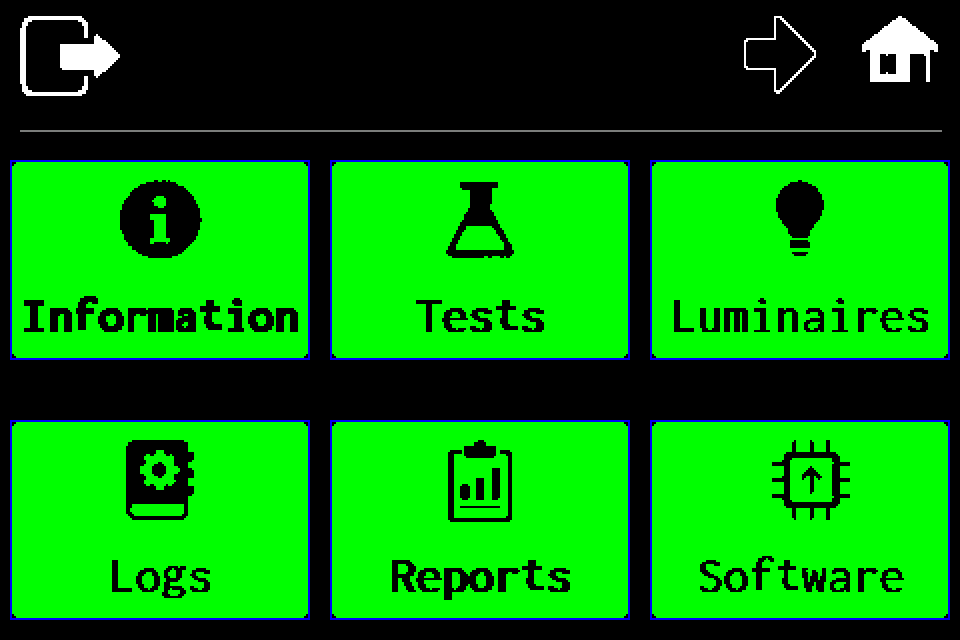
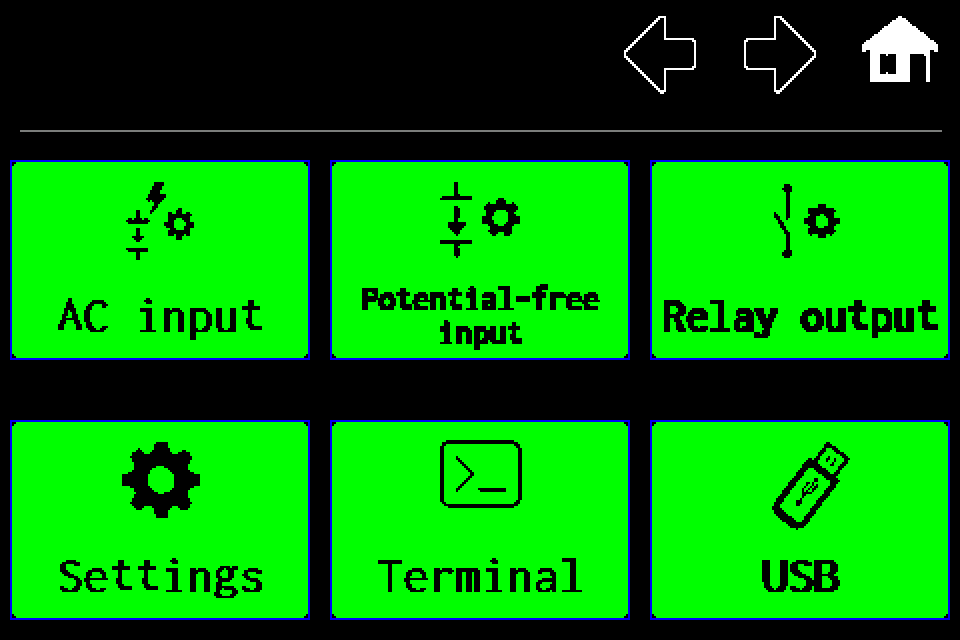
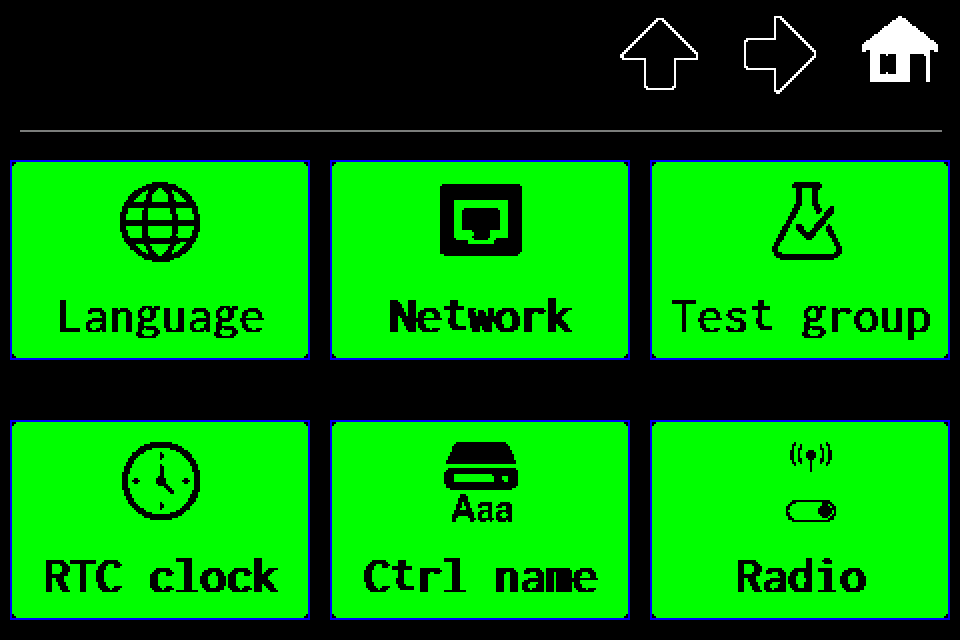
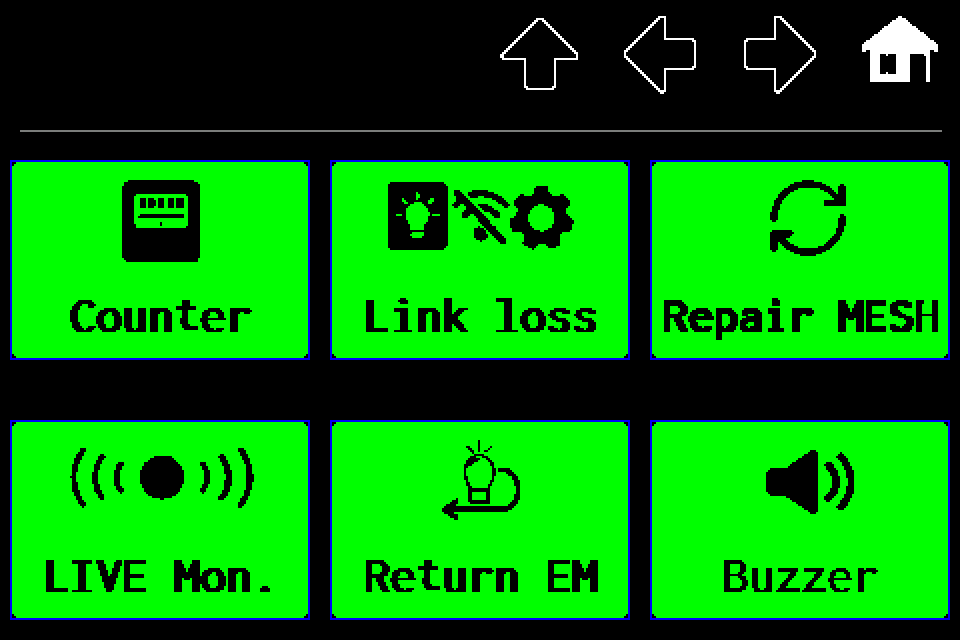
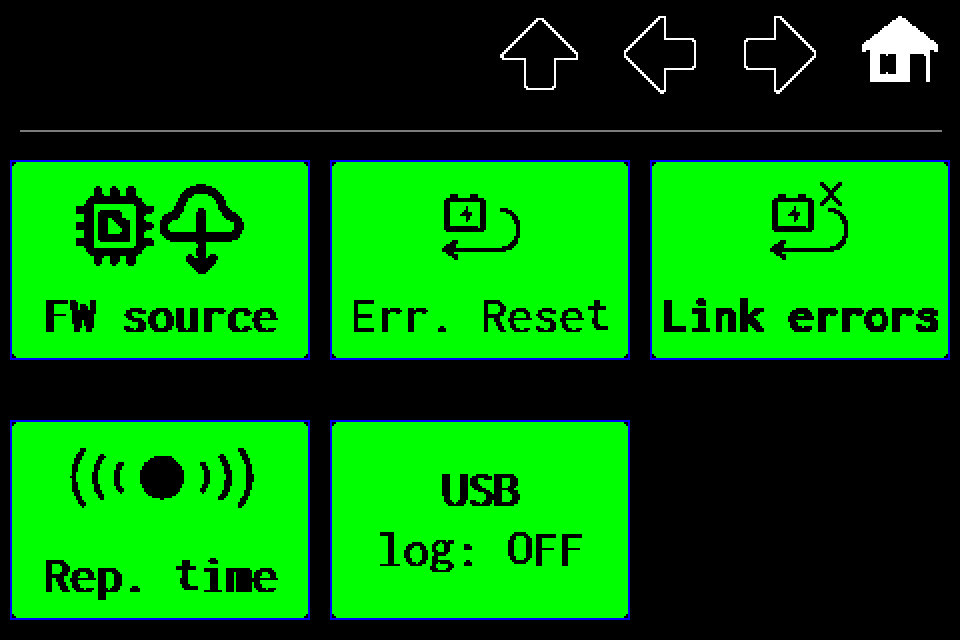
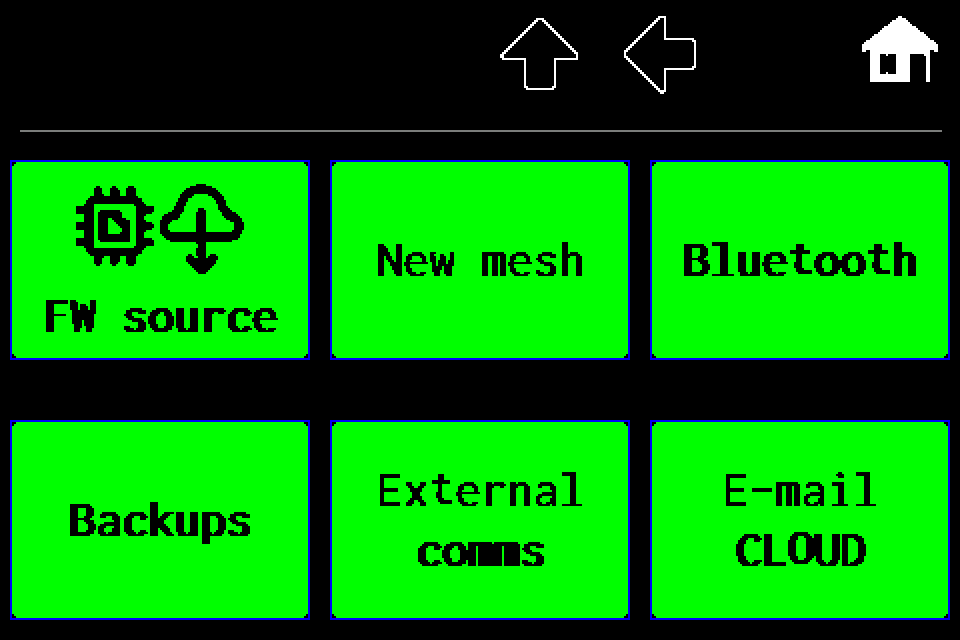
MENU → right arrow → Settings → right arrow three times → Backups.
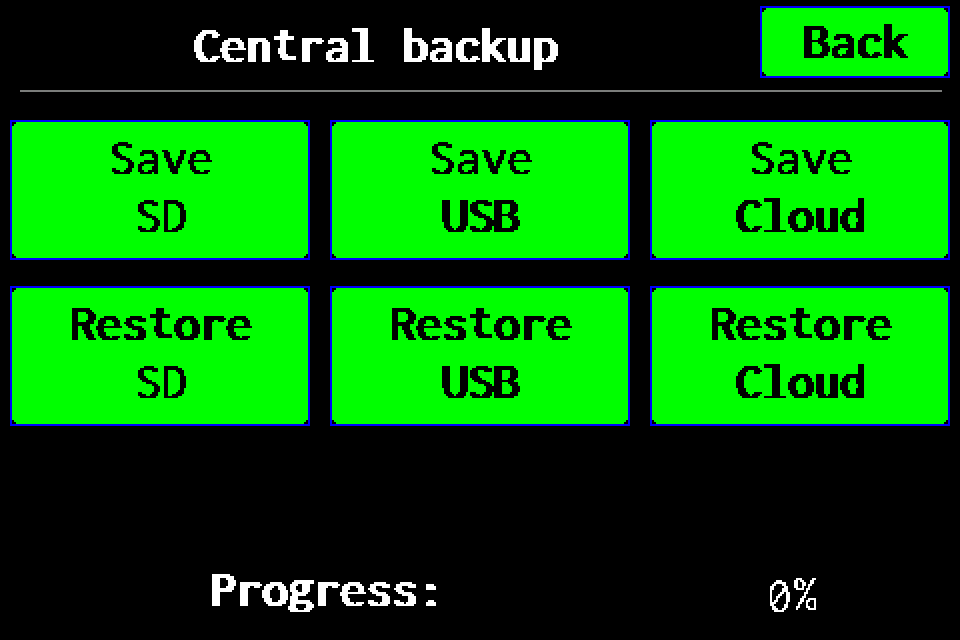
In the upper Save row, choose SD. The operation starts when tapped; no additional disk-icon step is needed. The lower Restore row is for restoring a backup.
What a full backup contains
A full backup contains the controller settings and stored data, plus supported configuration and plan files from the SD card. It is an archive for restoring the controller, rather than only a CSV export of the luminaire list. It is neither a firmware image nor a sector-by-sector copy of the entire SD card.
Finish and verify
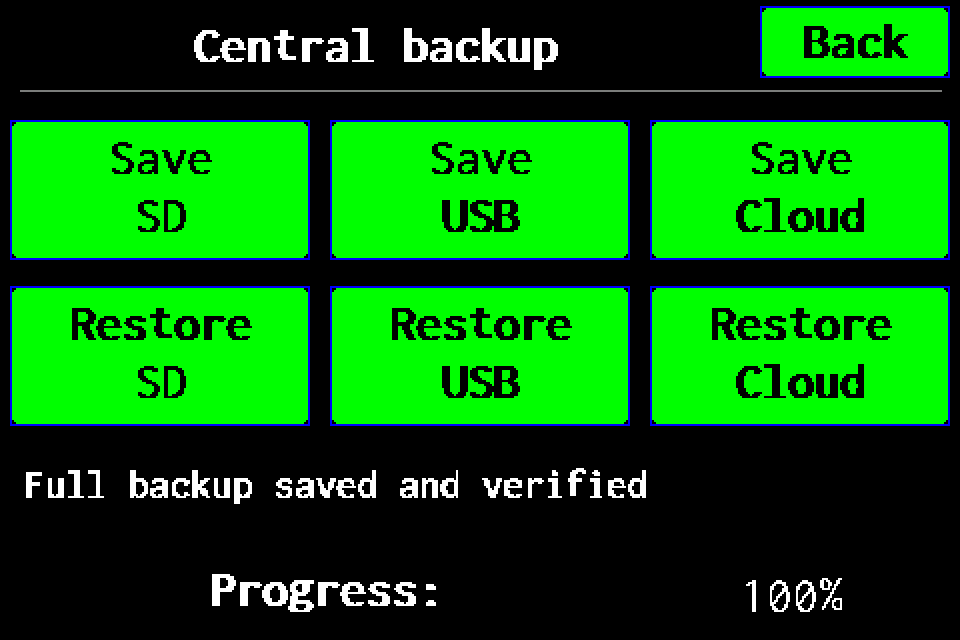
Wait for 100% and “Full backup saved and verified”. The .ezb archive with the serial number and date is in /backups on the SD card. Starting the operation or seeing progress alone does not confirm a successful backup.
Keep the actual .ezb file. A file ending in _latest.txt points to the latest backup and does not replace the archive. The archive filename uses UTC; the on-screen backup list shows local time.
If the operation fails
If an error occurs, check SD card availability and free space. Do not remove the card during the operation. Keep the earlier checked backup, resolve the cause and retry. A partial file or a stopped progress bar is not a confirmed backup.