MENU → second page → Settings → Language. PL, DE and EN flags, saving on exit and a display image for each step.
1 min readUpdated: 2026-11-06
CONTROLLER SETTINGS · STEP BY STEP
Controller: language settings
480 × 320 display screens in the selected language. The yellow outline marks where to tap. Illustrated data is for demonstration.
Display interface
Before you start
Have your own service or administrator PIN ready. Polish, German and English are available. The screens and instructions follow the selected wiki language. Controller access codes →
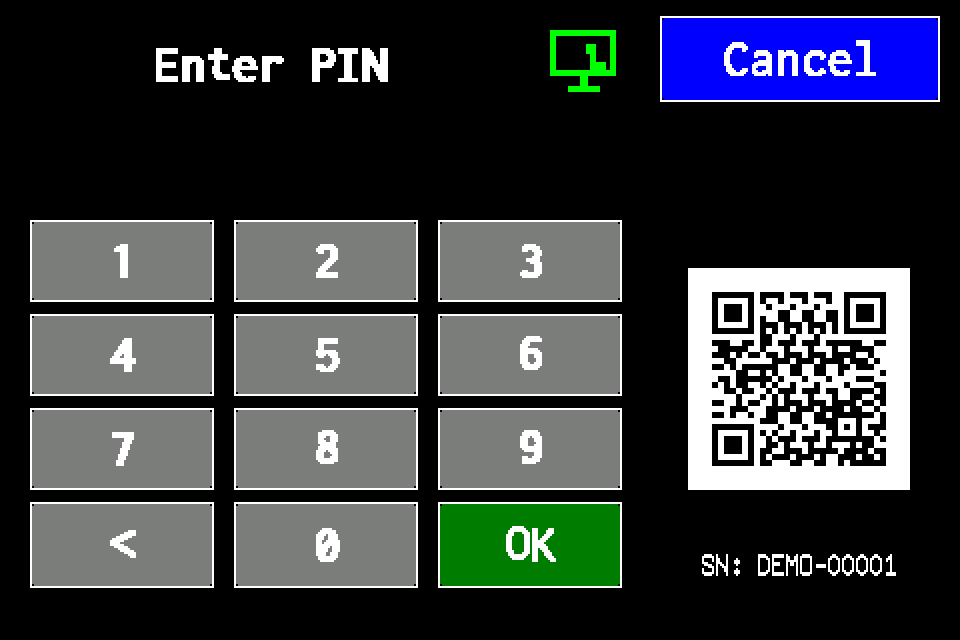
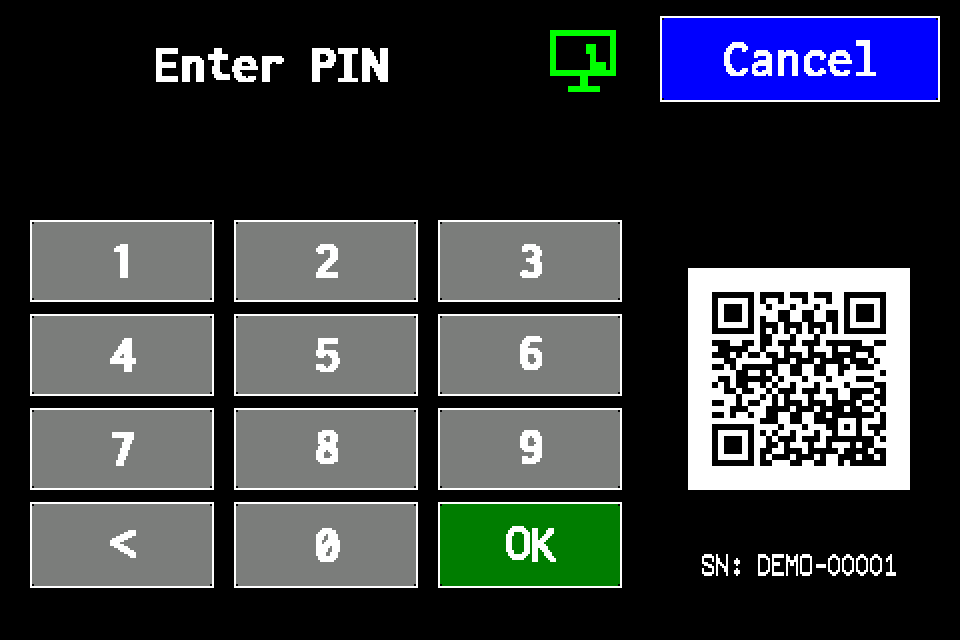
If the controller asks for a PIN
Enter your PIN on the display and confirm with OK. Use an account authorised for controller settings. If already signed in, continue to the next menu screen. Controller access codes →
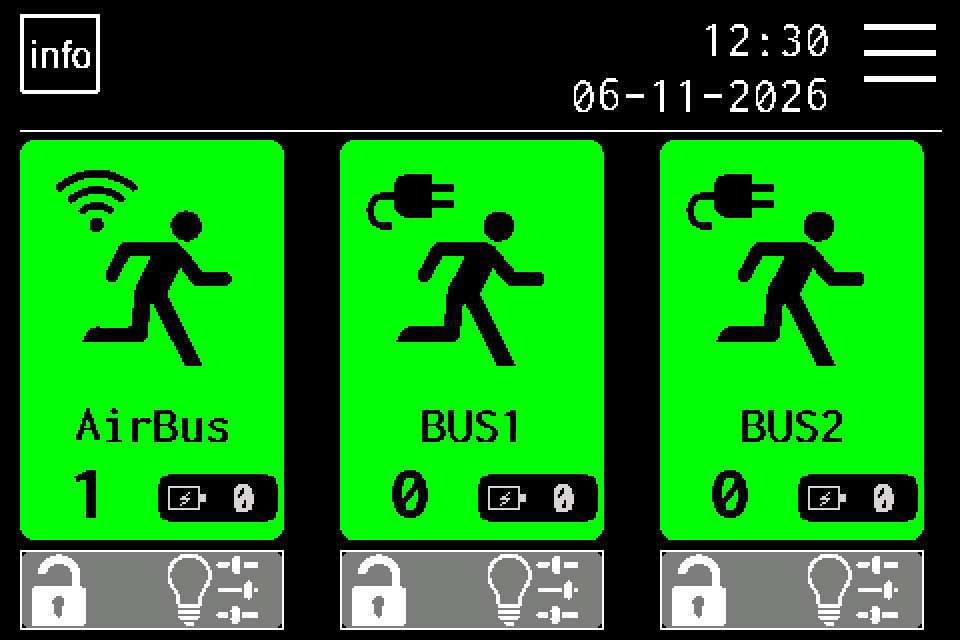
On the home screen, tap MENU in the upper right. If prompted, enter your own PIN and confirm with OK. Controller access codes →
EZF480 × 320 · Classic
2Step 2 / 7
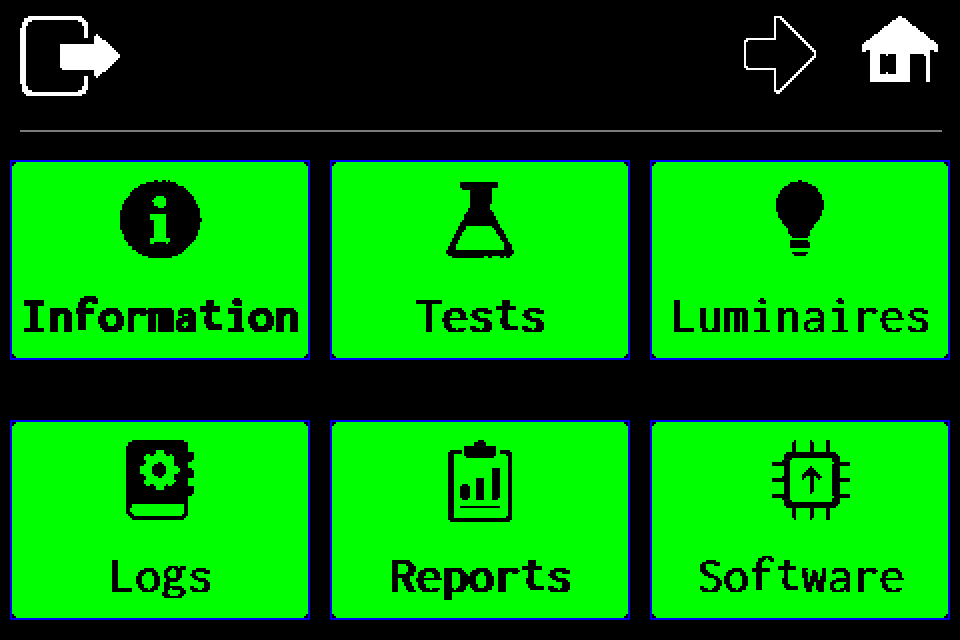
Open the second menu page
Tap the right arrow in the top bar.
EZF480 × 320 · Classic
3Step 3 / 7
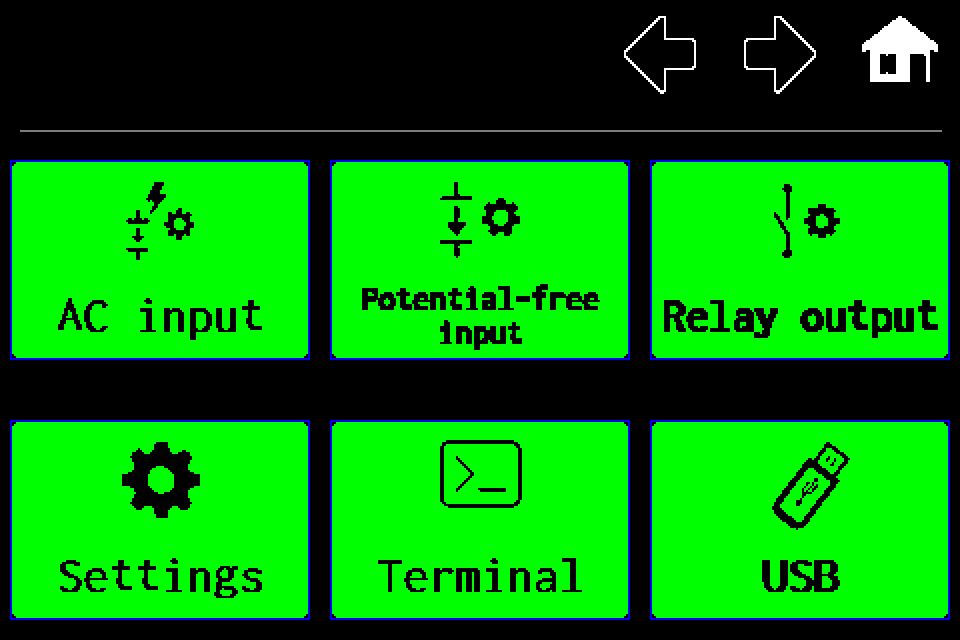
Choose “Settings”
On the second menu page, tap Settings in the lower left.
EZF480 × 320 · Classic
4Step 4 / 7
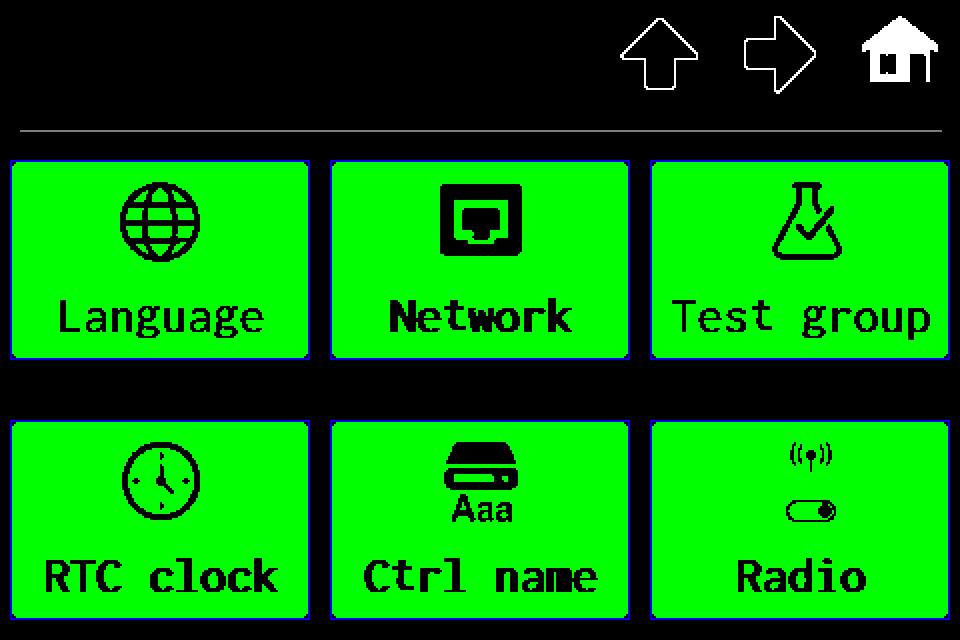
Open “Language”
On the first settings page, tap Language in the upper left.
EZF480 × 320 · Classic
5Step 5 / 7
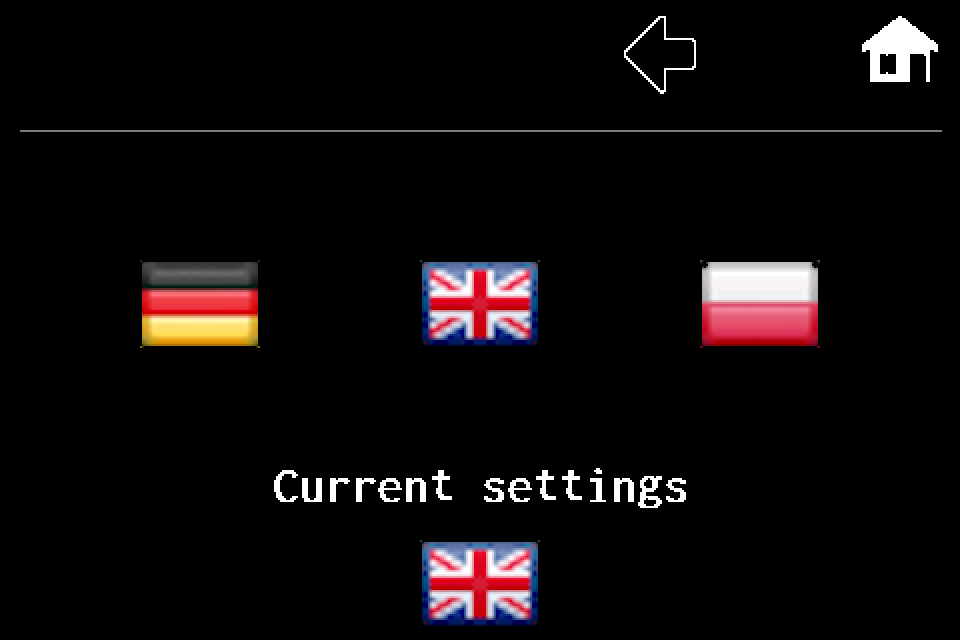
Choose a language flag
In the upper row, tap the German (DE), British (EN) or Polish (PL) flag. The lower flag shows the current choice. The illustration uses this guide’s language; before the change, the controller displays its existing language.
EZF480 × 320 · Classic
6Step 6 / 7
Save the choice with the left arrow
Tap the left arrow. Leaving this screen saves the language and opens settings. The home icon also saves the choice. There is no additional confirmation dialog.
EZF480 × 320 · Classic
7Step 7 / 7
Check the menu language
After returning, check the tile captions: Jezyk, Sprache or Language. The change takes effect without restarting the controller.
Finish and verify
The selected language is saved when you leave the flag screen. Check the menu; to choose another language, open the same tile again.
Tap the right arrow, then choose Settings on the second page.
Open the Language tile in the upper left.
In the upper row, tap the German, British or Polish flag. The lower flag shows the current choice.
Leave using the left arrow or home icon — this saves the selection.
Check the menu captions in the new language.
Saving and available languages
The display supports Polish, German and English. No restart or additional confirmation is required. The illustrations follow the wiki language; the real controller shows its existing language before you select a new one.