EZF Wiki/Data and USB
Article · EN

Export the event log

Archive logs.csv and service journal entries.

ON THE DISPLAY · STEP BY STEP

Export the event log

480 × 320 display screens in the selected language. The yellow outline marks where to tap. Illustrated data is for demonstration.

Display interface
Before you start

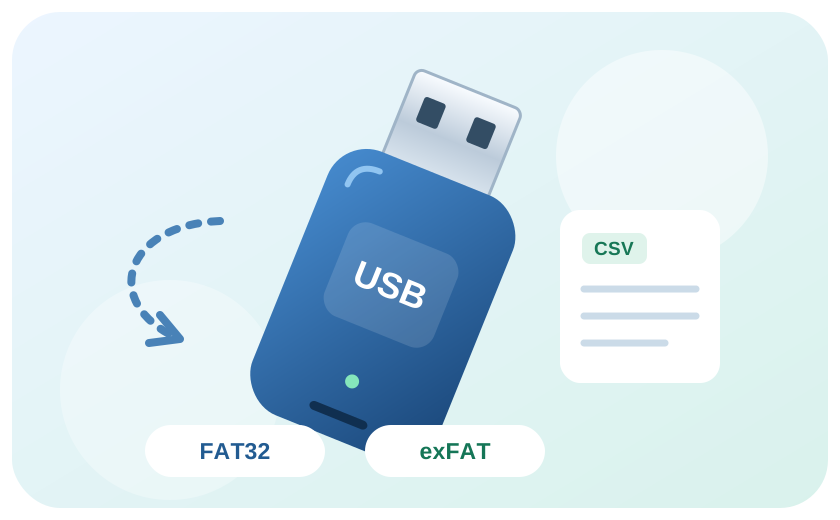
Connect a FAT32 or exFAT USB drive. Export may replace an existing logs.csv.

  1. EZF480 × 320 · Classic
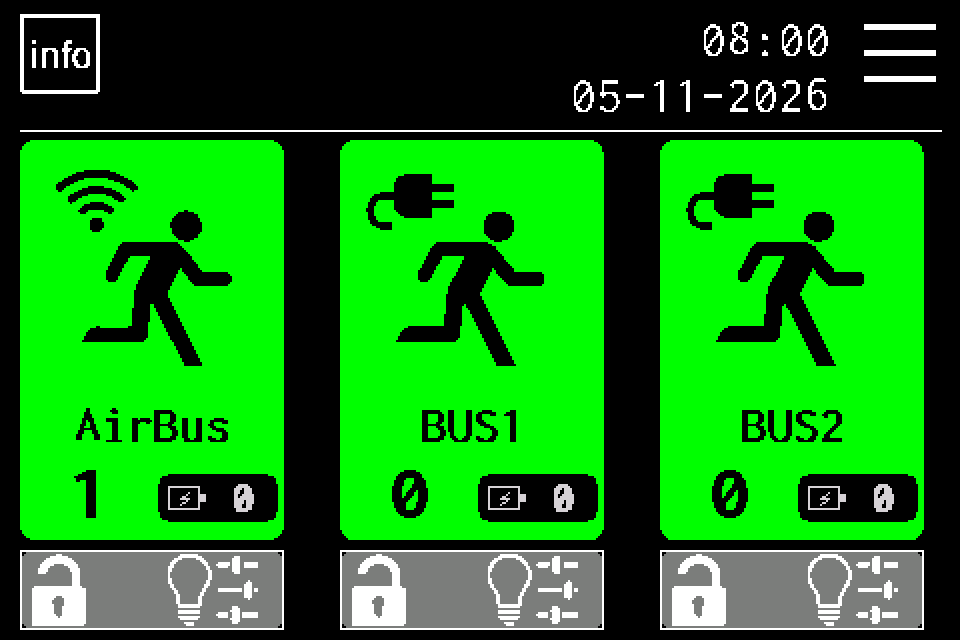
    Step 1: Press MENU
    1Step 1 / 5

    Press MENU

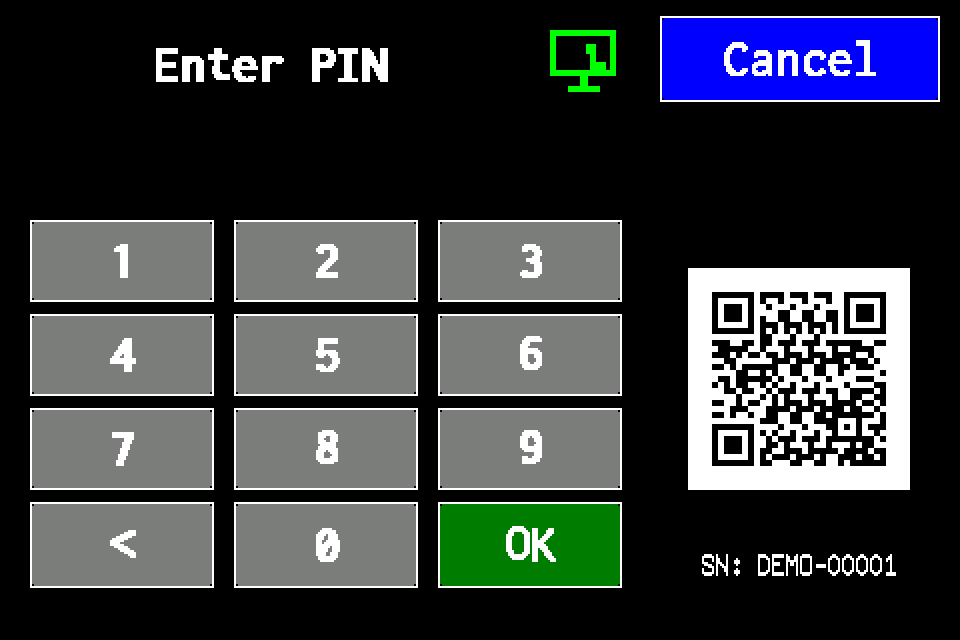
    On the home screen, tap MENU in the upper right. If prompted for a PIN, sign in with an authorised account. Controller access codes →

  2. EZF480 × 320 · Classic
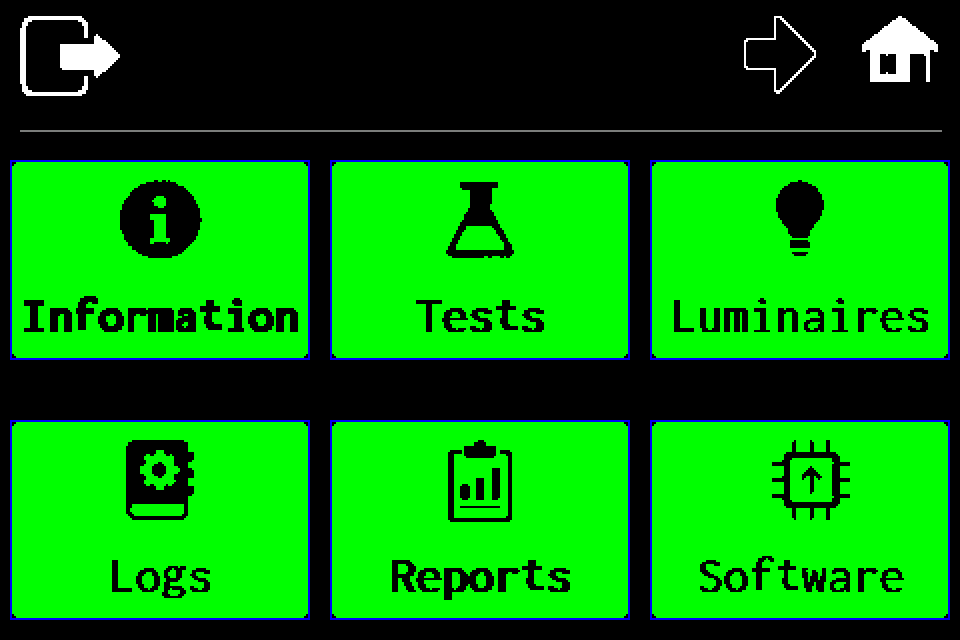
    Step 2: Open “Logs”
    2Step 2 / 5

    Open “Logs”

    On the first menu page, tap the Logs tile in the lower left.

  3. EZF480 × 320 · Classic
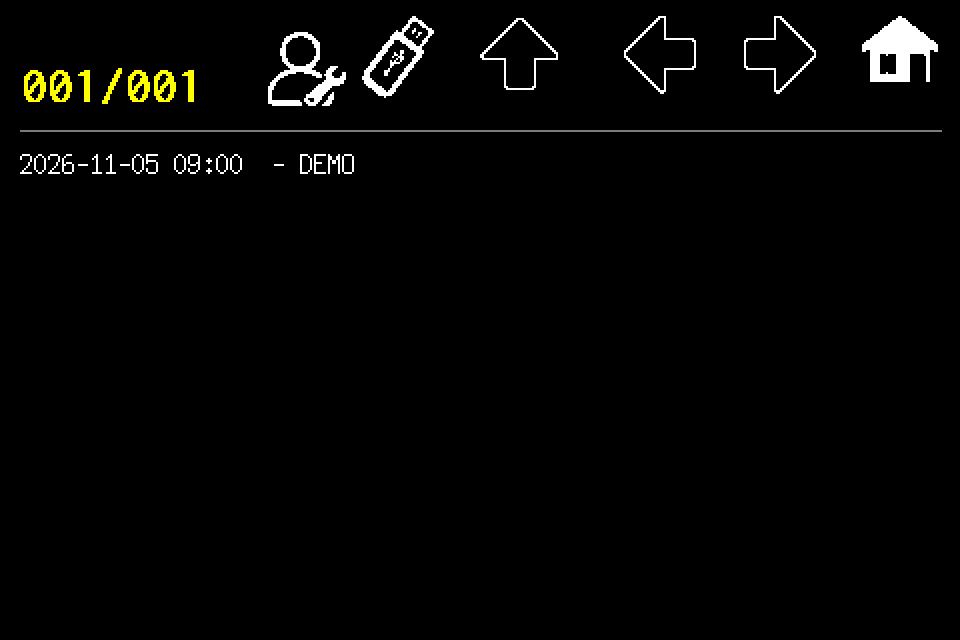
    Step 3: Tap the USB icon
    3Step 3 / 5

    Tap the USB icon

    In the event log, tap USB in the top bar.

  4. EZF480 × 320 · Classic
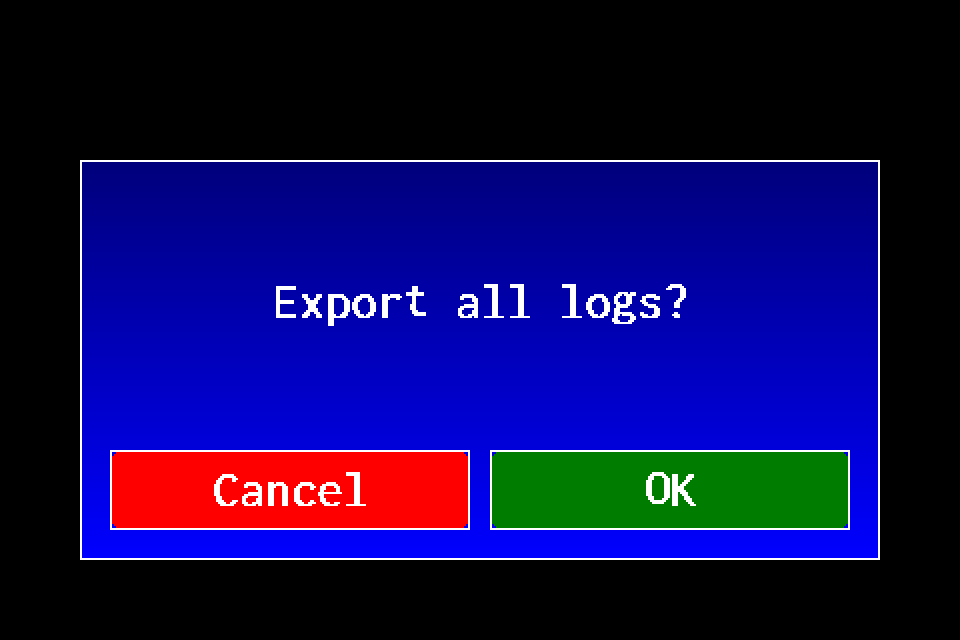
    Step 4: Confirm log export: OK
    4Step 4 / 5

    Confirm log export: OK

    Confirm exporting all logs using OK on the right.

  5. EZF480 × 320 · Classic
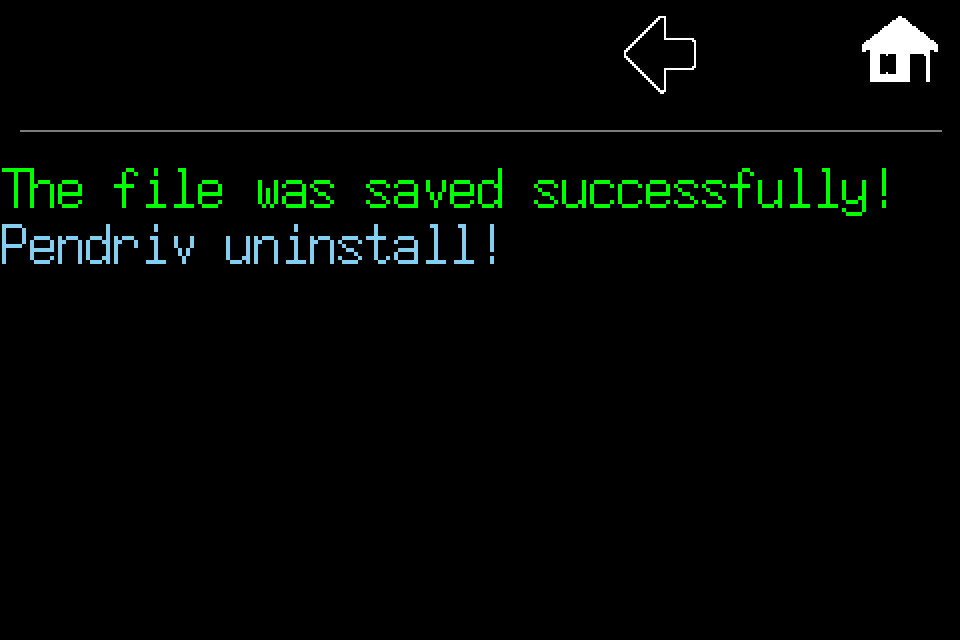
    Step 5: Check save confirmation
    5Step 5 / 5

    Check save confirmation

    This message confirms saving has finished. If an error or USB prompt appears instead, check the drive and retry. Do not remove the drive while saving.

Finish and verify

After save confirmation, copy logs.csv to a computer. Do not disconnect the drive during the operation.

Other USB walkthroughsExport luminaires to USB →Import luminaires from USB →Export test group assignments →Export a selected test report →

Screen by screen: export logs

Open the guide with screens and highlighted buttons.

  1. Connect a compatible USB drive. The controller log must already contain saved events.
  2. Press Menu on the home screen and enter your own PIN if requested. Controller access codes →
  3. On menu page 1, select Logs, the bottom-left tile.
  4. On the log screen, press the USB icon in the top toolbar.
  5. Confirm Export all logs? with OK. Cancel closes the dialog without starting the export.
  6. Wait for The file was saved successfully! and for USB processing to finish. Then check logs.csv on a computer.

Save to USB

Connect a compatible drive, start event/log export and wait for completion. logs.csv is saved in the USB root directory.

The export contains selected system events and service journal entries. Events include time, channel, index and description. Do not treat it as a complete dump of all internal controller data.

On a computer, associate the file with the site and export date. A subsequent logs.csv export may replace the previous file. Do not use luminaire import to load it: it is neither a configuration file nor an individual test report.

EZF Wiki · Wiedza pod ręką.