Export gruppetest.csv and check other settings separately.
2 min readUpdated: 2026-11-06
ON THE DISPLAY · STEP BY STEP
Export test group assignments
480 × 320 display screens in the selected language. The yellow outline marks where to tap. Illustrated data is for demonstration.
Display interface
Before you start
Connect a compatible USB drive. gruppetest.csv contains luminaire assignments, not a full schedule of test dates and times.
If the controller asks for a PIN
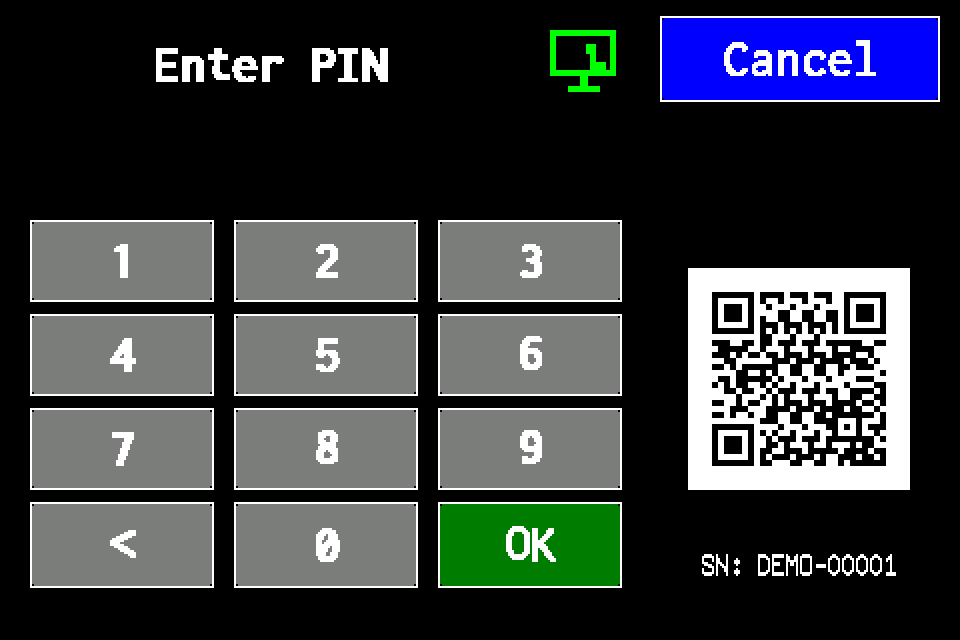
Enter your own PIN on the display keypad and confirm with OK. Use an account authorised for the operation. If already signed in, continue to the next menu screen. Controller access codes →
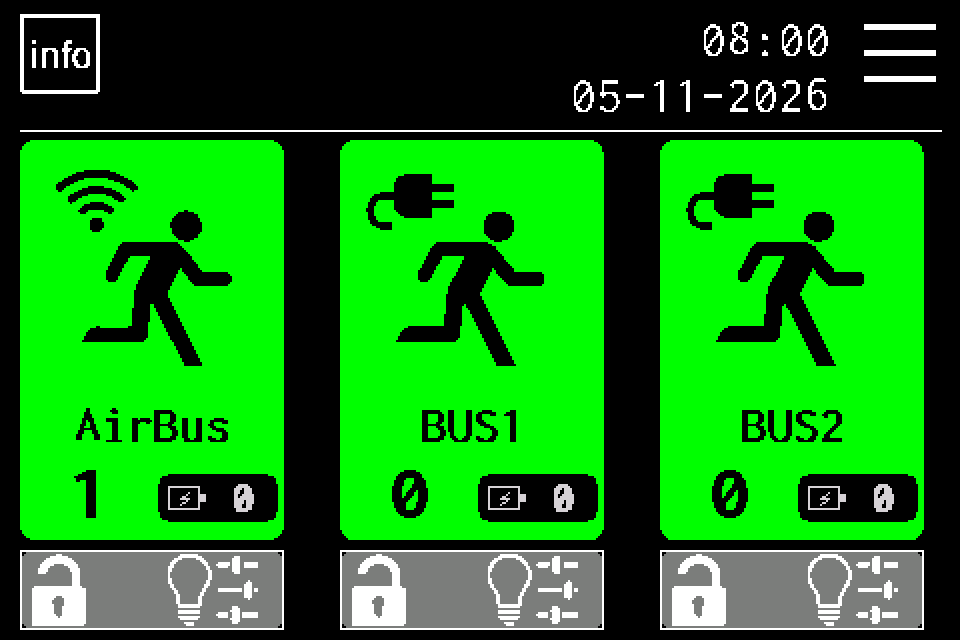
On the home screen, tap MENU in the upper right. If prompted for a PIN, sign in with an authorised account. Controller access codes →
EZF480 × 320 · Classic
2Step 2 / 5
Open the second menu page
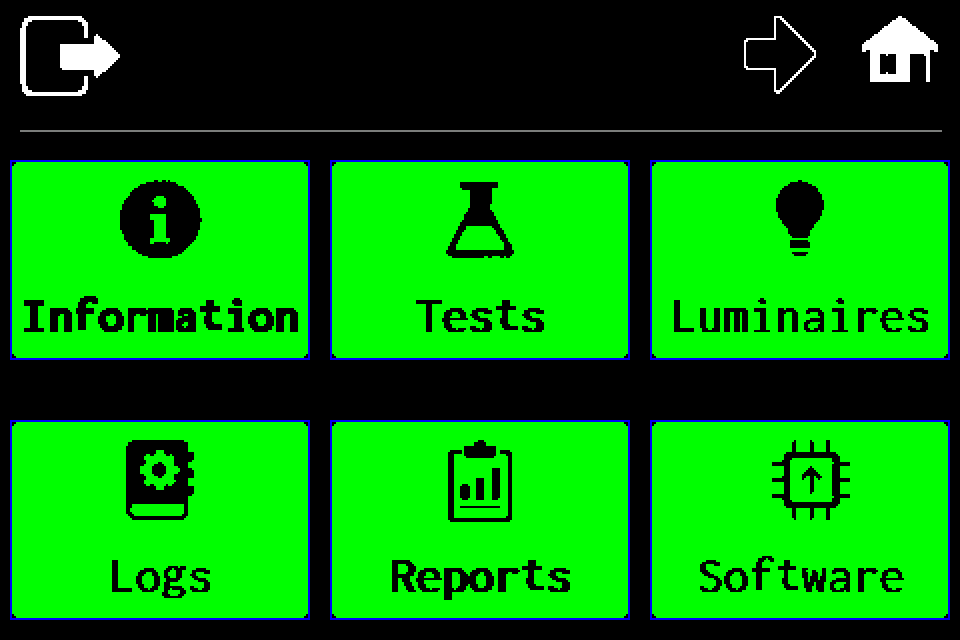
Tap the right arrow in the top bar. USB is on the second menu page.
EZF480 × 320 · Classic
3Step 3 / 5
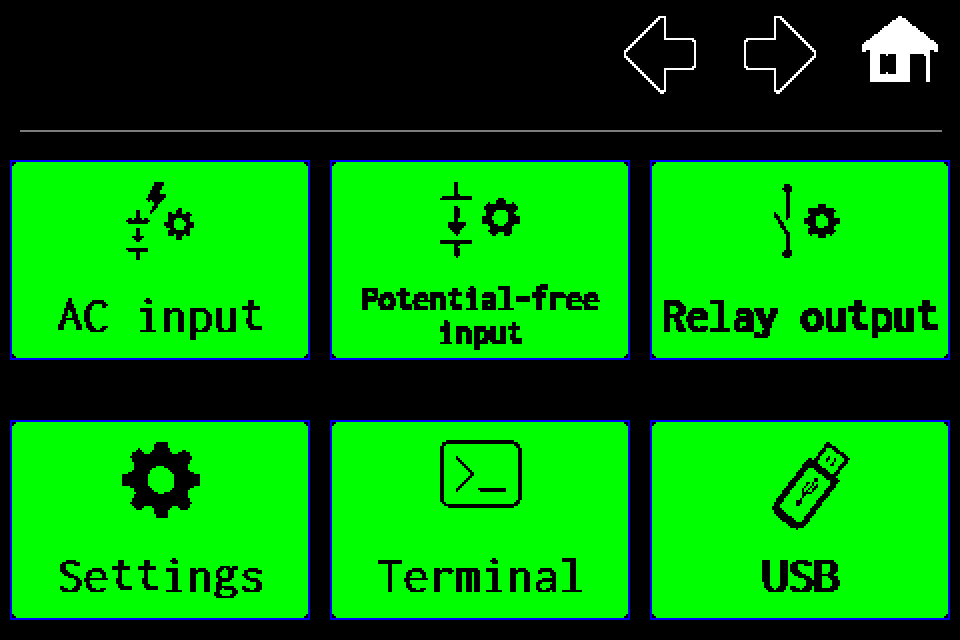
Open USB
Tap the USB tile in the lower right.
EZF480 × 320 · Classic
4Step 4 / 5
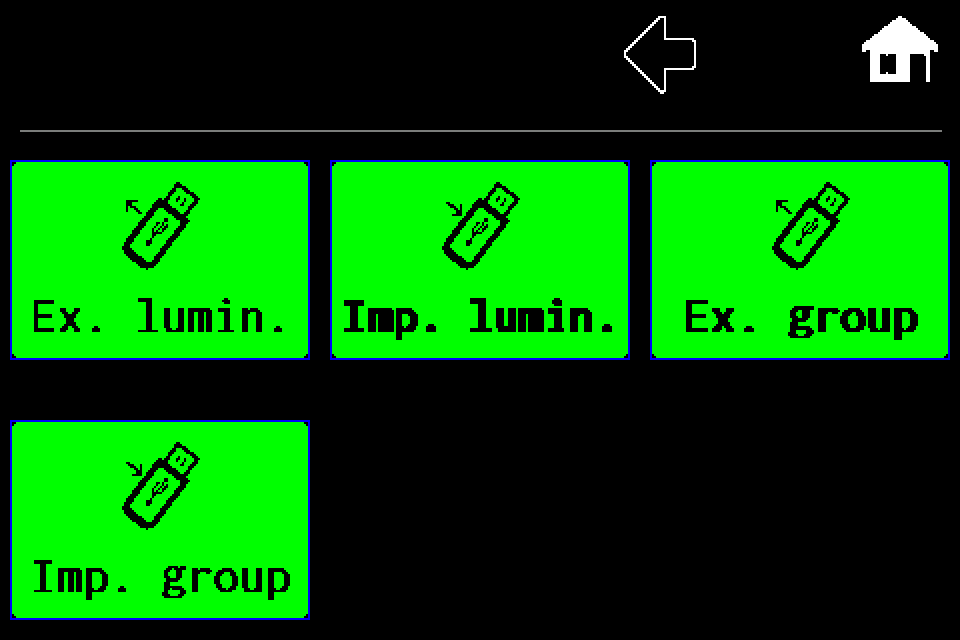
Tap “Ex. group”
Export to gruppetest.csv starts. The visible “Imp. group” tile below does not start an import in the current version.
EZF480 × 320 · Classic
5Step 5 / 5
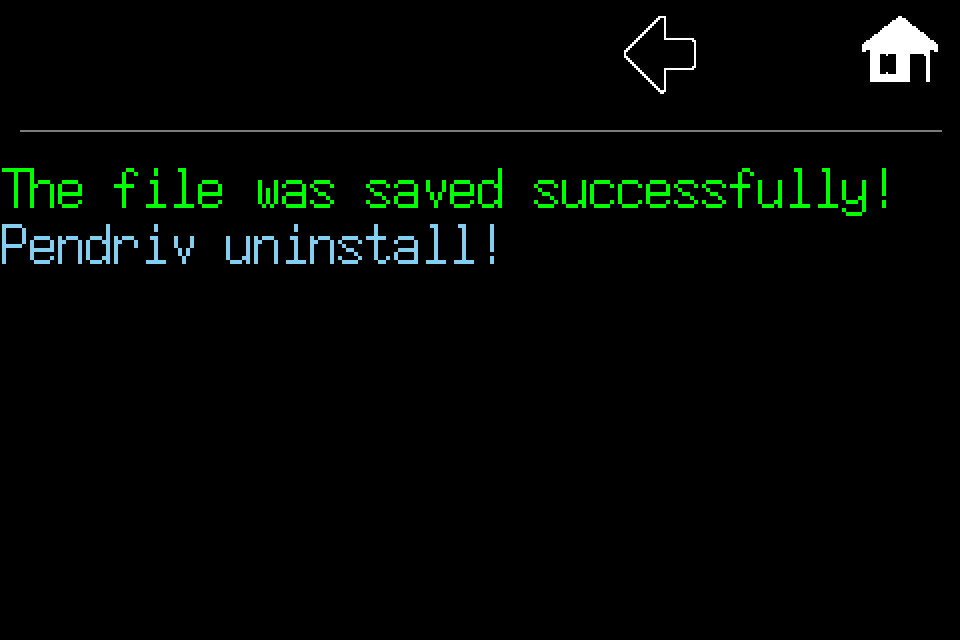
Check save confirmation
This message confirms saving has finished. If an error or USB prompt appears instead, check the drive and retry. Do not remove the drive while saving.
Finish and verify
Wait for save confirmation and keep gruppetest.csv on a computer. Check dates, intervals and test durations separately. Group import through this tile is currently unavailable.
Press Menu at the top right of the home screen. Enter your own PIN if required. Controller access codes →
Press the right arrow in the top toolbar to open menu page 2.
Select USB, the bottom-right tile.
In the USB menu, select Ex. group, the top-right tile. Export starts without channel selection.
Wait for The file was saved successfully! and for USB processing to finish. Only then remove the drive.
Check and keep gruppetest.csv on a computer. Another export with the same name may replace it.
File contents
gruppetest.csv is saved in the USB root directory and contains assignments: HEX address;group A–D;name.
01A2;A;Corridor 01
01A3;B;Exit 01
Group import on the display
The Imp. group tile may be visible in the USB menu, but it does not start an import in the described version. Pressing it does not apply a configuration. To transfer groups together with luminaires, use luminaire CSV import: its five-column file also includes the group. For BUS1/BUS2, check the allowed groups A/B. For AirBUS, observe the documented limitation after reading: reading the file alone does not apply changes.
Check schedules separately
gruppetest.csv is not a full test schedule export. Its three fields do not include dates, times, intervals or test duration. Check these separately in the destination controller's test groups. Do not add schedule columns.
The luminaire generator and validator handle five-column lamps*.csv, not three-column gruppetest.csv. Do not import the group file as a luminaire list. Groups A–D are different from channels BUS1/BUS2.